AWS Fargate Integration (for ECS clusters)
Elastic Cloud Serverless projects are autoscaled environments, fully managed by Elastic and available on Elastic Cloud. Availability This functionality is generally available and ready for production usage. Elastic Cloud Serverless projects are autoscaled environments, fully managed by Elastic and available on Elastic Cloud. Availability This functionality is generally available and ready for production usage. The Elastic Stack includes Elastic's core products such as Elasticsearch, Kibana, Logstash, and Beats. Availability This functionality is generally available and ready for production usage. Unless stated otherwise on the page, this functionality is available when your Elastic Stack is deployed on Elastic Cloud Hosted, Elastic Cloud Enterprise, Elastic Cloud on Kubernetes, and self-managed environments. This documentation corresponds to the latest patch available for each minor version. If you're not using the latest patch, check the release notes for changes.
Serverless Observability
Generally available
Serverless Security
Generally available
Stack
9.0+
Generally available since 9.0
| Version | 1.3.0 (View all) |
| Subscription level What's this? |
Basic |
| Developed by What's this? |
Elastic |
| Ingestion method(s) | API |
| Minimum Kibana version(s) | 9.0.0 8.13.0 |
The AWS Fargate integration helps to retrieve metadata, network metrics, and Docker stats about your containers and the tasks that are part of an Amazon Elastic Container Service (Amazon ECS) cluster.
The AWS Fargate integration currently supports ECS clusters only. It does not support EKS clusters.
This integration does not require AWS credentials. The ECS task metadata endpoint is accessible only inside the cluster.
To start collecting AWS Fargate metrics, you must run the Elastic Agent as a sidecar container alongside your application container in the same task definition.
Each task definition must run an Agent because task metadata information is only available to containers running in the task.
Here's an example of an Elastic Agent running as a sidecar with an application container:
TaskDefinition:
    Type: AWS::ECS::TaskDefinition
    Properties:
      Family: !Ref TaskName
      Cpu: 256
      Memory: 512
      NetworkMode: awsvpc
      ExecutionRoleArn: !Ref ExecutionRole
      ContainerDefinitions:
        - Name: <application-container>              << ===== Application container
          Image: <application-container-image>
          <application-container-settings>
        - Name: elastic-agent-container              << ===== Elastic Agent container
          Image: docker.elastic.co/beats/elastic-agent:8.12.0
The Elastic Agent collects metrics using the Amazon ECS task metadata endpoint.
The Amazon ECS task metadata endpoint is an HTTP endpoint available to each container and enabled by default on AWS Fargate platform version 1.4.0 and later. The Elastic Agent uses Task metadata endpoint version 4.
This section shows you how to run the Elastic Agent in a ECS cluster, start collecting Fargate on ECS metrics, and send them to an Elastic Stack.
To quickly deploy on your existing ECS cluster, follow these steps.
Open the AWS Management Console and visit the Amazon ECS page. Here you can select "Task Definitions" and then "Create new Task Definition" to start the wizard.
Step 1:
- Select "Fargate" from the list of available launch types.
Step 2:
- Add your preferred name for the "Task definition name", for example "elastic-agent-fargate-deployment".
- For the "Task role", select "ecsFargateTaskExecutionRole".
- For the "Operating system family", select "Linux".
- Pick a value for "Task memory (GB)" and "Task CPU (vCPU)"; the lowest values are fine for testing purposes.
- Click on "Add container".
As for the container, you can use the following values:
- Container name:
elastic-agent-container - Image:
docker.elastic.co/beats/elastic-agent:8.12.0 - Environment variables:
- FLEET_ENROLL:
yes - FLEET_ENROLLMENT_TOKEN:
<enrollment-token> - FLEET_URL:
<fleet-server-url>
- FLEET_ENROLL:
use the AWS Secrets Manager to store the Fleet Server enrollment token.
Select an existing ECS cluster and create a new service with launch type "FARGATE". Use the task definition we just created.
As soon as the Elastic Agent is started, open the dashboard "[AWS Fargate] Fargate Overview" and you will see the metrics show up in few minutes.
In this example, we will use the AWS CLI and a CloudFormation template to set up the following resources:
- an ECS cluster,
- a task definition for the Elastic Agent,
- a service to execute the agent task on the cluster.
Prepare you terminal and AWS environment to create the ECS cluster for the testing.
Set default AWS region for this session:
export AWS_DEFAULT_REGION="us-east-1"
Store the enrollment token and the Fleet Server URL in the AWS Secrets Manager:
aws secretsmanager create-secret \
    --name FLEET_ENROLLMENT_TOKEN \
    --secret-string <your-fleet-enrollment-token-goes-here>

aws secretsmanager create-secret \
    --name FLEET_URL \
    --secret-string <your-fleet-url>
Take note of the Amazon Resource Name (ARN) of both secrets, we'll use them in a moment.
if you need to update them during your tests, use the following put-secret-value to do it:
aws secretsmanager put-secret-value \
    --secret-id FLEET_ENROLLMENT_TOKEN \
    --secret-string <fleet-enrollment-token>
One more thing. You need to pick one subnet where your ECS cluster will be created in. Take note of the subnet ID for the very next step.
Copy the following CloudFormation template and save it on you computer with the name cloudformation.yml:
AWSTemplateFormatVersion: "2010-09-09"
Parameters:
  SubnetID:
    Type: String
    Description: Enter the ID of the subnet you want to create the cluster in.
  FleetEnrollmentTokenSecretArn:
    Type: String
    Description: Enter the Amazon Resource Name (ARN) of the secret holding the enrollment token for the Elastic Agent.
  FleetUrlSecretArn:
    Type: String
    Description: Enter the Amazon Resource Name (ARN) of the secret holding the Fleet Server URL.
  ClusterName:
    Type: String
    Default: elastic-agent-fargate
    Description: Enter the name of the Fargate cluster to create.
  RoleName:
    Type: String
    Default: ecsFargateTaskExecutionRole
    Description: Enter the Amazon Resource Name (ARN) of the task execution role that grants the Amazon ECS container agent permission to make AWS API calls on your behalf.
  TaskName:
    Type: String
    Default: elastic-agent-fargate-task
    Description: Enter the name of the task definition to create.
  ServiceName:
    Type: String
    Default: elastic-agent-fargate-service
    Description: Enter the name of the service to create.
  LogGroupName:
    Type: String
    Default: elastic-agent-fargate-log-group
    Description: Enter the name of the log group to create.
Resources:
  Cluster:
    Type: AWS::ECS::Cluster
    Properties:
      ClusterName: !Ref ClusterName
      ClusterSettings:
        - Name: containerInsights
          Value: disabled
  LogGroup:
    Type: AWS::Logs::LogGroup
    Properties:
      LogGroupName: !Ref LogGroupName
  ExecutionRole:
    Type: AWS::IAM::Role
    Properties:
      RoleName: !Ref RoleName
      AssumeRolePolicyDocument:
        Statement:
          - Effect: Allow
            Principal:
              Service: ecs-tasks.amazonaws.com
            Action: sts:AssumeRole
      ManagedPolicyArns:
        - arn:aws:iam::aws:policy/service-role/AmazonECSTaskExecutionRolePolicy
      Policies:
        - PolicyName: !Sub 'EcsTaskExecutionRole-${AWS::StackName}'
          PolicyDocument:
            Version: 2012-10-17
            Statement:
              - Effect: Allow
                Action:
                  - secretsmanager:GetSecretValue
                Resource:
                  - !Ref FleetEnrollmentTokenSecretArn
                  - !Ref FleetUrlSecretArn
  TaskDefinition:
    Type: AWS::ECS::TaskDefinition
    Properties:
      Family: !Ref TaskName
      Cpu: 256
      Memory: 512
      NetworkMode: awsvpc
      ExecutionRoleArn: !Ref ExecutionRole
      ContainerDefinitions:
        - Name: elastic-agent-container
          Image: docker.elastic.co/beats/elastic-agent:8.12.0
          Secrets:
            - Name: FLEET_ENROLLMENT_TOKEN
              ValueFrom: !Ref FleetEnrollmentTokenSecretArn
            - Name: FLEET_URL
              ValueFrom: !Ref FleetUrlSecretArn
          LogConfiguration:
            LogDriver: awslogs
            Options:
              awslogs-region: !Ref AWS::Region
              awslogs-group: !Ref LogGroup
              awslogs-stream-prefix: ecs
          Environment:
            - Name: FLEET_ENROLL
              Value: true
              # You migh need to set FLEET_INSECURE to true
              # if you're connecting to a development
              # environment. Use it responsibly.
              # - Name: FLEET_INSECURE
              #   Value: true
      RequiresCompatibilities:
        - EC2
        - FARGATE
  Service:
    Type: AWS::ECS::Service
    Properties:
      ServiceName: !Ref ServiceName
      Cluster: !Ref Cluster
      TaskDefinition: !Ref TaskDefinition
      DesiredCount: 1
      LaunchType: FARGATE
      NetworkConfiguration:
        AwsvpcConfiguration:
          AssignPublicIp: ENABLED
          Subnets:
            - !Ref SubnetID
We are now finally ready to deploy the ECS cluster with the Elastic Agent running in its own task.
aws cloudformation create-stack \
    --stack-name elastic-agent-fargate-deployment \
    --template-body file://./cloudformation.yml \
    --capabilities CAPABILITY_NAMED_IAM \
    --parameters \
        ParameterKey=SubnetID,ParameterValue=<subnet-id> \
        ParameterKey=FleetEnrollmentTokenSecretArn,ParameterValue=arn:aws:secretsmanager:eu-west-1:000123456789:secret:FLEET_ENROLLMENT_TOKEN-ZxsJGw \
        ParameterKey=FleetUrlSecretArn,ParameterValue=arn:aws:secretsmanager:eu-west-1:000123456789:secret:FLEET_URL-mvjF3a \
        ParameterKey=ClusterName,ParameterValue=elastic-agent-fargate \
        ParameterKey=RoleName,ParameterValue=ecsFargateTaskExecutionRole \
        ParameterKey=TaskName,ParameterValue=elastic-agent-fargate-task \
        ParameterKey=ServiceName,ParameterValue=elastic-agent-fargate-service \
        ParameterKey=LogGroupName,ParameterValue=elastic-agent-fargate-log-group
The AWS CLI will return a StackId:
{
    "StackId": "arn:aws:cloudformation:eu-west-1:000123456789:stack/elastic-agent-deployment/fc324160-b0f9-11ec-9c45-0643aa7239c3"
}
Check the stack status until it has reached the CREATE_COMPLETE status. Use the AWS Management Console or the AWS CLI (requires the tool jq):
$ aws cloudformation list-stacks | jq '.StackSummaries[] | .StackName + " " + .StackStatus'

"elastic-agent-fargate-deployment CREATE_COMPLETE"
That's it!
Once you're done with experimenting, you can remove all the resources (ECS cluster, task, service, etc) with the following command:
aws cloudformation delete-stack --stack-name elastic-agent-fargate-deployment
If you want to learn more about Amazon ECS metrics, take a look at the blog post How to monitor Amazon ECS with Elastic Observability.
ECS Field Reference
Please refer to the following document for detailed information on ECS fields.
Exported fields
| Field | Description | Type | Metric Type |
|---|---|---|---|
| @timestamp | Event timestamp. | date | |
| agent.id | Unique identifier of this agent (if one exists). Example: For Beats this would be beat.id. | keyword | |
| awsfargate.task_stats.cluster_name | Cluster name | keyword | |
| awsfargate.task_stats.cpu.core.*.norm.pct | Percentage of time per CPU core normalized by the number of CPU cores. | scaled_float | gauge |
| awsfargate.task_stats.cpu.core.*.pct | Percentage of time per CPU core. | scaled_float | gauge |
| awsfargate.task_stats.cpu.core.*.ticks | CPU ticks per CPU core. | long | counter |
| awsfargate.task_stats.cpu.kernel.norm.pct | Percentage of time in kernel space normalized by the number of CPU cores. | scaled_float | gauge |
| awsfargate.task_stats.cpu.kernel.pct | Percentage of time in kernel space. | scaled_float | gauge |
| awsfargate.task_stats.cpu.kernel.ticks | CPU ticks in kernel space. | long | counter |
| awsfargate.task_stats.cpu.system.norm.pct | Percentage of total CPU time in the system normalized by the number of CPU cores. | scaled_float | gauge |
| awsfargate.task_stats.cpu.system.pct | Percentage of total CPU time in the system. | scaled_float | gauge |
| awsfargate.task_stats.cpu.system.ticks | CPU system ticks. | long | counter |
| awsfargate.task_stats.cpu.total.norm.pct | Total CPU usage normalized by the number of CPU cores. | scaled_float | gauge |
| awsfargate.task_stats.cpu.total.pct | Total CPU usage. | scaled_float | gauge |
| awsfargate.task_stats.cpu.user.norm.pct | Percentage of time in user space normalized by the number of CPU cores. | scaled_float | gauge |
| awsfargate.task_stats.cpu.user.pct | Percentage of time in user space. | scaled_float | gauge |
| awsfargate.task_stats.cpu.user.ticks | CPU ticks in user space. | long | counter |
| awsfargate.task_stats.diskio.read.bytes | Bytes read during the life of the container | long | counter |
| awsfargate.task_stats.diskio.read.ops | Number of reads during the life of the container | long | counter |
| awsfargate.task_stats.diskio.read.queued | Total number of queued requests | long | counter |
| awsfargate.task_stats.diskio.read.rate | Number of current reads per second | long | gauge |
| awsfargate.task_stats.diskio.read.service_time | Total time to service IO requests, in nanoseconds | long | counter |
| awsfargate.task_stats.diskio.read.wait_time | Total time requests spent waiting in queues for service, in nanoseconds | long | counter |
| awsfargate.task_stats.diskio.reads | Number of current reads per second | scaled_float | gauge |
| awsfargate.task_stats.diskio.summary.bytes | Bytes read and written during the life of the container | long | counter |
| awsfargate.task_stats.diskio.summary.ops | Number of I/O operations during the life of the container | long | counter |
| awsfargate.task_stats.diskio.summary.queued | Total number of queued requests | long | counter |
| awsfargate.task_stats.diskio.summary.rate | Number of current operations per second | long | gauge |
| awsfargate.task_stats.diskio.summary.service_time | Total time to service IO requests, in nanoseconds | long | counter |
| awsfargate.task_stats.diskio.summary.wait_time | Total time requests spent waiting in queues for service, in nanoseconds | long | counter |
| awsfargate.task_stats.diskio.total | Number of reads and writes per second | scaled_float | gauge |
| awsfargate.task_stats.diskio.write.bytes | Bytes written during the life of the container | long | counter |
| awsfargate.task_stats.diskio.write.ops | Number of writes during the life of the container | long | counter |
| awsfargate.task_stats.diskio.write.queued | Total number of queued requests | long | counter |
| awsfargate.task_stats.diskio.write.rate | Number of current writes per second | long | gauge |
| awsfargate.task_stats.diskio.write.service_time | Total time to service IO requests, in nanoseconds | long | counter |
| awsfargate.task_stats.diskio.write.wait_time | Total time requests spent waiting in queues for service, in nanoseconds | long | counter |
| awsfargate.task_stats.diskio.writes | Number of current writes per second | scaled_float | gauge |
| awsfargate.task_stats.identifier | Container identifier across tasks and clusters, which equals to container.name + '/' + container.id. | keyword | |
| awsfargate.task_stats.memory.commit.peak | Peak committed bytes on Windows | long | counter |
| awsfargate.task_stats.memory.commit.total | Total bytes | long | counter |
| awsfargate.task_stats.memory.fail.count | Fail counter. | scaled_float | counter |
| awsfargate.task_stats.memory.limit | Memory limit. | long | gauge |
| awsfargate.task_stats.memory.private_working_set.total | Private working sets on Windows | long | gauge |
| awsfargate.task_stats.memory.rss.pct | Memory resident set size percentage. | scaled_float | gauge |
| awsfargate.task_stats.memory.rss.total | Total memory resident set size. | long | gauge |
| awsfargate.task_stats.memory.rss.usage.max | Max memory usage. | long | counter |
| awsfargate.task_stats.memory.rss.usage.pct | Memory usage percentage. | scaled_float | gauge |
| awsfargate.task_stats.memory.rss.usage.total | Total memory usage. | long | gauge |
| awsfargate.task_stats.memory.stats.* | Raw memory stats from the cgroups memory.stat interface | unsigned_long | |
| awsfargate.task_stats.memory.usage.max | Max memory usage. | long | counter |
| awsfargate.task_stats.memory.usage.total | Total memory usage. | long | gauge |
| awsfargate.task_stats.network.*.inbound.bytes | Total number of incoming bytes. | long | counter |
| awsfargate.task_stats.network.*.inbound.dropped | Total number of dropped incoming packets. | long | counter |
| awsfargate.task_stats.network.*.inbound.errors | Total errors on incoming packets. | long | counter |
| awsfargate.task_stats.network.*.inbound.packets | Total number of incoming packets. | long | counter |
| awsfargate.task_stats.network.*.outbound.bytes | Total number of incoming bytes. | long | counter |
| awsfargate.task_stats.network.*.outbound.dropped | Total number of dropped incoming packets. | long | counter |
| awsfargate.task_stats.network.*.outbound.errors | Total errors on incoming packets. | long | counter |
| awsfargate.task_stats.network.*.outbound.packets | Total number of incoming packets. | long | counter |
| awsfargate.task_stats.task_desired_status | The desired status for the task from Amazon ECS. | keyword | |
| awsfargate.task_stats.task_known_status | The known status for the task from Amazon ECS. | keyword | |
| awsfargate.task_stats.task_name | ECS task name | keyword | |
| container.labels.com_amazonaws_ecs_cluster | ECS Cluster name | keyword | |
| container.labels.com_amazonaws_ecs_container-name | ECS container name | keyword | |
| container.labels.com_amazonaws_ecs_task-arn | ECS task ARN | keyword | |
| container.labels.com_amazonaws_ecs_task-definition-family | ECS task definition family | keyword | |
| container.labels.com_amazonaws_ecs_task-definition-version | ECS task definition version | keyword | |
| container.name | Container name. | keyword | |
| data_stream.dataset | Data stream dataset. | constant_keyword | |
| data_stream.namespace | Data stream namespace. | constant_keyword | |
| data_stream.type | Data stream type. | constant_keyword |
Example
{
    "@timestamp": "2017-10-12T08:05:34.853Z",
    "awsfargate": {
        "task_stats": {
            "cluster_name": "default",
            "task_known_status": "RUNNING",
            "task_desired_status": "RUNNING",
            "cpu": {
                "core": {
                    "1": {
                        "pct": 0,
                        "norm": {
                            "pct": 0
                        },
                        "ticks": 1520000000
                    },
                    "2": {
                        "pct": 0,
                        "norm": {
                            "pct": 0
                        },
                        "ticks": 1420180000000
                    }
                },
                "kernel": {
                    "norm": {
                        "pct": 0
                    },
                    "pct": 0,
                    "ticks": 1520000000
                },
                "system": {
                    "norm": {
                        "pct": 1
                    },
                    "pct": 2,
                    "ticks": 1420180000000
                },
                "total": {
                    "norm": {
                        "pct": 0.2
                    },
                    "pct": 0.4
                },
                "user": {
                    "norm": {
                        "pct": 0
                    },
                    "pct": 0,
                    "ticks": 490000000
                }
            },
            "diskio": {
                "read": {
                    "bytes": 3452928,
                    "ops": 118,
                    "queued": 0,
                    "rate": 0,
                    "service_time": 0,
                    "wait_time": 0
                },
                "reads": 0,
                "summary": {
                    "bytes": 3452928,
                    "ops": 118,
                    "queued": 0,
                    "rate": 0,
                    "service_time": 0,
                    "wait_time": 0
                },
                "total": 0,
                "write": {
                    "bytes": 0,
                    "ops": 0,
                    "queued": 0,
                    "rate": 0,
                    "service_time": 0,
                    "wait_time": 0
                },
                "writes": 0
            },
            "identifier": "query-metadata/1234",
            "memory": {
                "fail": {
                    "count": 0
                },
                "limit": 0,
                "rss": {
                    "pct": 0.0010557805807105247,
                    "total": 4157440
                },
                "stats": {
                    "active_anon": 4157440,
                    "active_file": 4497408,
                    "cache": 6000640,
                    "dirty": 16384,
                    "hierarchical_memory_limit": 2147483648,
                    "hierarchical_memsw_limit": 9223372036854772000,
                    "inactive_anon": 0,
                    "inactive_file": 1503232,
                    "mapped_file": 2183168,
                    "pgfault": 6668,
                    "pgmajfault": 52,
                    "pgpgin": 5925,
                    "pgpgout": 3445,
                    "rss": 4157440,
                    "rss_huge": 0,
                    "total_active_anon": 4157440,
                    "total_active_file": 4497408,
                    "total_cache": 600064,
                    "total_dirty": 16384,
                    "total_inactive_anon": 0,
                    "total_inactive_file": 4497408,
                    "total_mapped_file": 2183168,
                    "total_pgfault": 6668,
                    "total_pgmajfault": 52,
                    "total_pgpgin": 5925,
                    "total_pgpgout": 3445,
                    "total_rss": 4157440,
                    "total_rss_huge": 0,
                    "total_unevictable": 0,
                    "total_writeback": 0,
                    "unevictable": 0,
                    "writeback": 0
                },
                "usage": {
                    "max": 15294464,
                    "total": 12349440
                }
            },
            "network": {
                "eth0": {
                    "inbound": {
                        "bytes": 137315578,
                        "dropped": 0,
                        "errors": 0,
                        "packets": 94338
                    },
                    "outbound": {
                        "bytes": 1086811,
                        "dropped": 0,
                        "errors": 0,
                        "packets": 25857
                    }
                }
            },
            "task_name": "query-metadata"
        }
    },
    "cloud": {
        "region": "us-west-2"
    },
    "container": {
        "id": "1234",
        "image": {
            "name": "mreferre/eksutils"
        },
        "labels": {
            "com_amazonaws_ecs_cluster": "arn:aws:ecs:us-west-2:111122223333:cluster/default",
            "com_amazonaws_ecs_container-name": "query-metadata",
            "com_amazonaws_ecs_task-arn": "arn:aws:ecs:us-west-2:111122223333:task/default/febee046097849aba589d4435207c04a",
            "com_amazonaws_ecs_task-definition-family": "query-metadata",
            "com_amazonaws_ecs_task-definition-version": "7"
        },
        "name": "query-metadata"
    },
    "service": {
        "type": "awsfargate"
    }
}
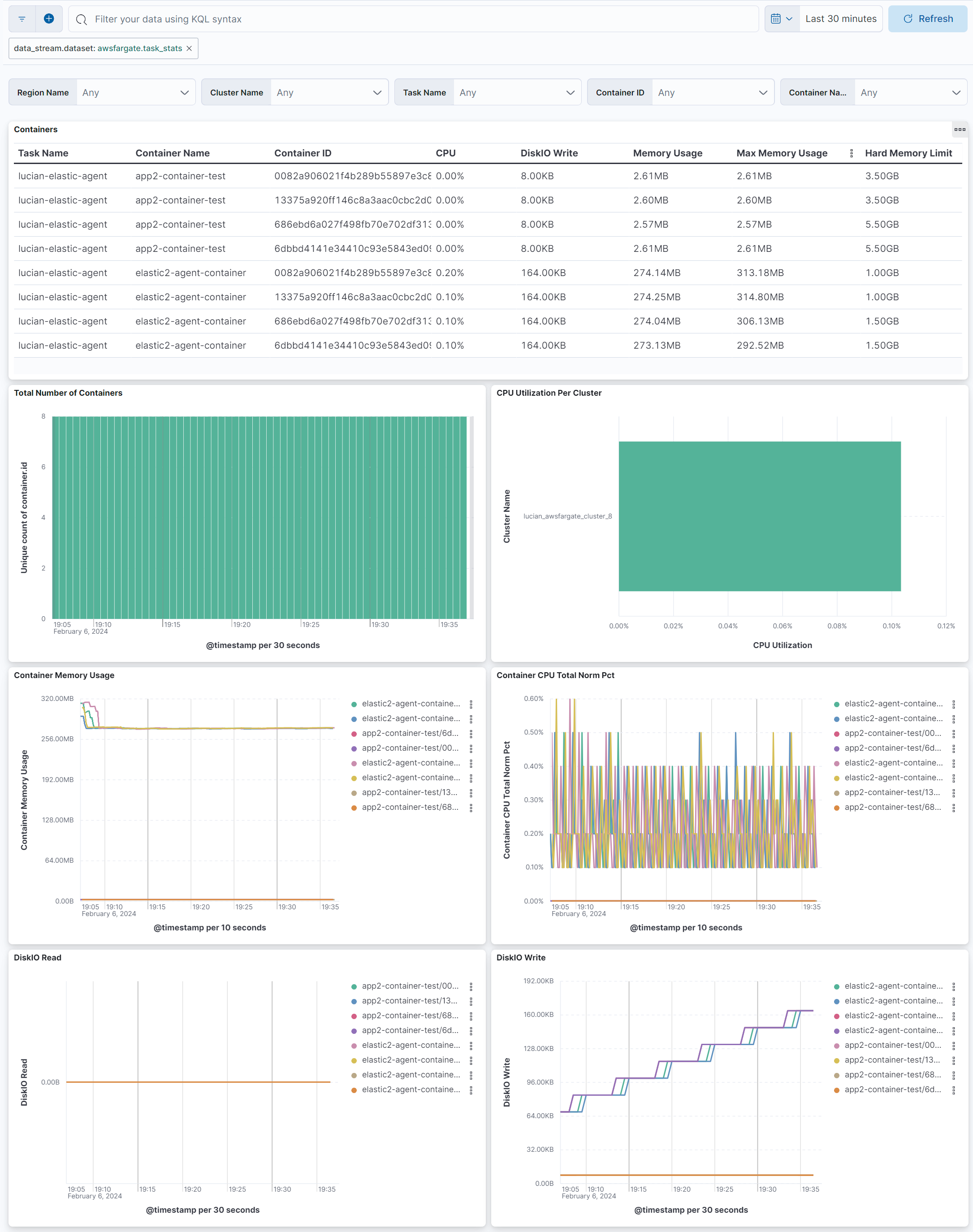
This integration includes one or more Kibana dashboards that visualizes the data collected by the integration. The screenshots below illustrate how the ingested data is displayed.
Changelog
| Version | Details | Minimum Kibana version |
|---|---|---|
| 1.3.0 | Enhancement (View pull request) Add support for Kibana 9.0.0. |
9.0.0 8.13.0 |
| 1.2.2 | Enhancement (View pull request) Add missing category. |
8.13.0 |
| 1.2.1 | Enhancement (View pull request) Clarify that the integration supports ECS clusters only. |
8.13.0 |
| 1.2.0 | Enhancement (View pull request) Add processor support for task_stats data stream. |
8.13.0 |
| 1.1.0 | Enhancement (View pull request) ECS version updated to 8.11.0. Update the kibana constraint to ^8.13.0. Modified the field definitions to remove ECS fields made redundant by the ecs@mappings component template. |
8.13.0 |
| 1.0.0 | Enhancement (View pull request) Make AWS Fargate GA |
8.12.0 |
| 0.5.1 | Enhancement (View pull request) Improve documentation |
8.12.0 |
| 0.5.0 | Bug fix (View pull request) Remove memory.usage.pct field and use memory.usage.total instead for plain memory usage. |
8.12.0 |
| 0.4.0 | Enhancement (View pull request) Update the package format_version to 3.0.0. |
8.8.0 |
| 0.3.0 | Enhancement (View pull request) Enable TSDB for task stats data stream. This improves storage usage and query performance. For more details, see https://www.elastic.co/guide/en/elasticsearch/reference/current/tsds.html. |
8.8.0 |
| 0.2.5 | Enhancement (View pull request) Update DiskIO Write and Read visualizations to use last_value instead of average. |
8.3.0 |
| 0.2.4 | Enhancement (View pull request) Migrate AWS Fargate input control to new control panel. |
8.3.0 |
| 0.2.3 | Enhancement (View pull request) Set dimension fields and add agent.id. |
8.1.0 |
| 0.2.2 | Enhancement (View pull request) Add metric type to fields. |
8.1.0 |
| 0.2.1 | Enhancement (View pull request) Added categories and/or subcategories. |
8.1.0 |
| 0.2.0 | Enhancement (View pull request) Improve dashboards by removing individual visualizations from library |
8.1.0 |
| 0.1.3 | Enhancement (View pull request) Clarify how to run the awsfargate integration as a sidecar container. |
8.0.0 7.15.0 |
| 0.1.2 | Enhancement (View pull request) Add DesiredStatus and KnownStatus for Fargate Tasks among the collected fields |
8.0.0 7.15.0 |
| 0.1.1 | Enhancement (View pull request) Improve description and screenshots |
8.0.0 7.15.0 |
| 0.1.0 | Enhancement (View pull request) initial release |
— |