Managing lifecycle policies for integrations data
The Elastic Stack includes Elastic's core products such as Elasticsearch, Kibana, Logstash, and Beats. Availability This functionality is generally available and ready for production usage. Unless stated otherwise on the page, this functionality is available when your Elastic Stack is deployed on Elastic Cloud Hosted, Elastic Cloud Enterprise, Elastic Cloud on Kubernetes, and self-managed environments. This documentation corresponds to the latest patch available for each minor version. If you're not using the latest patch, check the release notes for changes.
Stack
Generally available
Learn to apply and manage lifecycle policies for integrations data stored in Elasticsearch. This documentation covers default policies for Elastic integrations, how to override them, and how to align retention rules with your requirements.
An Elastic integration is a pre-packaged collection of assets that provides an effective, simplified way to monitor a product, system, or service, with minimal required setup. Most integrations rely on Elastic Agent as an ingest mechanism, and the policies used to govern installed integrations are managed in Fleet.
You can find installation and configuration details for all integrations in the Elastic integrations chapter of the Reference section. To learn about managing your installed integrations, refer to Manage Elastic Agent integrations in the Fleet and Elastic Agent chapter of the Reference section.
When you install an integration, an index lifecycle management (ILM) policy is configured automatically to manage the integration's component data streams and their backing indices. To view or adjust how your integration data is managed, a first step is to find the data streams that you're interested in. There are a few ways to do this:
Find the data stream for a Kibana visualization
To find the data stream associated with a visualization in a Kibana:
Open Dashboards from the Kibana menu and select a dashboard to view. For example, with the System integration installed, you can open the
[Metrics System] Host overviewdashboard to find visualizations about the host system being monitored.Hover over any visualization and click the Explore in Discover icon.
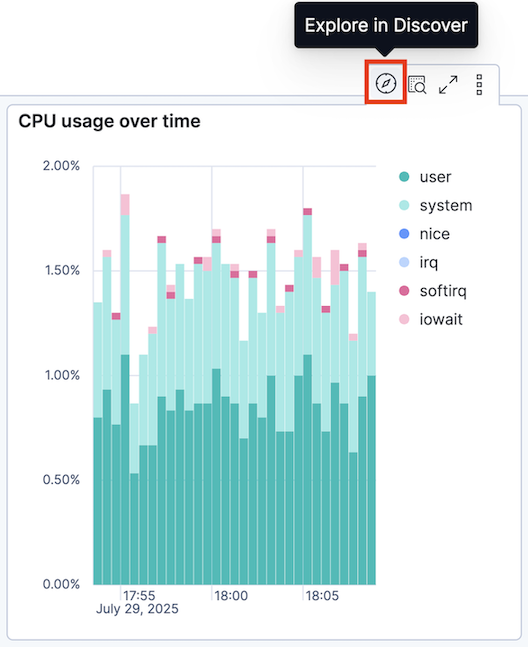
In Discover, the list of documents shows the columns for fields applicable to the visualization that you selected. Select any document that has data for those fields, then select View details (Toggle dialog with details in earlier Elastic Stack versions).
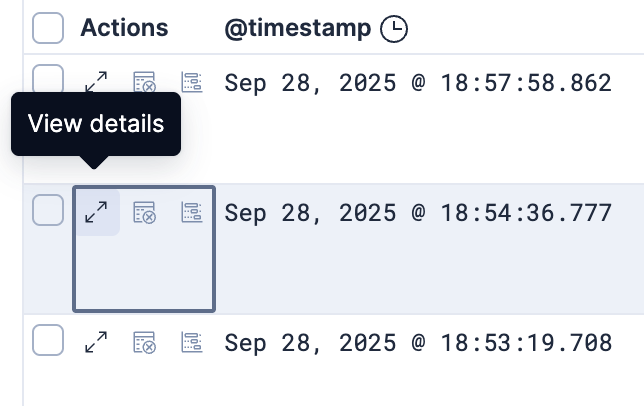
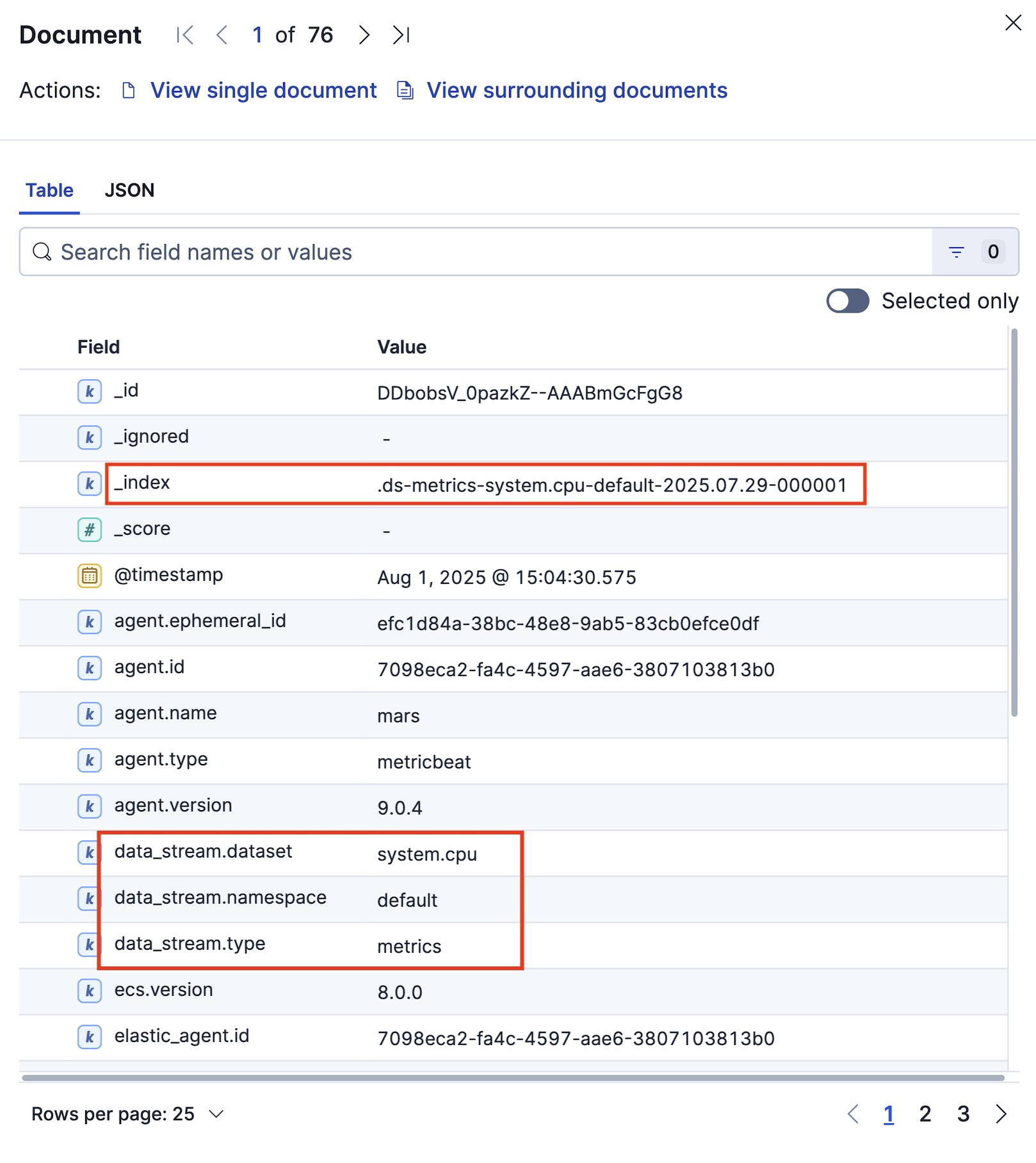
In the document details, there are three
data_streamfields. The full data stream name is a composite ofdata_stream.type,data_stream.datasetanddata_stream.namespace, separated by a hyphen. For example, in the System integration, the CPU usage over time visualization is associated with themetrics-system.cpu-defaultdata stream.You can also see the data stream's current backing index, as well as other information such as the document timestamp and details about the agent that ingested the data.
Find the data streams for an integration
To find the data streams associated with an installed integration:
In Kibana go to Management > Integrations > Installed integrations and select any integration.
Open the Assets tab and expand the Index templates list.
In the list, the name of each index template matches an associated data stream. For example, the
metrics-system.cputemplate matches themetrics-system.cpu-defaultdata stream that is set up when the System integration is installed.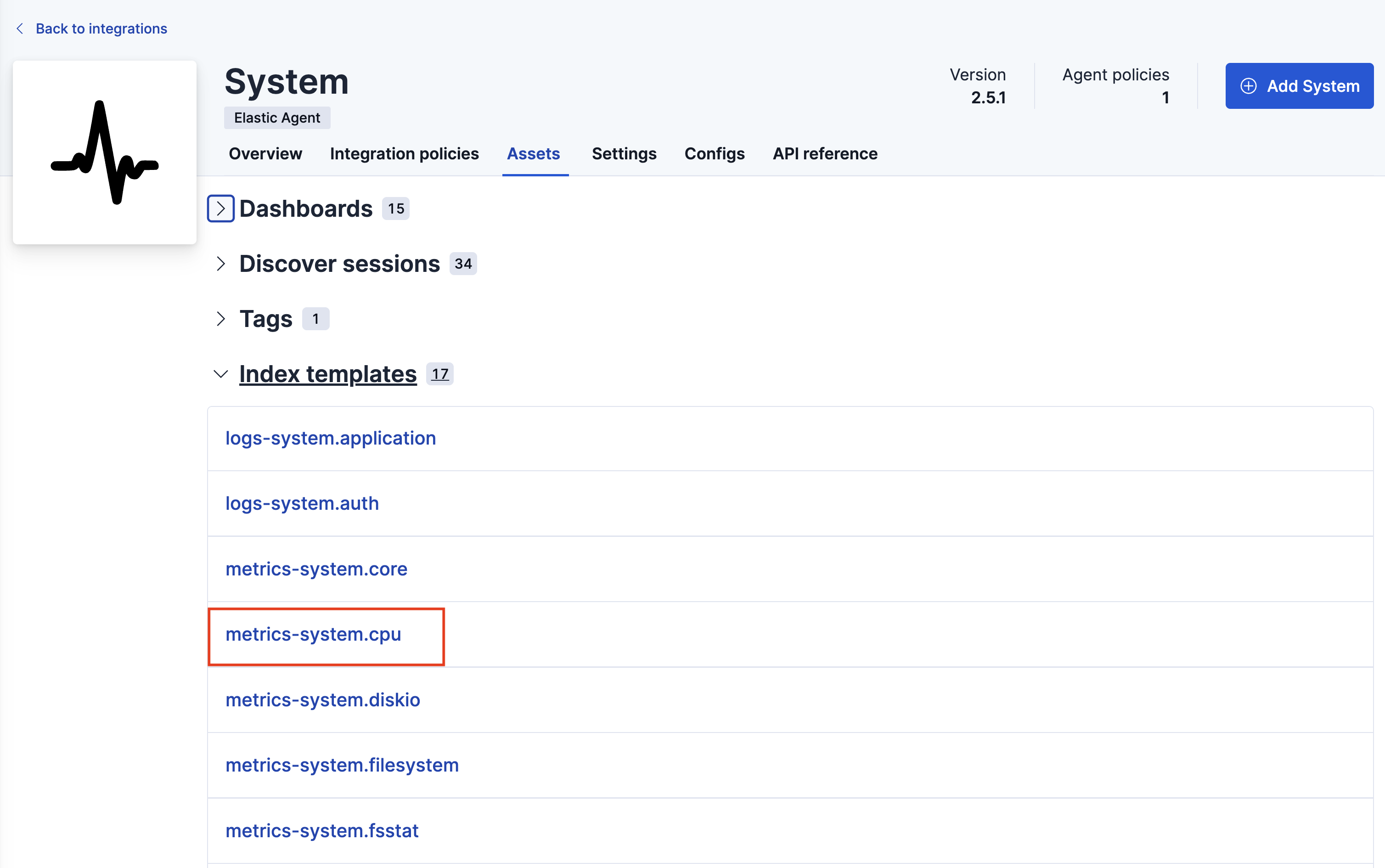
Find the data streams managed in Fleet
To find all of the data streams that are managed in Fleet:
In Kibana, go to the Fleet management page using the navigation menu or the global search field.
Select the Data streams tab.
Use the search field and dropdown menus to filter the list. You can filter by the data stream type, dataset, namespace, or by the integration that the data stream belongs to.
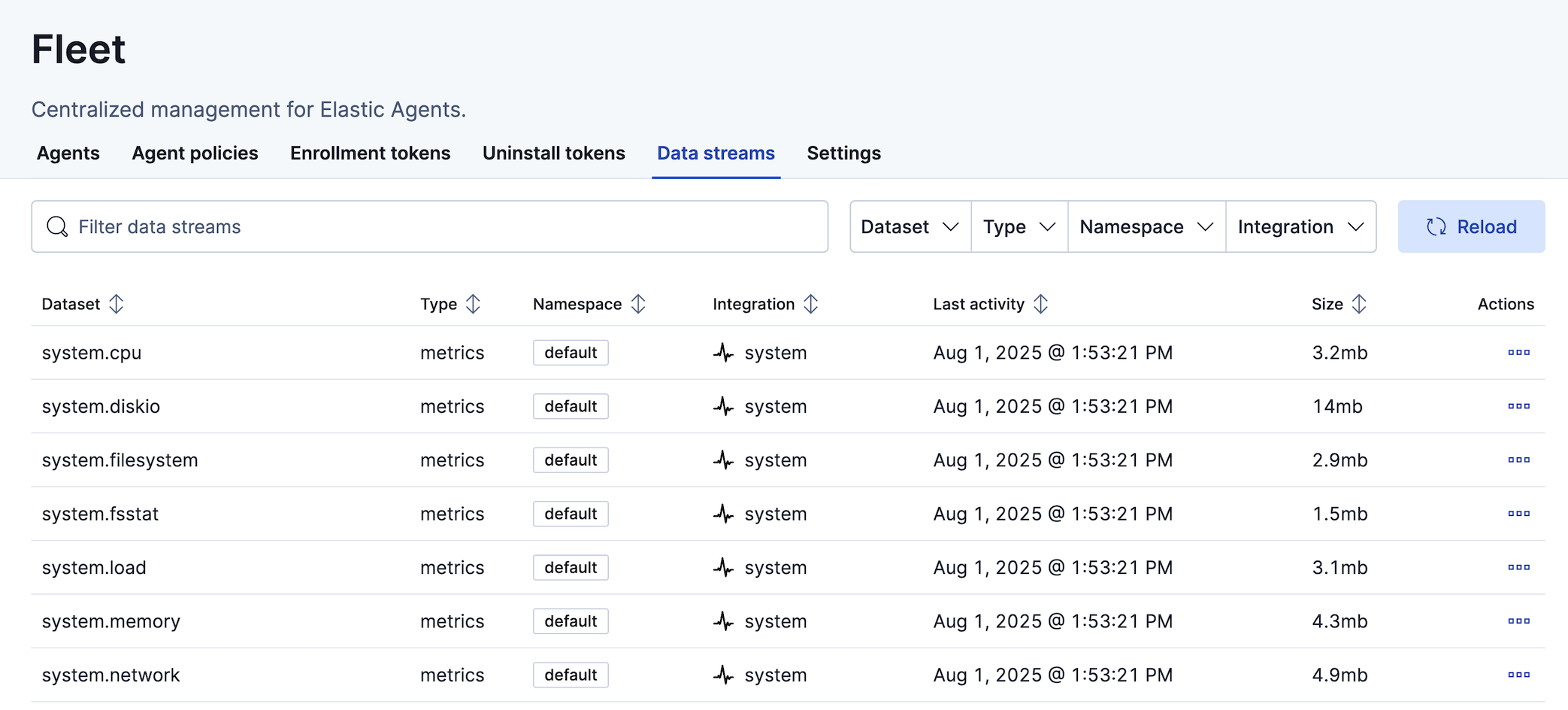
For any data stream that you're interested in, you can view its current lifecycle status, including details about its associated ILM policy.
After you've identified one or more data streams for which you'd like to customize how the data is managed over time, refer to our tutorials:
- For steps to customize an ILM policy for a data stream, try out the Customize built-in ILM policies in Elasticsearch tutorial in the data lifecycle documentation.
- For the steps to customize an ILM policy for a set of data streams, such as all logs or metrics data streams across all namespaces, across only a selected namespace, and others, check the set of tutorials in Customize data retention policies for integrations in the Fleet and Elastic Agent reference documentation.