Notes
Elastic Cloud Serverless projects are autoscaled environments, fully managed by Elastic and available on Elastic Cloud. Availability This functionality is generally available and ready for production usage. The Elastic Stack includes Elastic's core products such as Elasticsearch, Kibana, Logstash, and Beats. Availability This functionality is generally available and ready for production usage. Unless stated otherwise on the page, this functionality is available when your Elastic Stack is deployed on Elastic Cloud Hosted, Elastic Cloud Enterprise, Elastic Cloud on Kubernetes, and self-managed environments. This documentation corresponds to the latest patch available for each minor version. If you're not using the latest patch, check the release notes for changes.
Serverless Security
Generally available
Stack
Generally available
Incorporate notes into your investigative workflows to coordinate responses, conduct threat hunting, and share investigative findings. You can attach notes to alerts, events, and Timelines and manage them from the Notes page.
- The Elastic Stack includes Elastic's core products such as Elasticsearch, Kibana, Logstash, and Beats. Availability Generally available since 9.1 This functionality is generally available and ready for production usage. Unless stated otherwise on the page, this functionality is available when your Elastic Stack is deployed on Elastic Cloud Hosted, Elastic Cloud Enterprise, Elastic Cloud on Kubernetes, and self-managed environments. This documentation corresponds to the latest patch available for each minor version. If you're not using the latest patch, check the release notes for changes. Elastic Cloud Serverless projects are autoscaled environments, fully managed by Elastic and available on Elastic Cloud. Availability Generally available This functionality is generally available and ready for production usage. Serverless interfaces and procedures might differ from classic Elastic Stack deployments. You can attach up to 100 notes to alerts and events. The number of notes you can attach to Timelines is unlimited.
-
The Elastic Stack includes Elastic's core products such as Elasticsearch, Kibana, Logstash, and Beats.
Availability
Generally available in 9.0
This functionality is generally available and ready for production usage.
Unless stated otherwise on the page, this functionality is available when your Elastic Stack is deployed on Elastic Cloud Hosted, Elastic Cloud Enterprise, Elastic Cloud on Kubernetes, and self-managed environments.
This documentation corresponds to the latest patch available for each minor version. If you're not using the latest patch, check the release notes for changes.
Configure the
securitySolution:maxUnassociatedNotesadvanced setting to specify the maximum number of notes that you can attach to alerts and events.
You can control access to notes by setting the Kibana privileges for the Notes feature under Security.
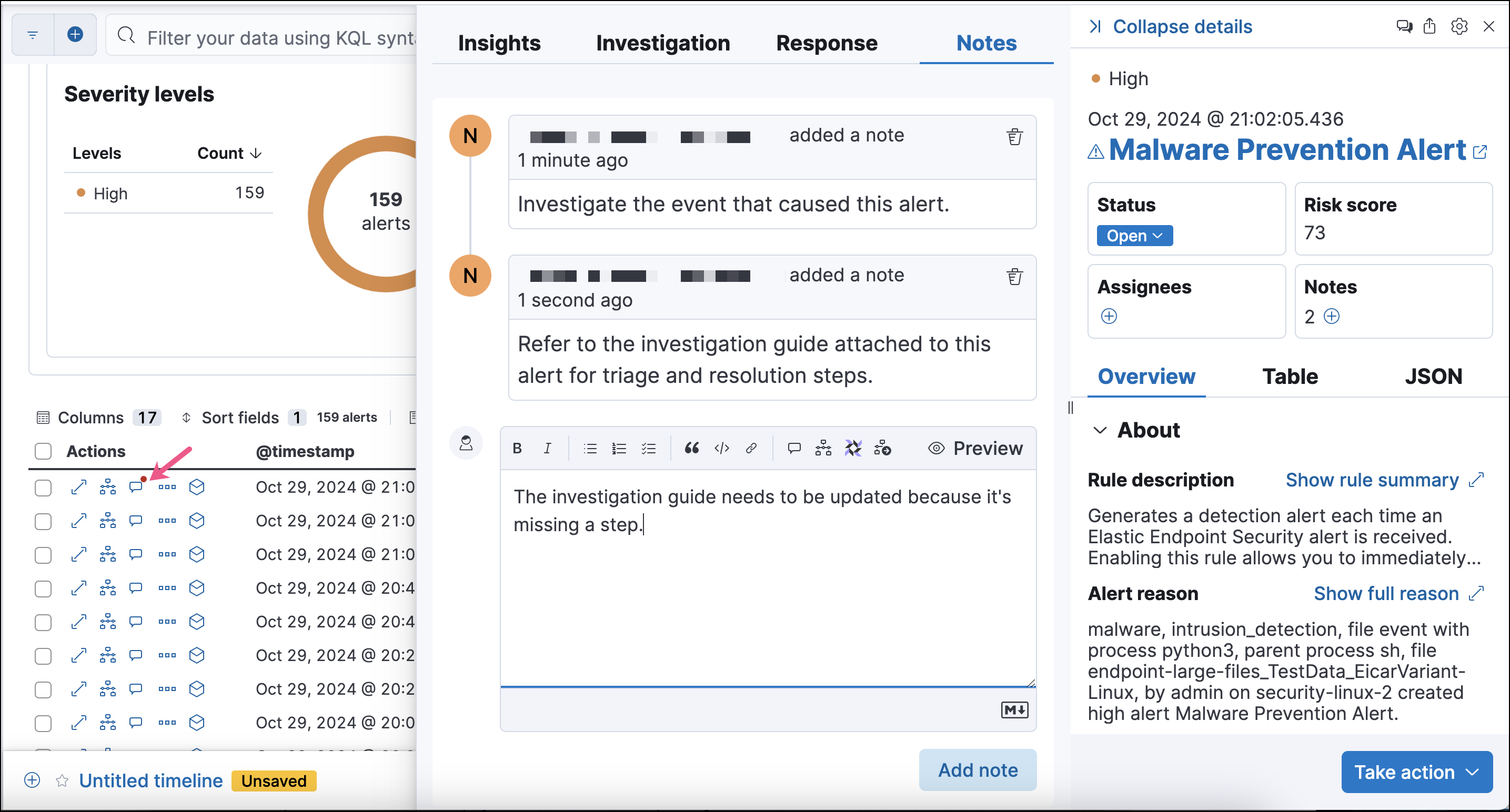
To add or view notes for a specific alert or event, open its details flyout. Refer to Notes for how to add and view notes from the flyout.
You can also click the Add note action ( ) in the Alerts or Events table to open the Notes flyout directly, without first opening the full details flyout. Enter a note into the text box, then click Add note to create it. After notes are created, the Add note icon displays a notification dot.
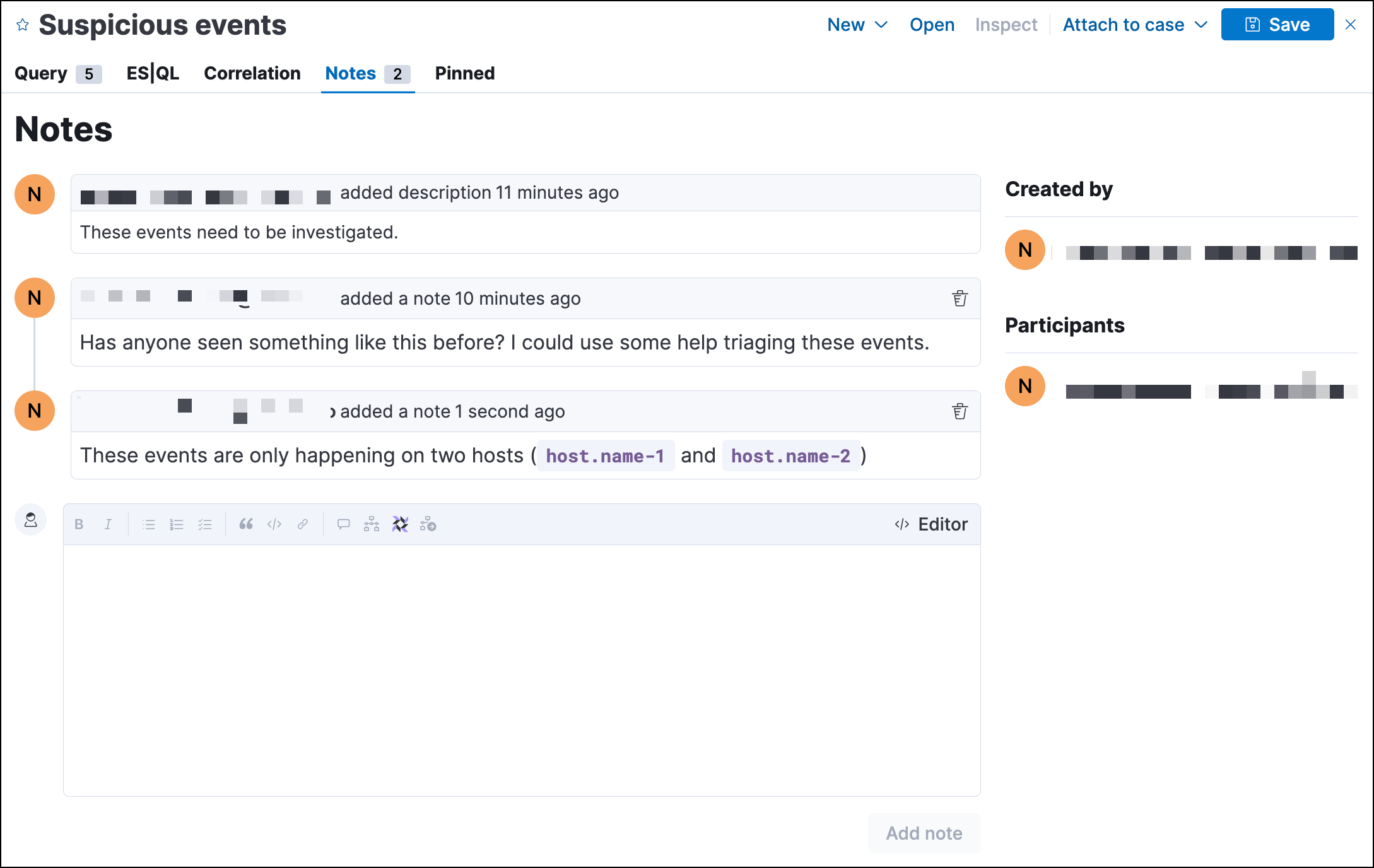
You can only add notes to saved Timelines.
Open the Notes Timeline tab, where you can view existing notes for the Timeline and add new ones. Alternatively, use the details flyout for alerts and events that you’re investigating from Timeline. Be aware that notes added this way are automatically attached to the alert or event and the Timeline unless you deselect the Attach to current Timeline option.
After notes are created, the Notes Timeline tab displays the total number of notes attached to the Timeline.
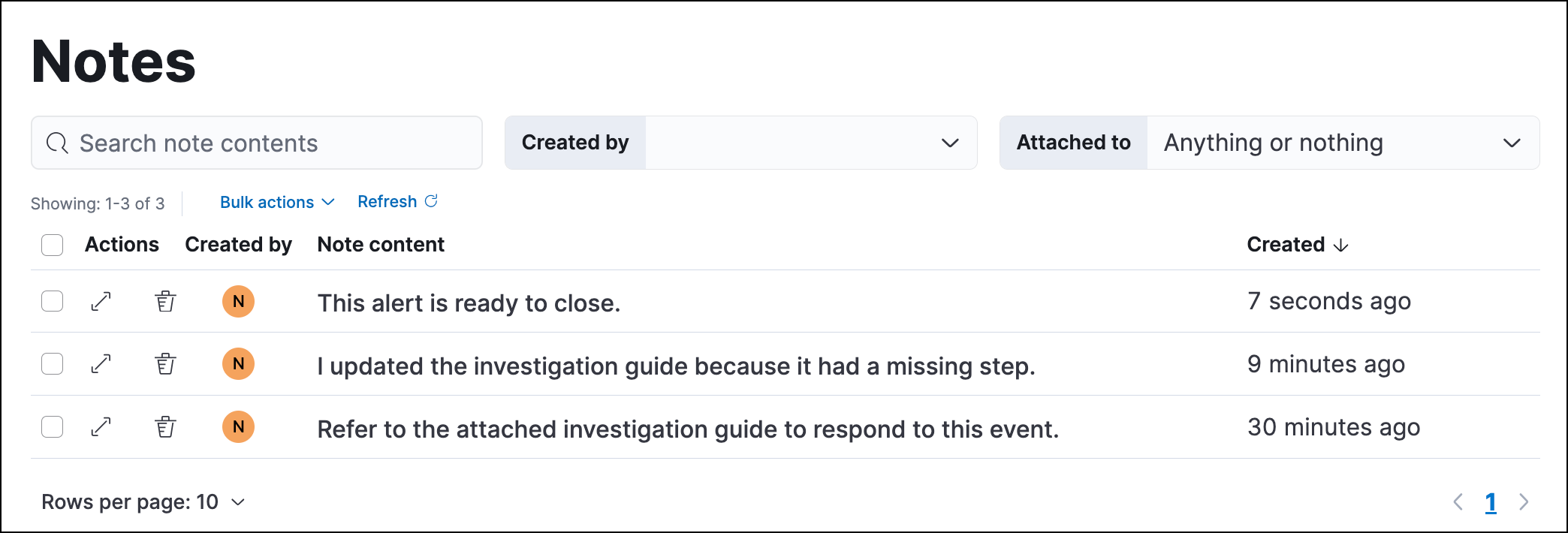
Use the Notes page to view and interact with all existing notes. To access the page, navigate to Investigations in the main navigation menu or by using the global search field, then go to Notes. From the Notes page, you can:
- Search for specific notes
- Filter notes by the user who created them or by the object they’re attached to (notes can be attached to alerts, events, or Timelines)
- Examine the contents of a note (click the text in the Note content column)
- Delete one or more notes
- Examine the alert or event that a note is attached to (click the Expand alert/event details
 icon)
- Open the Timeline that the note is attached to (click the Open saved timeline
 icon)