Use Discover sessions in dashboards
Elastic Cloud Serverless projects are autoscaled environments, fully managed by Elastic and available on Elastic Cloud. Availability This functionality is generally available and ready for production usage. Serverless interfaces and procedures might differ from classic Elastic Stack deployments. The Elastic Stack includes Elastic's core products such as Elasticsearch, Kibana, Logstash, and Beats. Availability This functionality is generally available and ready for production usage. Unless stated otherwise on the page, this functionality is available when your Elastic Stack is deployed on Elastic Cloud Hosted, Elastic Cloud Enterprise, Elastic Cloud on Kubernetes, and self-managed environments. This documentation corresponds to the latest patch available for each minor version. If you're not using the latest patch, check the release notes for changes.
Serverless
Generally available
Stack
Generally available
If you want what you found in Discover next to your other dashboard panels, you can put its chart, its table, or a whole Discover session on a dashboard. A panel is one tile on a dashboard. Once a session is on a dashboard, you can edit it there, save your edit as a new session, or switch which tab the panel shows.
- Add Discover visualizations to dashboards: Save the chart that your query produces as a visualization panel.
- Add Discover tables to dashboards: Save the table as a panel, starting from Discover or from the dashboard.
- Manage Discover session panels on a dashboard: Edit a session panel, save your edits as a new session, or select which tab to display.
- To add content to a dashboard, you need permission to view and create dashboards, which the All privilege for the Dashboard feature grants. Without it, the options to add content to a dashboard aren't available.
- To create a session directly on a dashboard, you also need access to Discover.
- To add a whole session from Discover, save it first. Saving needs the All privilege for the Discover feature, and the session is stored in the library. Refer to Save and manage Discover sessions.
- To edit a session panel on a dashboard, you also need to be able to edit that dashboard.
- To add a chart from classic mode, Lens must be available, because the chart opens there for editing.
When a query in Discover produces a chart, you can save that chart as a visualization panel on a new or existing dashboard, without saving the Discover session itself. The exact steps depend on the query mode you're using in Discover.
- In Discover, run an ES|QL query that produces a chart.
- Next to the chart, select Save visualization to dashboard. In earlier versions, select Save visualization.
- Enter a title for the panel, and optionally a description.
- In Add to dashboard, select New to create a dashboard, or Existing to select one from the list.
- Select Save and go to dashboard.
Result: The chart appears as a visualization panel on the dashboard.
In 9.2, if your ES|QL query defines variable controls, they aren't added to the dashboard when using this method. To preserve them, follow Import a Discover query along with its controls into a dashboard instead.
In classic mode there's no direct save button next to the chart. Instead, you open the chart in Lens, edit it as needed, and save from there.
The Edit visualization button appears only when you query a time-based data view whose time field can be visualized, and Lens is available.
- In Discover, run a query that produces a chart.
- Next to the chart, select Edit visualization. The chart opens in Lens, prefilled with your current query and time range.
- In Lens, adjust the visualization as needed.
- Select Save in the Lens application menu.
- Enter a Title for the panel, and optionally a Description.
- In Add to dashboard, select New to create a dashboard, or Existing to select one from the list.
- Select Save and go to dashboard.
Result: The visualization appears as a panel on the dashboard.
To add the table from a Discover session to a dashboard, pick the option that matches what you want:
- For a one-time copy of the current table that later session changes don't affect, save the current table to a dashboard.
- For a session that you reuse and that updates on every dashboard that shows it, save the session to the library, then add it to a dashboard.
- For a table that exists only on one dashboard, create a Discover session on the dashboard.
The steps depend on where you start:
- From Discover:
- From a dashboard:
Elastic Cloud Serverless projects are autoscaled environments, fully managed by Elastic and available on Elastic Cloud. Availability This functionality is generally available and ready for production usage. Serverless interfaces and procedures might differ from classic Elastic Stack deployments. The Elastic Stack includes Elastic's core products such as Elasticsearch, Kibana, Logstash, and Beats. Availability This functionality is generally available and ready for production usage. Unless stated otherwise on the page, this functionality is available when your Elastic Stack is deployed on Elastic Cloud Hosted, Elastic Cloud Enterprise, Elastic Cloud on Kubernetes, and self-managed environments. This documentation corresponds to the latest patch available for each minor version. If you're not using the latest patch, check the release notes for changes.
Serverless
Generally available
Stack
9.4+
Generally available since 9.4
From Discover, save the current view of the table to a new or existing dashboard, without saving the Discover session to the library. The resulting panel stores its configuration with the dashboard, so later changes to the Discover session don't affect the panel. If the session has multiple tabs, only the current table is saved.
- In the documents table toolbar, select Save table to dashboard.
- Enter a title for the panel, and optionally a description.
- In Add to dashboard, select New to create a dashboard, or Existing to select one from the list.
- Select Save and go to dashboard.
Result: The table appears as a panel on the dashboard.
The button doesn't appear if you opened Discover from a dashboard panel, or if you can't create dashboards.
From Discover, save the entire Discover session, including all its tabs, columns, sort order, and other settings.
When you save a Discover session, it is saved to the library. When you save a new session, or save an existing one as a new session, the Add to dashboard option of the dialog also lets you decide whether to add it as a panel on a dashboard. The option isn't available when you save changes to a session that already exists:
- Existing: The session is also added as a panel on a dashboard you select.
- New: The session is also added as a panel on a new dashboard.
- None (the default): The session is saved to the library only. To add it as a panel later, add it from the dashboard library.
If the session has multiple tabs, you can select which tab the panel displays on the dashboard.
To do this, save the session as described in Save a Discover session, and set Add to dashboard to the option that matches what you want.
Saving from Discover saves the session to the library only. To put it on a dashboard, follow the steps under Save a Discover session, then add the session from the dashboard library.
Result: The session is saved to the library, and it also appears as a panel on the dashboard if you selected one.
From a dashboard, add a Discover session that's already saved to the library. The same session can be added to multiple dashboards, and each panel stays linked to the library, so updates to the session show on every dashboard that uses it. To stop a panel from following the session, open the panel's menu and select Unlink from library.
This option requires that the session has already been saved to the library.
- Go to Dashboards.
- Open or create the dashboard, then switch to Edit mode if necessary.
- Select Add, then open the From library tab. In earlier versions, select Add from library.
- From the Types dropdown, select Discover session.
- Select the Discover session that you want to add.
Result: The session appears as a panel on the dashboard, linked to the library.
If the session has multiple tabs, you can select which tab the panel displays on the dashboard.
Elastic Cloud Serverless projects are autoscaled environments, fully managed by Elastic and available on Elastic Cloud. Availability This functionality is generally available and ready for production usage. Serverless interfaces and procedures might differ from classic Elastic Stack deployments. The Elastic Stack includes Elastic's core products such as Elasticsearch, Kibana, Logstash, and Beats. Availability This functionality is generally available and ready for production usage. Unless stated otherwise on the page, this functionality is available when your Elastic Stack is deployed on Elastic Cloud Hosted, Elastic Cloud Enterprise, Elastic Cloud on Kubernetes, and self-managed environments. This documentation corresponds to the latest patch available for each minor version. If you're not using the latest patch, check the release notes for changes.
Serverless
Generally available
Stack
9.4+
Generally available since 9.4
Use this option to create a single-tab Discover session directly on the dashboard, without first saving it to the library. The session is stored only with the dashboard.
The dashboard must be in Edit mode.
- Select Add → New, then select Discover session.
- Configure the session. It starts in ES|QL mode with an empty query. Enter a query, adjust columns, sort, and apply other view settings as needed.
- Select Save and return in the application menu to add the configured panel to the dashboard.
Result: The session appears as a panel on the dashboard, stored only with the dashboard.
To open the session behind a panel in Discover without editing the panel, refer to Open the data behind a panel in Discover.
Elastic Cloud Serverless projects are autoscaled environments, fully managed by Elastic and available on Elastic Cloud. Availability This functionality is generally available and ready for production usage. Serverless interfaces and procedures might differ from classic Elastic Stack deployments. The Elastic Stack includes Elastic's core products such as Elasticsearch, Kibana, Logstash, and Beats. Availability This functionality is generally available and ready for production usage. Unless stated otherwise on the page, this functionality is available when your Elastic Stack is deployed on Elastic Cloud Hosted, Elastic Cloud Enterprise, Elastic Cloud on Kubernetes, and self-managed environments. This documentation corresponds to the latest patch available for each minor version. If you're not using the latest patch, check the release notes for changes.
Serverless
Generally available
Stack
9.4+
Generally available since 9.4
When editing a Discover session panel from a dashboard, you can save your changes as a new Discover session, instead of updating the panel in place. This works whether the panel was added from the library or created directly on the dashboard.
On the dashboard, hover over the panel and select Edit Discover session configuration.
If the panel was added from the library, select Edit in Discover. A panel that you created on the dashboard opens in Discover right away. Discover shows the panel's session, and the application menu shows Save and return.
Make your changes in Discover.
In the application menu, from the menu next to Save and return, select Save as.
In the Save Discover session dialog, enter a Title for the new session, and optionally a Description and Tags.
Elastic Cloud Serverless projects are autoscaled environments, fully managed by Elastic and available on Elastic Cloud. Availability Generally available This functionality is generally available and ready for production usage. Serverless interfaces and procedures might differ from classic Elastic Stack deployments. The Elastic Stack includes Elastic's core products such as Elasticsearch, Kibana, Logstash, and Beats. Availability Generally available since 9.5 This functionality is generally available and ready for production usage. Unless stated otherwise on the page, this functionality is available when your Elastic Stack is deployed on Elastic Cloud Hosted, Elastic Cloud Enterprise, Elastic Cloud on Kubernetes, and self-managed environments. This documentation corresponds to the latest patch available for each minor version. If you're not using the latest patch, check the release notes for changes. In Add to dashboard, decide whether to also add the new session as a panel on a dashboard. The session is saved to the library in all cases.
- Existing: The session is also added as a new panel on a dashboard you select. The original panel stays as it is.
- New: The session is also added as a panel on a new dashboard.
- None (the default): The session is saved to the library only, and Discover shows the new session.
Select Save.
Result: A new Discover session is saved with the title you entered.
Elastic Cloud Serverless projects are autoscaled environments, fully managed by Elastic and available on Elastic Cloud. Availability This functionality is generally available and ready for production usage. Serverless interfaces and procedures might differ from classic Elastic Stack deployments. The Elastic Stack includes Elastic's core products such as Elasticsearch, Kibana, Logstash, and Beats. Availability This functionality is generally available and ready for production usage. Unless stated otherwise on the page, this functionality is available when your Elastic Stack is deployed on Elastic Cloud Hosted, Elastic Cloud Enterprise, Elastic Cloud on Kubernetes, and self-managed environments. This documentation corresponds to the latest patch available for each minor version. If you're not using the latest patch, check the release notes for changes.
Serverless
Generally available
Stack
9.4+
Generally available since 9.4
A Discover session panel displays one tab at a time. When the underlying session has multiple tabs, you can change which tab the panel shows. This applies to panels that you added from the library. A panel that you created on the dashboard has a single tab.
On the dashboard, hover over the panel and select Edit Discover session configuration.
From the tab selector, select the tab you want to display.
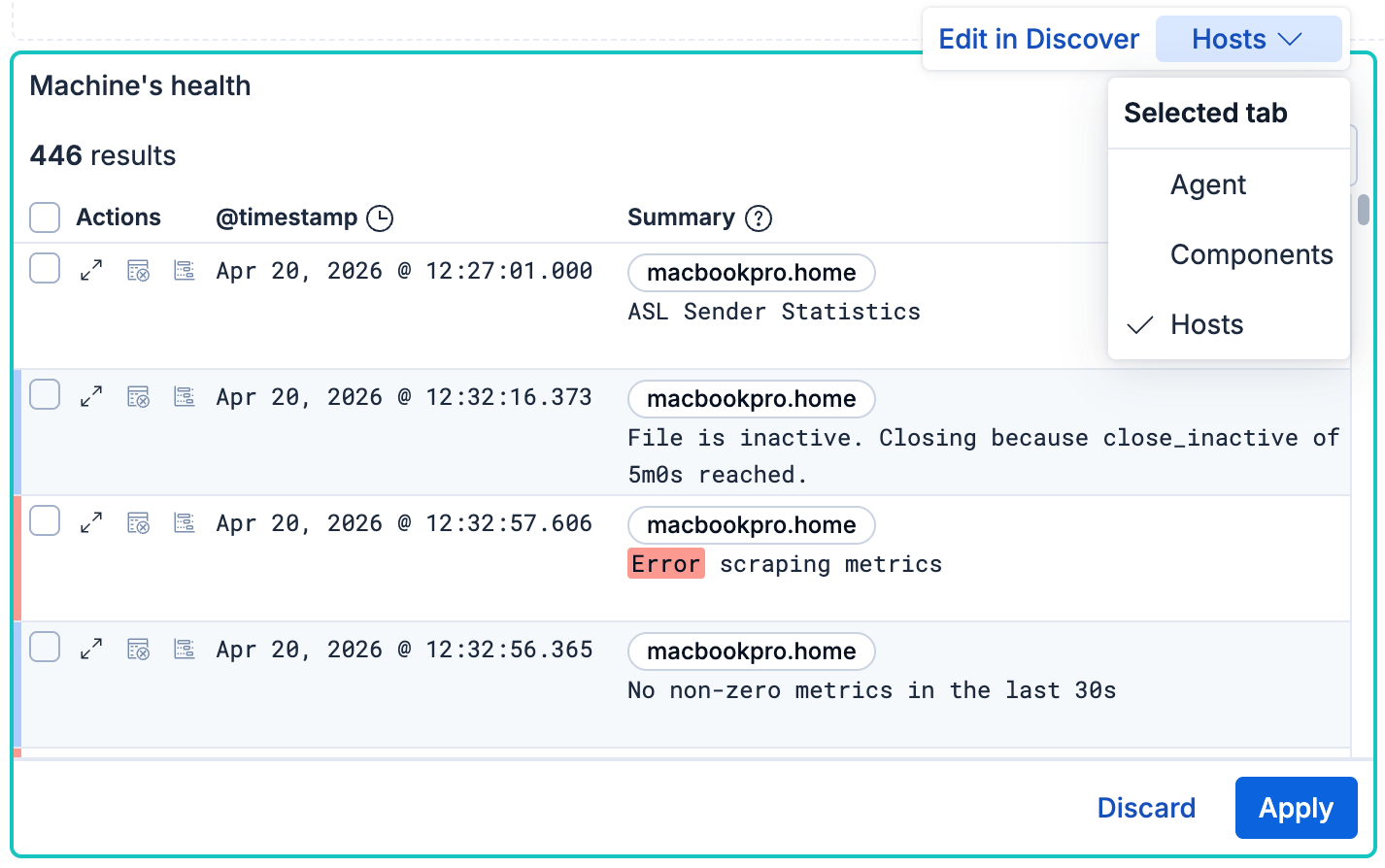
Select Apply. To keep the tab that the panel showed before, select Discard instead.
Result: The panel shows the tab you selected.
- Organize dashboard panels: Position and resize the new panel on the dashboard.