Switch an Elastic Cloud cluster to the APM integration
The Elastic Stack includes Elastic's core products such as Elasticsearch, Kibana, Logstash, and Beats. Availability This functionality is generally available and ready for production usage. Unless stated otherwise on the page, this functionality is available when your Elastic Stack is deployed on Elastic Cloud Hosted, Elastic Cloud Enterprise, Elastic Cloud on Kubernetes, and self-managed environments. This documentation corresponds to the latest patch available for each minor version. If you're not using the latest patch, check the release notes for changes.
Stack
Generally available
Use the Elastic Cloud Console to upgrade the Elastic Stack to version 9.5.6. See the Upgrade guide for details.
APM data collection will be interrupted while the migration is in progress. The migration process should take only a few minutes.
With a Superuser account, complete these steps:
In the main menu, go to Applications -> Service Inventory or find
Service Inventoryusing the global search field, and then select Settings → Schema.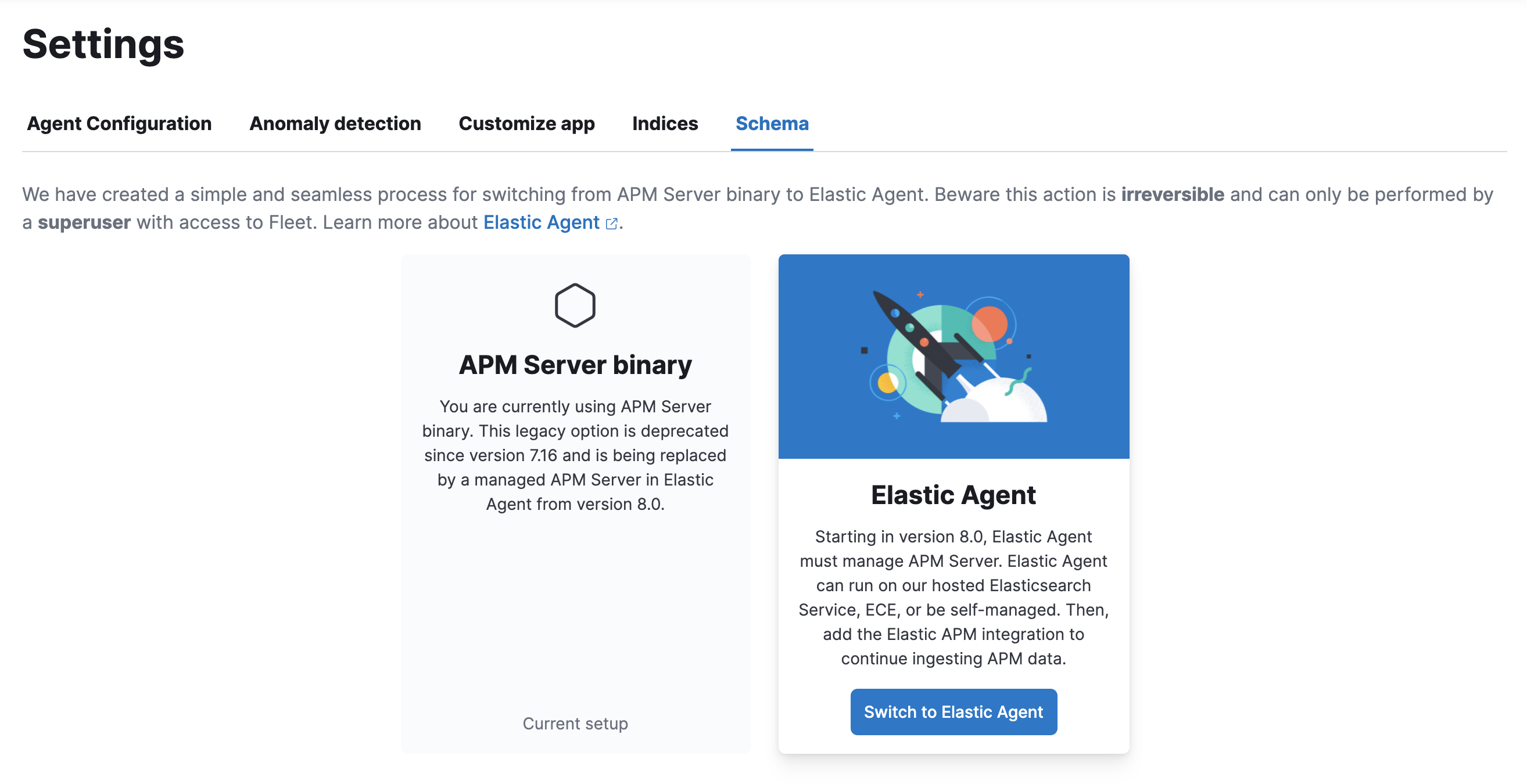
Click Switch to Elastic Agent. Make a note of the
apm-server.ymluser settings that are incompatible with Elastic Agent. Check the confirmation box and click Switch to Elastic Agent.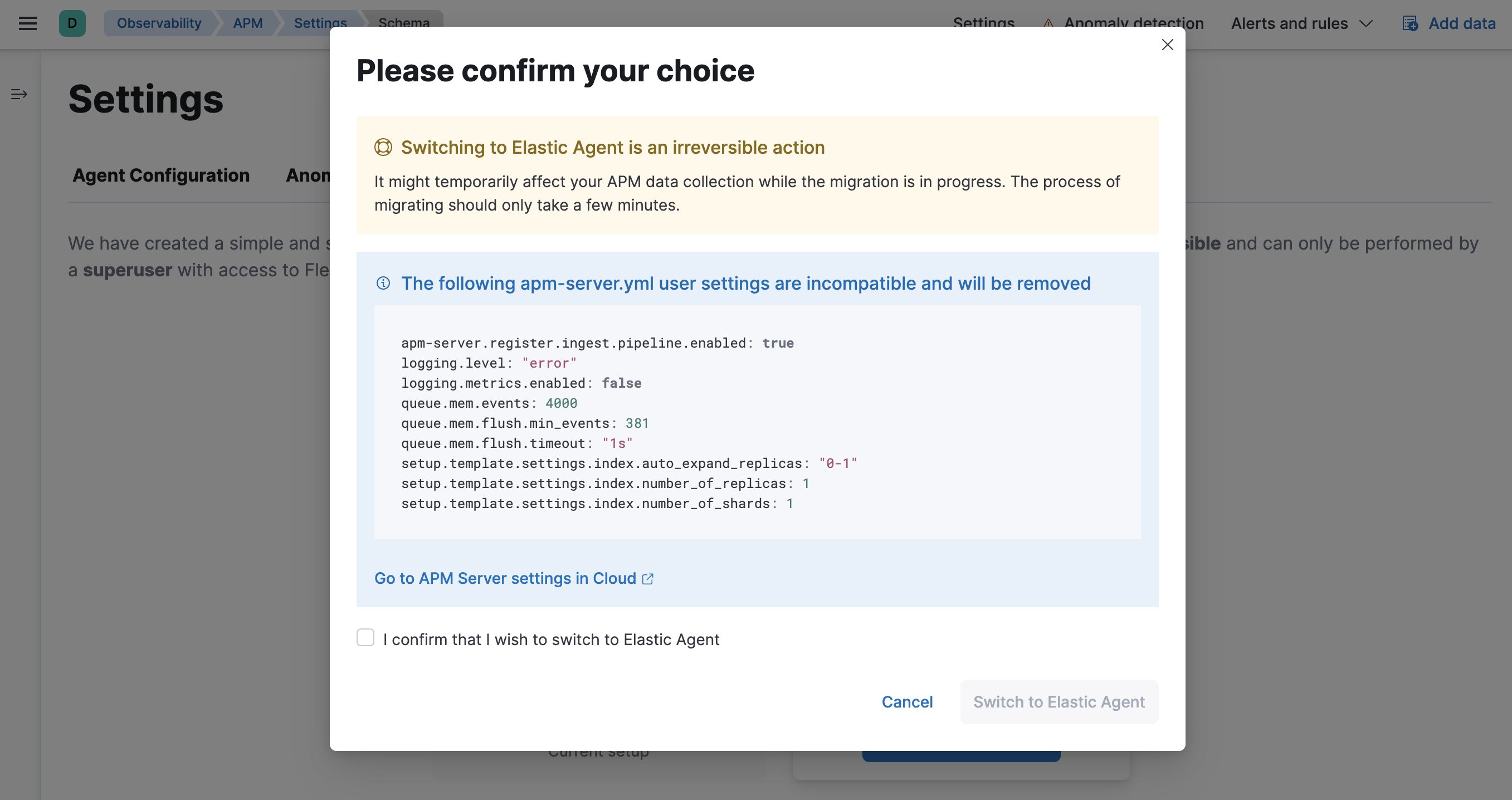
Elastic Cloud will now create a Fleet Server instance to contain the new APM integration, and then will shut down the old APM server instance. Within minutes your data should begin appearing in the Applications UI again.
You can now update settings that were removed during the upgrade. See Configure APM Server for a reference of all available settings.
In Kibana, navigate to Management > Fleet. Select the Elastic Cloud Agent Policy. Next to the Elastic APM integration, select Actions > Edit integration.
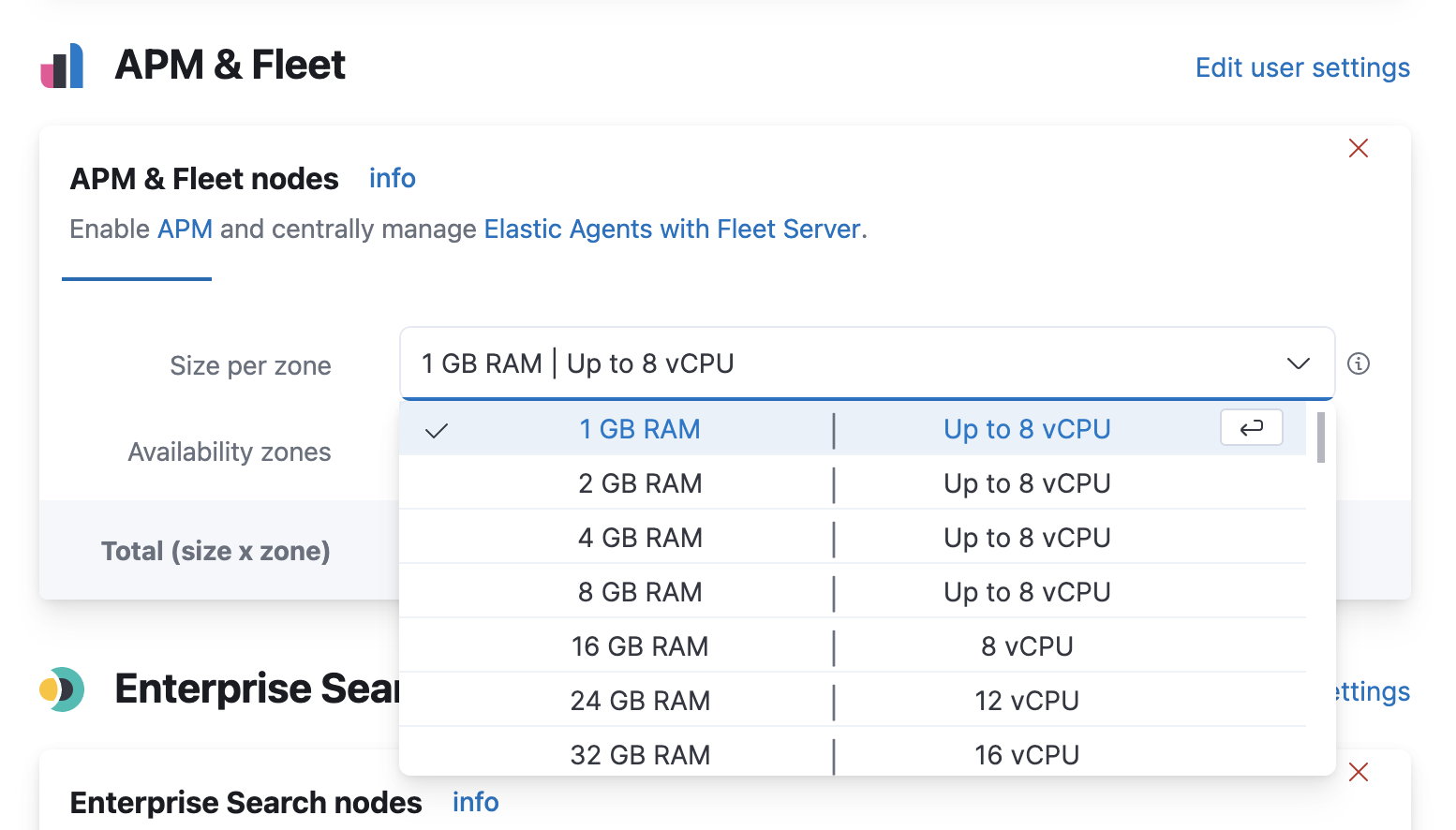
Certain Elasticsearch output configuration options are not available with the APM integration. To ensure data is not lost, you can scale APM and Fleet up and out. APM’s capacity to process events increases with the instance memory size.
Go to the Elastic Cloud Console, select your deployment and click Edit. Here you can edit the number and size of each availability zone.
Congratulations — you now have the latest and greatest in Elastic APM!