Configure map settings
Elastic Cloud Serverless projects are autoscaled environments, fully managed by Elastic and available on Elastic Cloud. Availability This functionality is generally available and ready for production usage. Serverless interfaces and procedures might differ from classic Elastic Stack deployments. The Elastic Stack includes Elastic's core products such as Elasticsearch, Kibana, Logstash, and Beats. Availability This functionality is generally available and ready for production usage. Unless stated otherwise on the page, this functionality is available when your Elastic Stack is deployed on Elastic Cloud Hosted, Elastic Cloud Enterprise, Elastic Cloud on Kubernetes, and self-managed environments. This documentation corresponds to the latest patch available for each minor version. If you're not using the latest patch, check the release notes for changes.
Serverless
Generally available
Stack
Generally available
Maps offers settings that let you configure how a map is displayed. To access these settings, click Settings in the application toolbar.
Add, edit, or delete custom icons for the map. Icons added to the map can be used for styling Point features.
- Background color
- Set the map background color.
- Show scale
- When enabled, display the map scale.
- Auto fit map to bounds
- When enabled, the map will automatically pan and zoom to show the filtered data bounds.
- Zoom range
- Constrain the map to the defined zoom range.
- Initial map location
-
Configure the initial map center and zoom.
- Map location at save: Use the map center and zoom from the map position at the time of the latest save.
- Auto fit map to bounds: Set the initial map location to show the filtered data bounds.
- Fixed location: Lock the map center and zoom to fixed values.
- Browser location: Set the initial map center to the browser location.
Use spatial filter settings to configure how spatial filters are displayed.
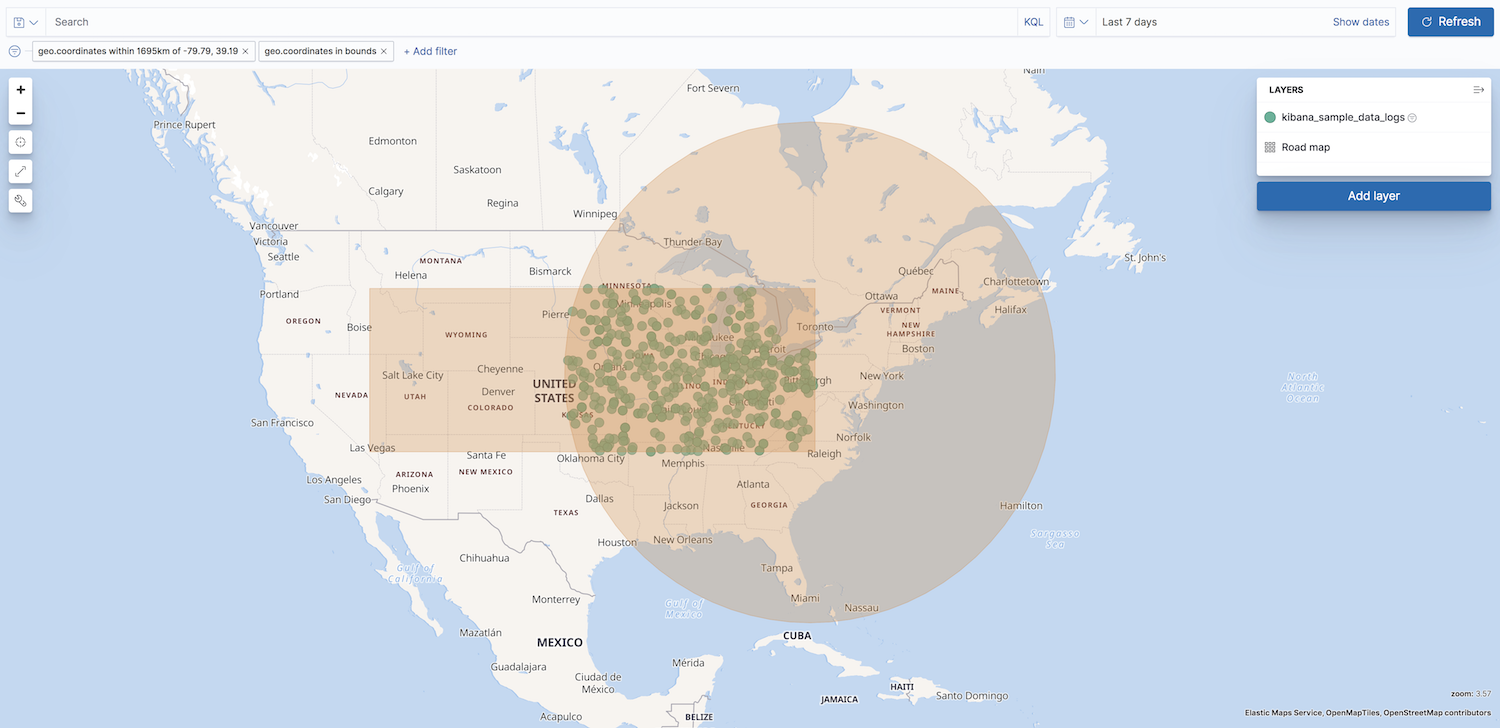
- Show spatial filters on map
- Clear the checkbox so spatial filters do not appear on the map.
- Opacity
- Set the opacity of spatial filters.
- Fill color
- Set the fill color of spatial filters.
- Border color
-
Set the border color of spatial filters.