Create filters from a map
Elastic Cloud Serverless projects are autoscaled environments, fully managed by Elastic and available on Elastic Cloud. Availability This functionality is generally available and ready for production usage. Serverless interfaces and procedures might differ from classic Elastic Stack deployments. The Elastic Stack includes Elastic's core products such as Elasticsearch, Kibana, Logstash, and Beats. Availability This functionality is generally available and ready for production usage. Unless stated otherwise on the page, this functionality is available when your Elastic Stack is deployed on Elastic Cloud Hosted, Elastic Cloud Enterprise, Elastic Cloud on Kubernetes, and self-managed environments. This documentation corresponds to the latest patch available for each minor version. If you're not using the latest patch, check the release notes for changes.
Serverless
Generally available
Stack
Generally available
Create filters from your map to focus in on just the data you want. Maps provides three ways to create filters:
To filter your dashboard by your map bounds as you pan and zoom your map:
- Go to Dashboards.
- Select your dashboard from the list or click Create dashboard.
- If your dashboard does not have a map, add a map panel.
- Click the gear icon
 to open the map panel menu.
- Select More to view all panel options.
- Select Filter dashboard by map bounds.
- Select the checkbox for your map panel.
A spatial filter narrows search results to documents that either intersect with, are within, or do not intersect with the specified geometry.
Spatial filters have the following properties:
- Geometry label enables you to provide a meaningful name for your spatial filter.
- Spatial relation determines the spatial relation operator to use at search time.
- Action specifies whether to apply the filter to the current view or to a drilldown action.
Drilldowns are available only if the map is a panel in a dashboard, and not within the Maps application.
You can create spatial filters in two ways:
- Click the tool icon
 , and then draw a shape, bounding box, or distance on the map to define the spatial filter.
- Click Filter by geometry in a locked tooltip, and then use the feature’s geometry for the spatial filter.
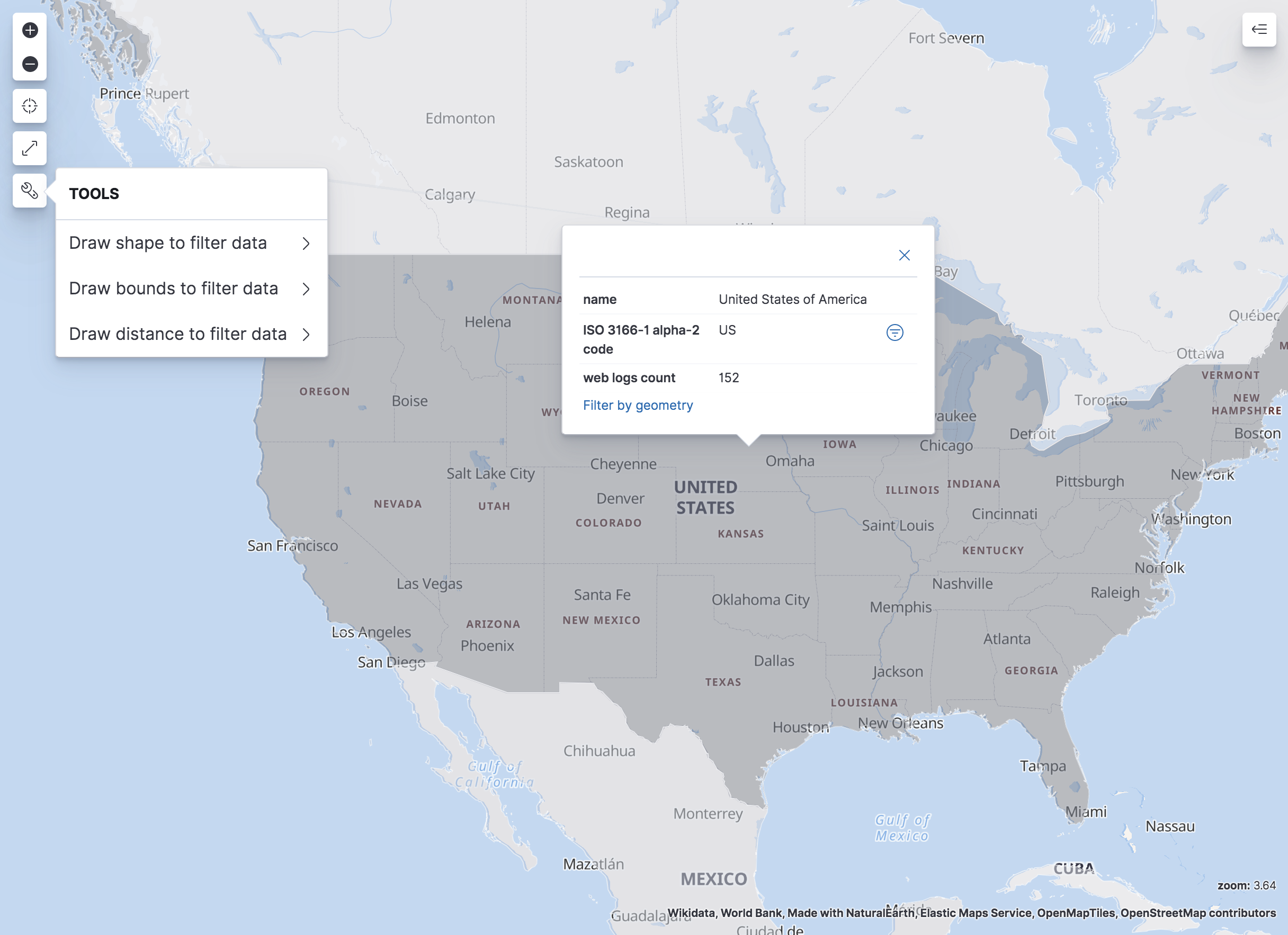
A phrase filter narrows search results to documents that contain the specified text. You can create a phrase filter by clicking the plus icon  in a locked tooltip. If the map is a dashboard panel with drilldowns, you can apply a phrase filter to a drilldown by selecting the drilldown action.