Compare documents in Discover
Elastic Cloud Serverless projects are autoscaled environments, fully managed by Elastic and available on Elastic Cloud. Availability This functionality is generally available and ready for production usage. Serverless interfaces and procedures might differ from classic Elastic Stack deployments. The Elastic Stack includes Elastic's core products such as Elasticsearch, Kibana, Logstash, and Beats. Availability This functionality is generally available and ready for production usage. Unless stated otherwise on the page, this functionality is available when your Elastic Stack is deployed on Elastic Cloud Hosted, Elastic Cloud Enterprise, Elastic Cloud on Kubernetes, and self-managed environments. This documentation corresponds to the latest patch available for each minor version. If you're not using the latest patch, check the release notes for changes.
Serverless
Generally available
Stack
Generally available
When two results look almost the same, such as two log lines from the same service, comparing their field values side by side shows exactly which values differ.
Open Discover and run a query that returns at least two results.
In the results table (the Results tab, or Documents in classic mode), select the checkbox of each result you want to compare. Select at least two. You can compare up to 100 results at a time.
From the Selected menu in the table toolbar, select Compare selected. The comparison view opens and shows the selected results next to each other.
Compare the values of each field. By default, the first result you selected is the reference for the other results. A value that matches the reference is highlighted in green, and a value that differs is highlighted in red.
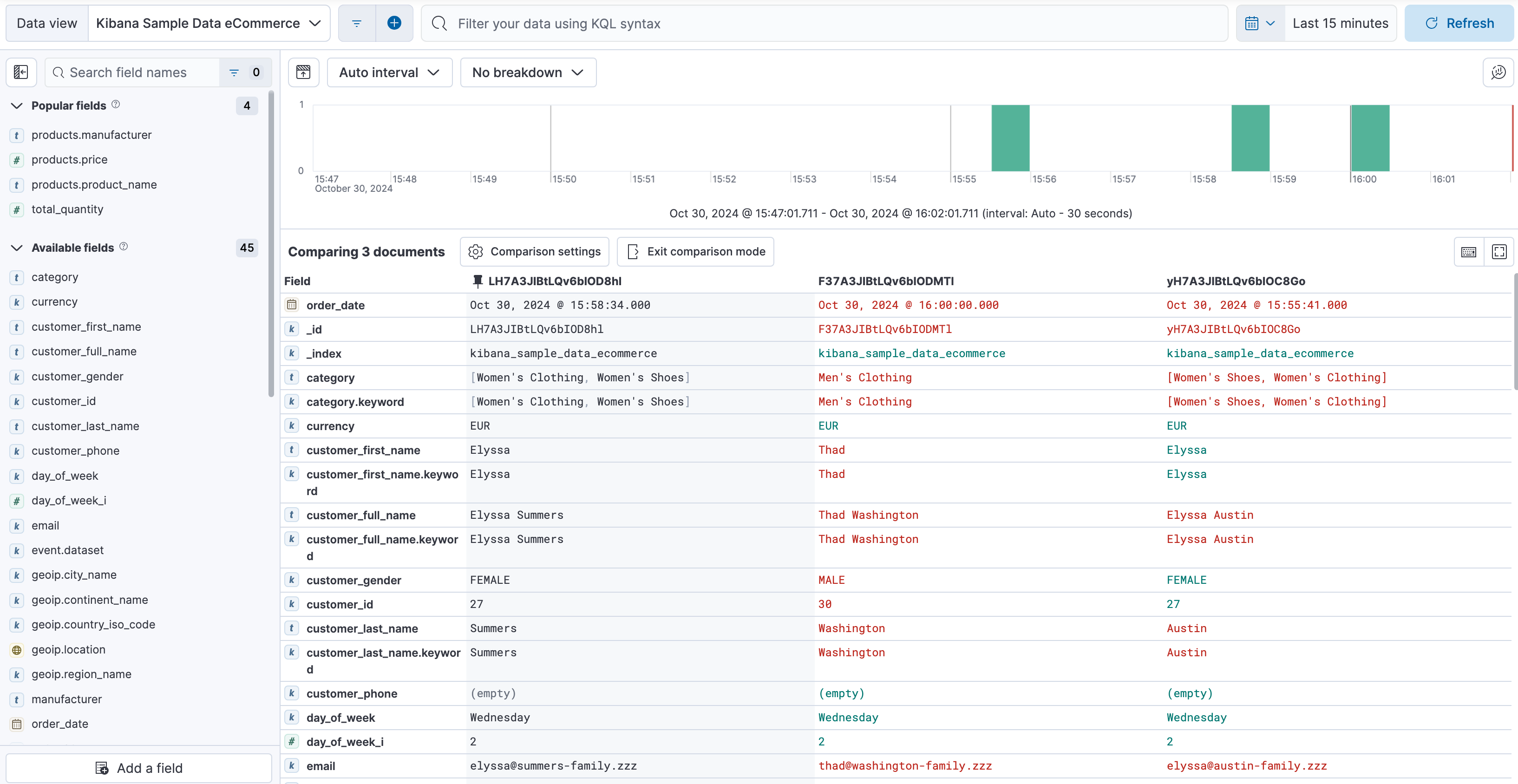
To use a different result as the reference, open the contextual menu of that result and select Pin for comparison.
Optional: To change how differences show, open Comparison settings. You can turn off difference highlighting, show differences by line, word, or character, or turn off Show matching fields to hide fields whose value matches in every result.
To leave the comparison view, select Exit comparison mode.
Result: The comparison view shows the selected results next to each other, with the differences highlighted.
To read every field of a single result, refer to Inspect documents and requests in Discover.