Check the ILM status of Elasticsearch indices and data streams
The Elastic Stack includes Elastic's core products such as Elasticsearch, Kibana, Logstash, and Beats. Availability This functionality is generally available and ready for production usage. Unless stated otherwise on the page, this functionality is available when your Elastic Stack is deployed on Elastic Cloud Hosted, Elastic Cloud Enterprise, Elastic Cloud on Kubernetes, and self-managed environments. This documentation corresponds to the latest patch available for each minor version. If you're not using the latest patch, check the release notes for changes.
Stack
Generally available
index lifecycle management (ILM) automates the handling of index phases and data retention. You can check the current ILM policy applied to an index or data stream and see its lifecycle phase, actions, and other status details using Kibana or the ILM Explain API.
If you're investigating an ILM-related problem, refer to Troubleshoot index and snapshot lifecycle management and Fix index lifecycle management errors in the Elasticsearch chapter of the Troubleshoot section.
To view the current lifecycle status for one or more indices:
Go to the Index Management page using the navigation menu or the global search field.
Open the Indices tab.
Enable Include hidden indices to view all indices, including those managed by ILM. If you're using data streams, you can find the data stream associated with any index listed in the Data stream column.
Use the search tool to find the index you're looking for. You can also filter the results by lifecycle status and lifecycle phase.
Select the index to view details.
Open the Index lifecycle tab to view ILM details such as the current lifecycle phase, the ILM policy name, the current index lifecycle action, and other details.
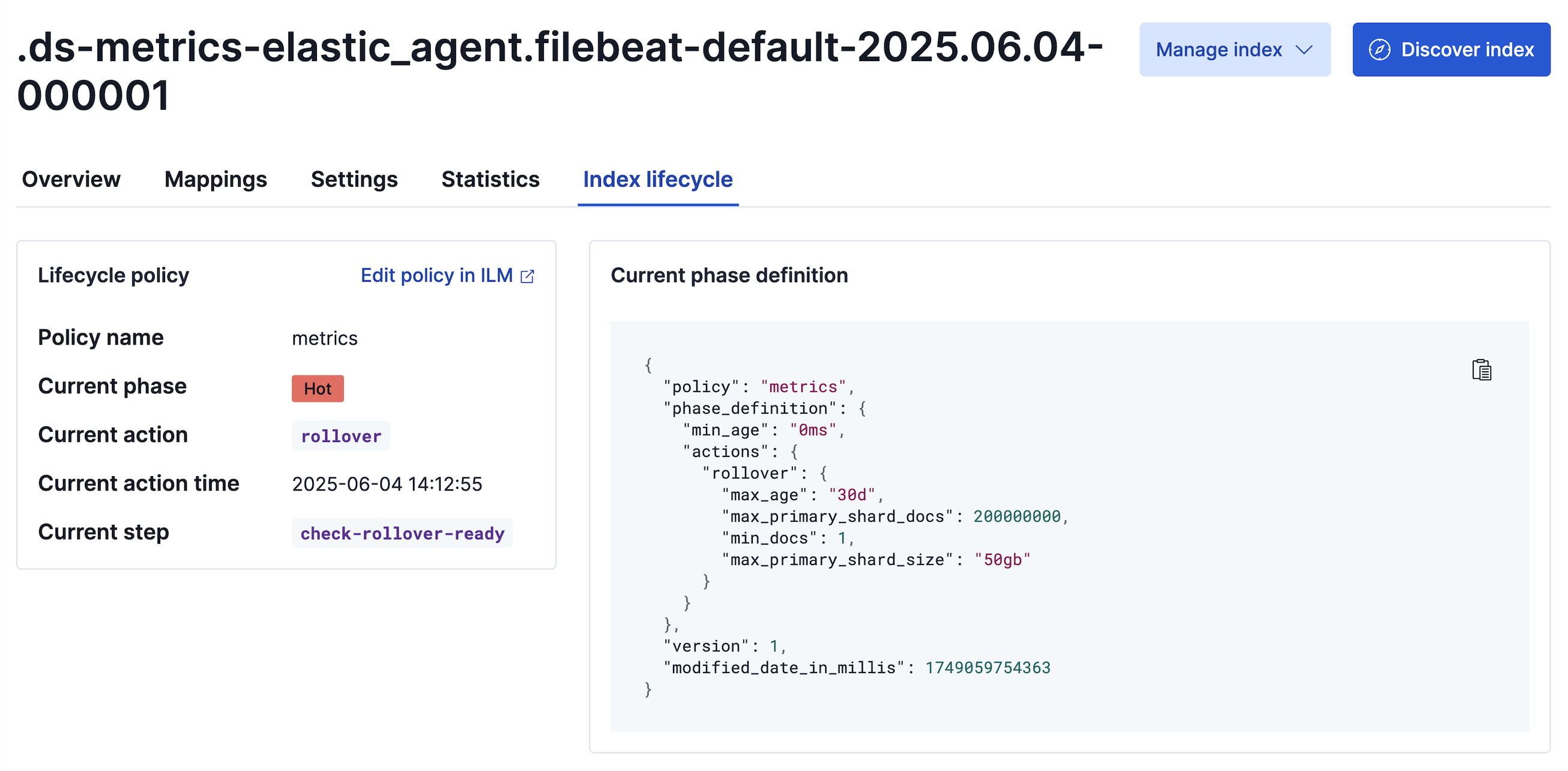
Elasticsearch comes with many built-in ILM policies. For standard Observability or Security use cases, you will have two ILM policies configured automatically: logs@lifecycle for logs and metrics@lifecycle for metrics.
To learn how to create and adjust copies of built-in ILM policies for managed data streams, such as those created when you install an Elastic Integration, refer to our tutorial Customize built-in ILM policies in Elasticsearch.
To view the current lifecycle status for a datastream:
Go to the Index Management page using the navigation menu or the global search field.
Open the Data Streams tab.
Use the search tool to find the data stream you're looking for.
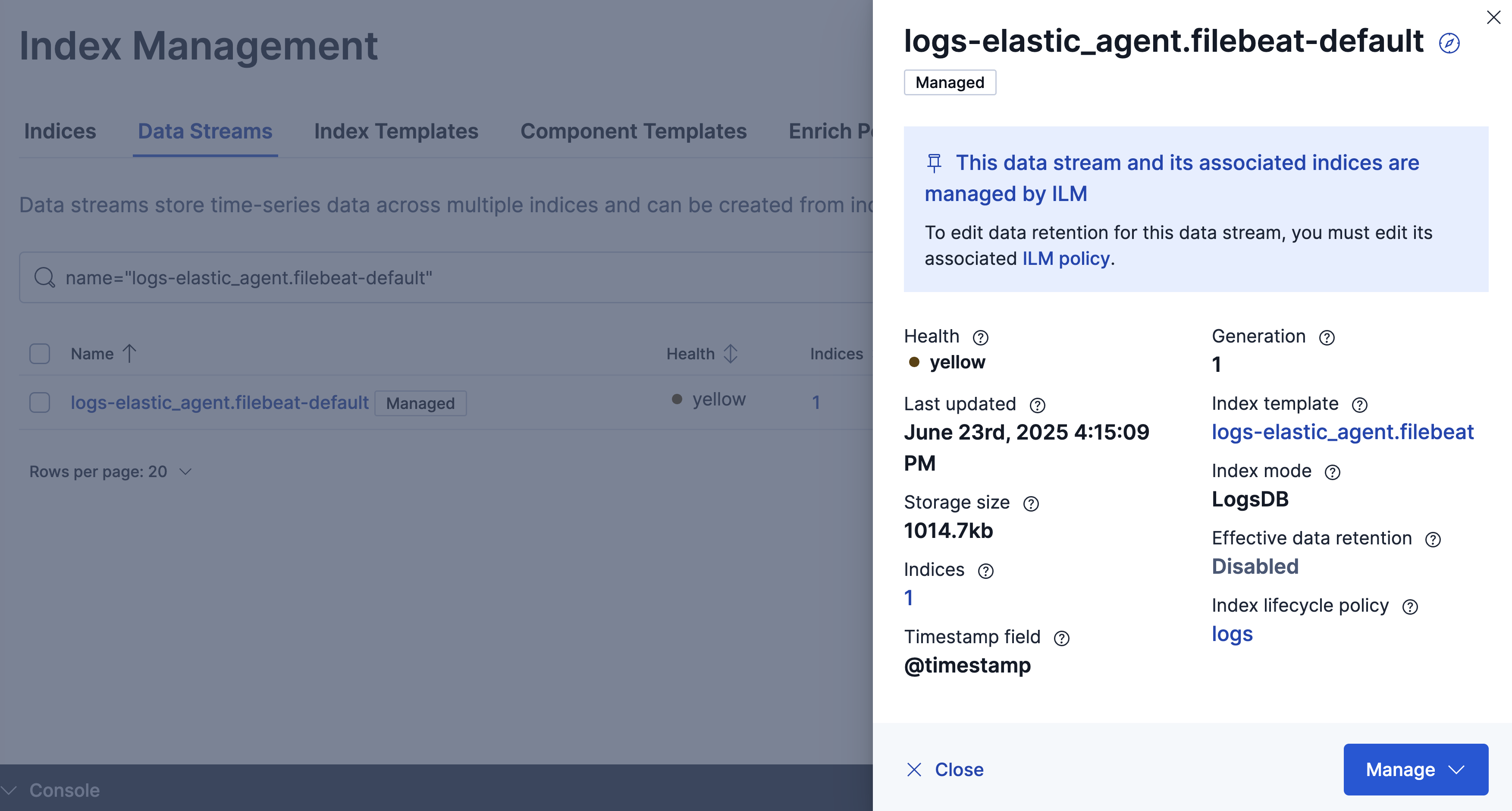
Select the data stream to view details. The flyout that opens includes direct links to the ILM policy and the index template.
To view the current lifecycle status for a datastream on the Streams page: The Elastic Stack includes Elastic's core products such as Elasticsearch, Kibana, Logstash, and Beats. Availability Generally available since 9.2 This functionality is generally available and ready for production usage. Preview in 9.1 This functionality is in technical preview and is ready for evaluation. Use with caution in production; it is not recommended for mission-critical workloads. Elastic will work to fix any issues, but features in technical preview are not subject to the support SLA of official GA features. Specific Support terms apply. Unless stated otherwise on the page, this functionality is available when your Elastic Stack is deployed on Elastic Cloud Hosted, Elastic Cloud Enterprise, Elastic Cloud on Kubernetes, and self-managed environments. This documentation corresponds to the latest patch available for each minor version. If you're not using the latest patch, check the release notes for changes.
Starting with Elastic Stack version 9.2, the Streams page provides a centralized interface for common data management tasks in Kibana.
- Go to the Streams page using the navigation menu or the global search field.
- A stream maps directly to an Elasticsearch data stream. Select a stream to view its details.
- Go to the Retention tab to see how long your stream retains data and to get insight into your stream's data ingestion and storage size. A stream can retain the data indefinitely, for a custom period, or by following an existing ILM policy. For more information, refer to Configure data lifecycle with Streams.
Use the Explain the lifecycle state API to view the current lifecycle status for an index:
GET .ds-metrics-system.process-default-2025.06.04-000001/_ilm/explainThe API response shows the current ILM phase and other details:
{
  "indices": {
    ".ds-metrics-system.process-default-2025.06.04-000001": {
      "index": ".ds-metrics-system.process-default-2025.06.04-000001",
      "managed": true,
      "policy": "metrics",
      "index_creation_date_millis": 1749060710358,
      "time_since_index_creation": "22.91d",
      "lifecycle_date_millis": 1749060710358,
      "age": "22.91d",
      "phase": "hot",
      "phase_time_millis": 1749060711038,
      "action": "rollover",
      "action_time_millis": 1749060712038,
      "step": "check-rollover-ready",
      "step_time_millis": 1749060712038,
      "phase_execution": {
        "policy": "metrics",
        "phase_definition": {
          "min_age": "0ms",
          "actions": {
            "rollover": {
              "max_age": "30d",
              "max_primary_shard_docs": 200000000,
              "min_docs": 1,
              "max_primary_shard_size": "50gb"
            }
          }
        },
        "version": 1,
        "modified_date_in_millis": 1749059754363
      }
    }
  }
}
You can also call this API for a data stream:
GET metrics-system.process-default/_ilm/explainWhen called for a data stream, the API retrieves the current lifecycle status for the stream's backing indices:
{
  "indices": {
    ".ds-metrics-system.process-default-2025.06.04-000001": {
      "index": ".ds-metrics-system.process-default-2025.06.04-000001",
      "managed": true,
      "policy": "metrics",
      "index_creation_date_millis": 1749060710358,
      "time_since_index_creation": "22.91d",
      "lifecycle_date_millis": 1749060710358,
      "age": "22.91d",
      "phase": "hot",
      "phase_time_millis": 1749060711038,
      "action": "rollover",
      "action_time_millis": 1749060712038,
      "step": "check-rollover-ready",
      "step_time_millis": 1749060712038,
      "phase_execution": {
        "policy": "metrics",
        "phase_definition": {
          "min_age": "0ms",
          "actions": {
            "rollover": {
              "max_age": "30d",
              "max_primary_shard_docs": 200000000,
              "min_docs": 1,
              "max_primary_shard_size": "50gb"
            }
          }
        },
        "version": 1,
        "modified_date_in_millis": 1749059754363
      }
    }
  }
}