Triage alerts in EASE
Elastic Cloud Serverless projects are autoscaled environments, fully managed by Elastic and available on Elastic Cloud. Availability This functionality is in technical preview and is ready for evaluation. Use with caution in production; it is not recommended for mission-critical workloads. Elastic will work to fix any issues, but features in technical preview are not subject to the support SLA of official GA features. Specific Support terms apply.
Serverless Security
Preview
Preview
Once you've ingested your alerts to Elastic AI SOC Engine (EASE), you can view, track, and analyze them from the Alert summary page.
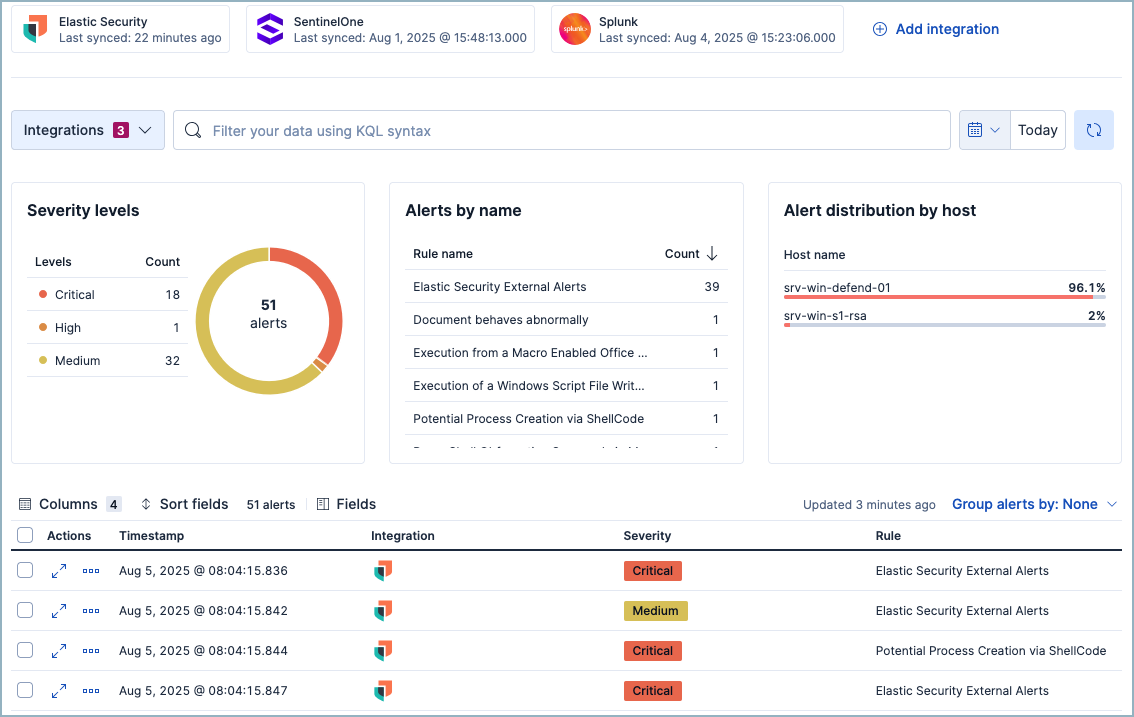
An alert's details flyout shows its basic information, highlighted fields, and any associated attack discoveries. It also enables you to generate an AI summary of the alert, or collaborate with AI Assistant to continue your investigation.
To open the alert details flyout, select the Expand button () from the alert's row in the alerts table.
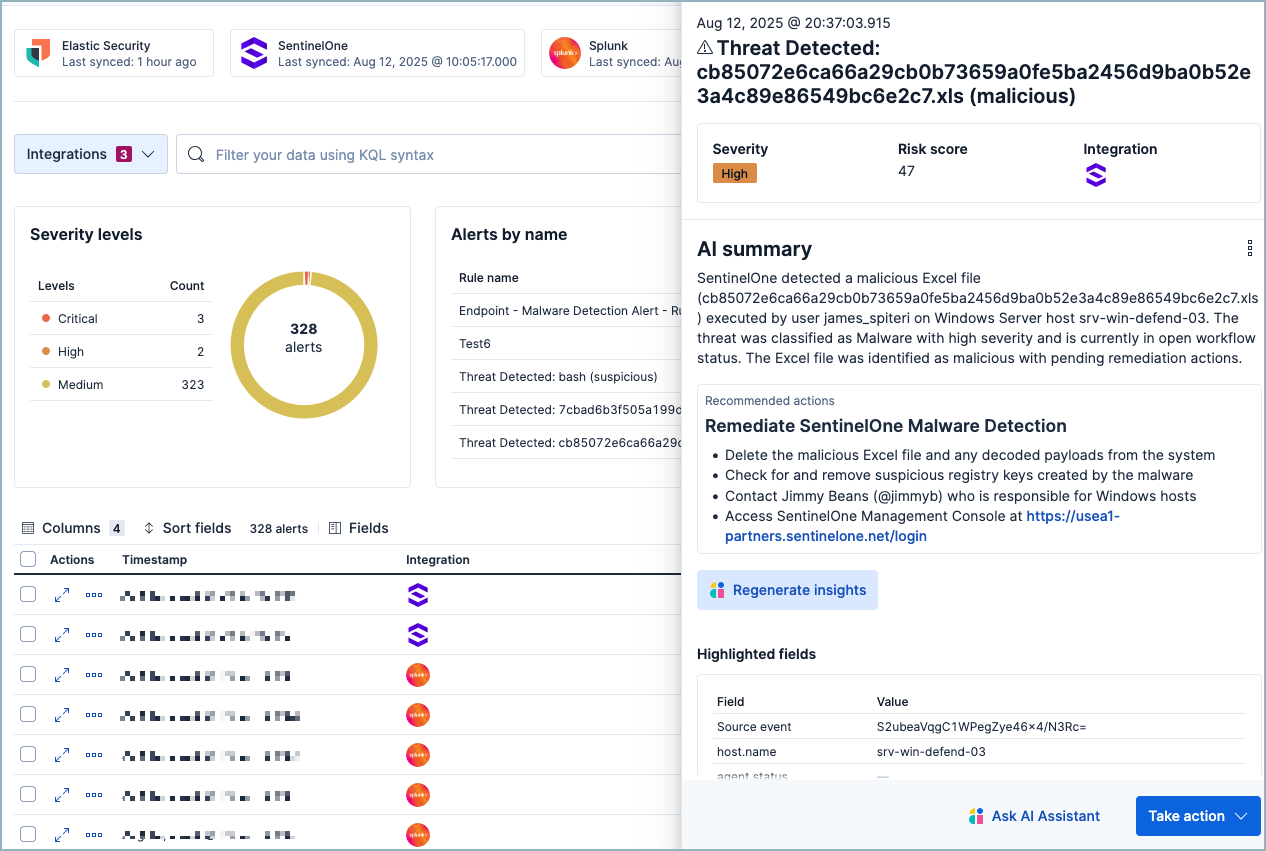
You can take several actions from the alert details flyout:
Generate insights: To generate an AI description of the alert with recommended actions, click Generate insights. (The connector used here is the default LLM for your project. To update it, navigate to the Advanced settings page using the navigation menu or the global search field, and update the Default AI Connector.)
NoteThe recommended actions are informed by any relevant custom knowledge you may have added to the AI Assistant's knowledge base. For example, if you have specified a particular teammate is responsible for a particular type of alert of part of your infrastructure, it would recommend contacting that person.
Ask AI Assistant or Add to chat: To start an AI chat, select one of the suggested prompts or click Ask AI Assistant or Add to chat.
Add to case: To add an alert to a new or existing case, scroll to the bottom and click Take action, then Add to existing case or Add to new case.
Apply alert tags: To add tags to an alert, scroll to the bottom of its flyout and click Take action, then Apply alert tags. (To create new tags, navigate to the Advanced settings page using the navigation menu or the global search field, and update the Alert tagging options.)