Configure lightweight monitors
Elastic Cloud Serverless projects are autoscaled environments, fully managed by Elastic and available on Elastic Cloud. Availability This functionality is generally available and ready for production usage. Serverless interfaces and procedures might differ from classic Elastic Stack deployments. The Elastic Stack includes Elastic's core products such as Elasticsearch, Kibana, Logstash, and Beats. Availability This functionality is generally available and ready for production usage. Unless stated otherwise on the page, this functionality is available when your Elastic Stack is deployed on Elastic Cloud Hosted, Elastic Cloud Enterprise, Elastic Cloud on Kubernetes, and self-managed environments. This documentation corresponds to the latest patch available for each minor version. If you're not using the latest patch, check the release notes for changes.
Serverless
Generally available
Stack
Generally available
Monitor the status of network endpoints using the following lightweight checks:
- HTTP: Monitor your website. The HTTP monitor checks to make sure specific endpoints return the correct status code and display the correct text.
- ICMP: Check the availability of your hosts. The ICMP monitor uses ICMP (v4 and v6) Echo Requests to check the network reachability of the hosts you are pinging. This will tell you whether the host is available and connected to the network, but doesn’t tell you if a service on the host is running or not.
- TCP: Monitor the services running on your hosts. The TCP monitor checks individual ports to make sure the service is accessible and running.
Lightweight monitors can be configured using either the Synthetics UI or Project monitors.
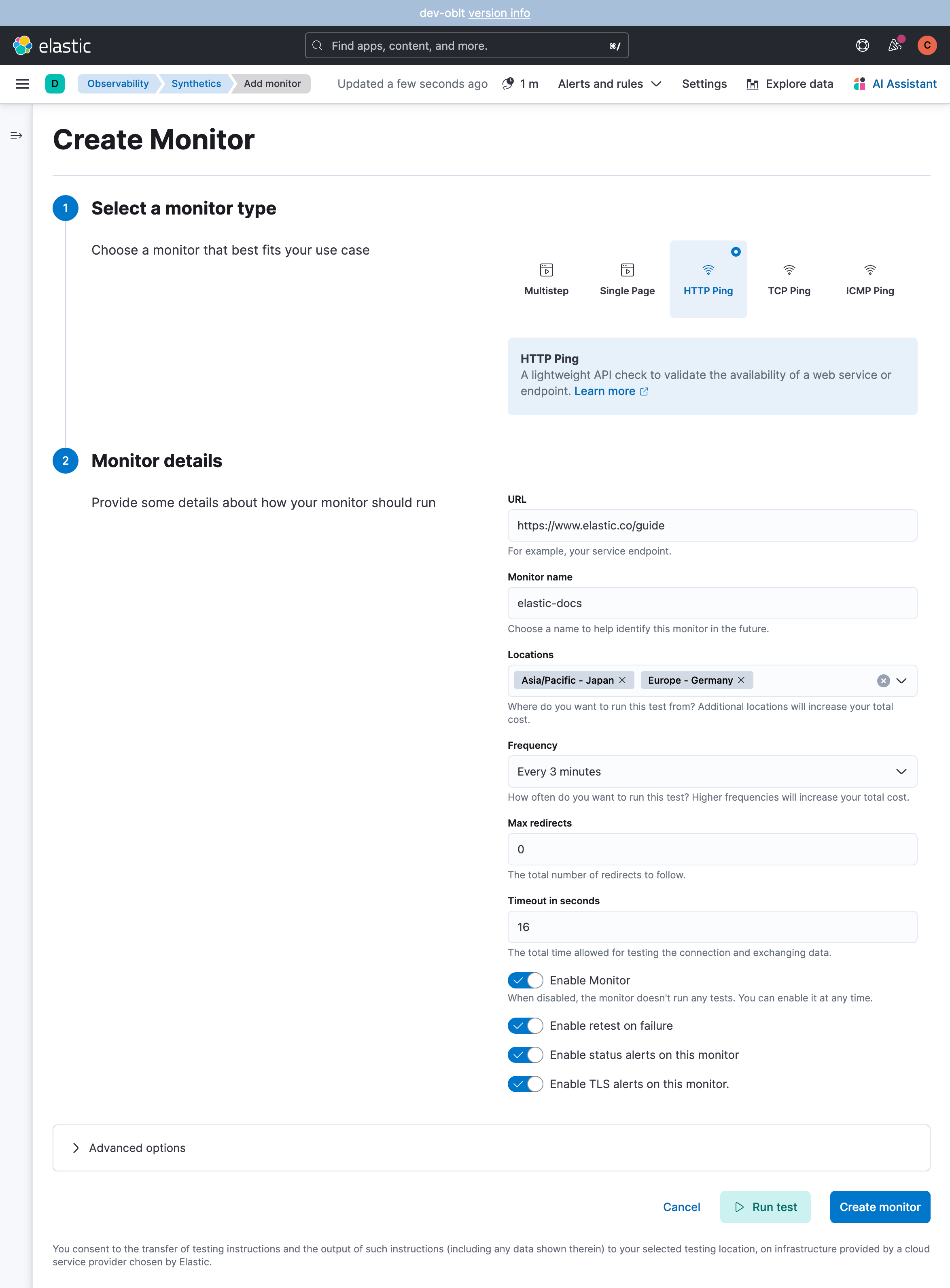
To use the UI, go to the Synthetics UI in Kibana or in your Observability Serverless project to create and configure monitors. For step-by-step instructions, refer to Use the Synthetics UI.
To use YAML files to create lightweight monitors in a Synthetics project, set up the Synthetics project and configure monitors in YAML files in the lightweight directory.
In each YAML file, define a set of monitors to check your remote hosts. Each monitor item is an entry in a YAML list and begins with a dash (-). You can define the type of monitor to use, the hosts to check, and other optional settings.
The following example configures three monitors checking via the http, icmp, and tcp protocols and demonstrates how to use TCP Echo response verification:
heartbeat.monitors:
- type: http
  name: Todos Lightweight
  id: todos-lightweight
  urls: "https://elastic.github.io/synthetics-demo/"
  schedule: '@every 1m'
- type: icmp
  id: ping-myhost
  name: My Host Ping
  hosts: "myhost"
  schedule: '@every 5m'
- type: tcp
  id: myhost-tcp-echo
  name: My Host TCP Echo
  hosts: "myhost:777"
  check.send: "Check"
  check.receive: "Check"
  schedule: '@every 60s'
- default TCP Echo Protocol
There are some common monitor configuration options that are the same for all lightweight monitor types. For a complete list, refer to Common options.
Each monitor type also has additional configuration options that are specific to that type. Refer to:
The tcp and http monitor types both support SSL/TLS and some proxy settings.
For lightweight monitors managed by Synthetics, only the following ssl settings are supported:
ssl.certificate_authoritiesssl.certificatessl.keyssl.key_passphrasessl.verification_modessl.supported_protocols
You can specify the following options when defining a synthetic monitor in any location. These options are the same for all monitors. Each monitor type has additional configuration options that are specific to that monitor type.
type-
Type:
"http"|"icmp"|"tcp"Required. The type of monitor to run. One of:
http: Connects via HTTP and optionally verifies that the host returns the expected response.icmp: Uses an ICMP (v4 and v6) Echo Request to ping the configured hosts. Requires special permissions or root access.tcp: Connects via TCP and optionally verifies the endpoint by sending a custom payload, receiving one, or both.
id-
Type: string
Required. A unique identifier for this configuration. This should not change with edits to the monitor configuration regardless of changes to any config fields.
Examples:
YAML id: uploader-serviceYAML id: http://example.netNoteWhen querying against indexed monitor data this is the field you will be aggregating with. It appears in the exported fields as
monitor.id.If you do not set an
idexplicitly, the monitor’s config will be hashed and a generated value will be used. This value will change with any options change to this monitor making aggregations over time between changes impossible. For this reason, it’s recommended that you set this manually.
name-
Type: string
Human readable name for this monitor.
Examples:
YAML name: Uploader serviceYAML name: Example website
service.name-
Type: string
APM service name for this monitor. Corresponds to the
service.nameECS field. Set this when monitoring an app that is also using APM to enable integrations between Synthetics and APM data in Kibana or your Observability Serverless project.
enabled-
Type: boolean
Whether the monitor is enabled.
Default:
trueExample:
YAML enabled: false
schedule-
Type: duration
Required. The task schedule.
NoteSchedules with less than 1 minute resolution will be saved to the nearest minute. For example,
@every 5swill be changed to@every 60swhen the monitor is pushed using the CLI.Example: Run the task every 5 minutes from the time the monitor was started.
YAML schedule: @every 5m
timeout-
Type: duration
The total running time for each ping test. This is the total time allowed for testing the connection and exchanging data.
Default:
16sExample:
YAML timeout: 2m
tags-
Type: list of strings
A list of tags that will be sent with the monitor event.
Examples:
YAML tags: - tag one - tag twoYAML tags: ["tag one", "tag two"]
mode-
Type:
"any"|"all"One of two modes in which to run the monitor:
any: The monitor pings only one IP address for a hostname.all: The monitor pings all resolvable IPs for a hostname.
Default:
anyExample: If you’re using a DNS-load balancer and want to ping every IP address for the specified hostname, you should use
all.
ipv4-
Type: boolean
Whether to ping using the ipv4 protocol if hostnames are configured.
Default:
trueExample:
YAML ipv4: false
ipv6-
Type: boolean
Whether to ping using the ipv6 protocol if hostnames are configured.
Default:
trueExample:
YAML ipv6: false
alert-
Enable or disable alerts on this monitor. Read more about alerts in Alerting.
status.enabled(boolean)- Enable monitor status alerts on this monitor.
Default:
trueExample:
yaml alert.status.enabled: truetls.enabled(boolean)- Enable TLS certificate alerts on this monitor.
Default:
trueExample:
yaml alert.tls.enabled: true
retest_on_failure-
Type: boolean
Enable or disable retesting when a monitor fails. Default is
true.By default, monitors are automatically retested if the monitor goes from "up" to "down". If the result of the retest is also "down", an error will be created, and if configured, an alert sent. Then the monitor will resume running according to the defined schedule. Using
retestOnFailurecan reduce noise related to transient problems.Example:
YAML retest_on_failure: false
locations-
Type: list of
SyntheticsLocationsTypeWhere to deploy the monitor. You can deploy monitors in multiple locations to detect differences in availability and response times across those locations.
To list available locations you can:
- Run the
elastic-synthetics locationscommand. - Find
Syntheticsin the global search field and click Create monitor. Locations will be listed in Locations.
Examples:
YAML locations: ["japan", "india"]YAML locations: - japan - indiaNoteThis can also be set using
monitor.locationsin the Synthetics project configuration file or via the CLI using the--locationflag onpush.The value defined via the CLI takes precedence over the value defined in the lightweight monitor configuration, and the value defined in the lightweight monitor configuration takes precedence over the value defined in the Synthetics project configuration file.
- Run the
private_locations-
Type: list of strings
The Private Locations to which the monitors will be deployed. These Private Locations refer to locations hosted and managed by you, whereas
locationsare hosted by Elastic. You can specify a Private Location using the location’s name.To list available Private Locations you can:
- Run the
elastic-synthetics locationscommand and specify the Kibana URL of the deployment. This will fetch all available private locations associated with the deployment. - Find
Syntheticsin the global search field and click Create monitor. Private Locations will be listed in Locations.
Examples:
YAML private_locations: ["Private Location 1", "Private Location 2"]YAML private_locations: - Private Location 1 - Private Location 2NoteThis can also be set using
monitor.privateLocationsin the Synthetics project configuration file or via the CLI using the--privateLocationsflag onpush.The value defined via the CLI takes precedence over the value defined in the lightweight monitor configuration, and the value defined in the lightweight monitor configuration takes precedence over the value defined in Synthetics project configuration file.
- Run the
-
The Elastic Stack includes Elastic's core products such as Elasticsearch, Kibana, Logstash, and Beats.
Availability
Generally available since 9.1
This functionality is generally available and ready for production usage.
Unless stated otherwise on the page, this functionality is available when your Elastic Stack is deployed on Elastic Cloud Hosted, Elastic Cloud Enterprise, Elastic Cloud on Kubernetes, and self-managed environments.
This documentation corresponds to the latest patch available for each minor version. If you're not using the latest patch, check the release notes for changes.
spaces -
Type: list of string
The Kibana spaces in which the monitor will be visible. Monitors can be visible in multiple spaces simultaneously. Use
'*'to make the monitor visible in all spaces. The project's default space is always included. Only applies to Elastic Stack deployments; not applicable to Serverless.Examples:
YAML spaces: - default - team-opsTo make the monitor visible in all spaces:
YAML spaces: - '*'
fields-
A list of key-value pairs that will be sent with each monitor event. The
fieldsare appended to Elasticsearch documents aslabels, and those labels are displayed in Kibana in the Monitor details panel in the individual monitor’s Overview tab.Examples:
YAML fields: foo: bar team: syntheticsYAML fields.foo: bar fields.team: synthetics
namespace-
Type: string
Assign the monitor to a specific datastream namespace. Defaults to Kibana's namespace.
Examples:
YAML namespace: custom-namespace
maintenance_windows-
Type: string
A list of maintenance window IDs used to associate this monitor with one or more maintenance windows.
Examples:
YAML maintenance_windows: ["maintenance-window-ID-1", "maintenance-window-ID-2"]
The options described here configure Synthetics to connect via HTTP and optionally verify that the host returns the expected response.
Valid options for HTTP monitors include all common options and the following HTTP-specific options:
urls-
Type: string
Required. The URL to ping.
max_redirects-
Type: number
The total number of redirections Synthetics will follow.
By default, Synthetics will not follow redirects, but will report the status of the redirect. If set to a number greater than
0, Synthetics will follow that number of redirects.When this option is set to a value greater than
0, themonitor.ipfield will no longer be reported, as multiple DNS requests across multiple IPs might return multiple IPs. Fine-grained network timing data will also not be recorded, as with redirects that data will span multiple requests. Specifically the fieldshttp.rtt.content.us,http.rtt.response_header.us,http.rtt.total.us,http.rtt.validate.us,http.rtt.write_request.usanddns.rtt.uswill be omitted.Default:
0
proxy_headers- Additional headers to send to proxies during
CONNECTrequests.
proxy_url-
(string) The HTTP proxy URL. This setting is optional.
Example:
YAML http://proxy.example.com:3128
username-
Type: string
The username for authenticating with the server. The credentials are passed with the request. This setting is optional.
You need to specify credentials when your
check.responsesettings require it. For example, you can check for a 403 response (check.response.status: [403]) without setting credentials.
password-
Type: string
The password for authenticating with the server. This setting is optional.
-
The Elastic Stack includes Elastic's core products such as Elasticsearch, Kibana, Logstash, and Beats.
Availability
Planned
We plan to add this functionality in a future Elastic Stack update. Subject to changes.
Unless stated otherwise on the page, this functionality is available when your Elastic Stack is deployed on Elastic Cloud Hosted, Elastic Cloud Enterprise, Elastic Cloud on Kubernetes, and self-managed environments.
This documentation corresponds to the latest patch available for each minor version. If you're not using the latest patch, check the release notes for changes.
Elastic Cloud Serverless projects are autoscaled environments, fully managed by Elastic and available on Elastic Cloud.
Availability
Generally available
This functionality is generally available and ready for production usage.
Serverless interfaces and procedures might differ from classic Elastic Stack deployments.
kerberos -
Type: object
Authenticate with an endpoint protected by Kerberos, such as an intranet site behind Microsoft Active Directory. The monitor negotiates the ticket using SPNEGO (Simple and Protected GSSAPI Negotiation Mechanism).
A monitor can use one authentication method at a time. Don't combine
kerberoswithntlm, or with the top-levelusernameandpasswordoptions.In the Synthetics UI, the same settings are under Advanced options → Authentication once you set Authentication method to Kerberos.
enabled(boolean)- Set to
trueto authenticate with Kerberos.
Default:
falseauth_type("password"|"keytab")- Whether the monitor presents a password or a keytab file. Kerberos authentication type in the UI.
Default:
passwordusername(string)- Required. The Kerberos principal. Both authentication types need it.
password(string)- Required when
auth_typeispassword. The principal's password. keytab(string)- Required when
auth_typeiskeytab. Path to the keytab file on the Elastic Agent host. Keytab file path in the UI. config_path(string)- Path to the
krb5.conffile on the Elastic Agent host, for example/etc/krb5.conf. Kerberos needs exactly one ofconfig_pathandkrb5_conf. Configuration file path in the UI. krb5_conf(string)- The contents of a
krb5.conffile, for hosts that don't have one on disk. Kerberos needs exactly one ofconfig_pathandkrb5_conf. Inline krb5.conf in the UI. realm(string)- Required. The Kerberos realm, for example
CORP.LOCAL. service_name(string)- Optional. The service principal name (SPN) to request a ticket for. If you leave it empty, the monitor requests
HTTP/<host>, taking the host from the monitor URL. enable_krb5_fast(boolean)- Set to
trueto use Kerberos Flexible Authentication Secure Tunneling (FAST). FAST conflicts with some Active Directory configurations, so leave it off unless your realm requires it. Enable Kerberos FAST in the UI.
Default:
falseNoteKerberos is only supported on a Private Location, not on Elastic managed locations.
keytabandconfig_pathname files on the Elastic Agent host.Kerberos needs version 1.12.0 or later of the Synthetics integration. Upgrade the package in Fleet before you save the monitor. Saving against an older package fails.
An Elastic Agent built in FIPS mode has no Kerberos support at all, so a monitor that uses it fails on a Private Location running a FIPS build.
Example:
YAML - type: http id: intranet-kerberos name: Intranet (Kerberos) urls: "https://intranet.corp.local" schedule: '@every 5m' private_locations: ["Private Location 1"] kerberos: enabled: true auth_type: password realm: CORP.LOCAL username: svc_synthetics password: "${kerberos_password}" config_path: /etc/krb5.conf
-
The Elastic Stack includes Elastic's core products such as Elasticsearch, Kibana, Logstash, and Beats.
Availability
Planned
We plan to add this functionality in a future Elastic Stack update. Subject to changes.
Unless stated otherwise on the page, this functionality is available when your Elastic Stack is deployed on Elastic Cloud Hosted, Elastic Cloud Enterprise, Elastic Cloud on Kubernetes, and self-managed environments.
This documentation corresponds to the latest patch available for each minor version. If you're not using the latest patch, check the release notes for changes.
Elastic Cloud Serverless projects are autoscaled environments, fully managed by Elastic and available on Elastic Cloud.
Availability
Generally available
This functionality is generally available and ready for production usage.
Serverless interfaces and procedures might differ from classic Elastic Stack deployments.
ntlm -
Type: object
Authenticate with an endpoint that uses NT LAN Manager (NTLM), most often a Windows-integrated service.
A monitor can use one authentication method at a time. Don't combine
ntlmwithkerberos, or with the top-levelusernameandpasswordoptions.In the Synthetics UI, the same settings are under Advanced options → Authentication once you set Authentication method to NTLM.
enabled(boolean)- Set to
trueto authenticate with NTLM.
Default:
falseusername(string)- Required. The username to authenticate with.
password(string)- Required. The password to authenticate with.
domain(string)- Optional. The Windows domain to authenticate against. You can omit it if
usernamealready includes the domain, as inDOMAIN\useroruser@domain. workstation(string)- Optional. The client name to send in the NTLM negotiate message.
NoteNTLM is only supported on a Private Location, not on Elastic managed locations. Like Kerberos, it needs version 1.12.0 or later of the Synthetics integration. Upgrade the package in Fleet before you save the monitor.
An Elastic Agent built in FIPS mode rejects NTLM, which relies on MD4 and RC4, so a monitor that uses it fails on a Private Location running a FIPS build.
Example:
YAML - type: http id: intranet-ntlm name: Intranet (NTLM) urls: "https://intranet.corp.local" schedule: '@every 5m' private_locations: ["Private Location 1"] ntlm: enabled: true username: svc_synthetics password: "${ntlm_password}" domain: CORP
ssl-
Type: object
The TLS/SSL connection settings for use with the HTTPS endpoint. If you don’t specify settings, the system defaults are used. For supported
sslkeys, refer to Supported SSL options for lightweight monitors.Example:
YAML - type: http id: my-http-service name: My HTTP Service urls: "https://myhost:443" schedule: '@every 5s' ssl: certificate_authorities: ['/etc/ca.crt'] supported_protocols: ["TLSv1.2", "TLSv1.3"]
headers-
Type: boolean
Controls the indexing of the HTTP response headers
http.response.body.headersfield. Setresponse.include_headerstofalseto disable.Default:
true
response-
Controls the indexing of the HTTP response body contents to the
http.response.body.contentsfield.include_body("on_error"|"never"|"always")-
Set
response.include_bodyto one of the options listed below:on_error: Include the body if an error is encountered during the check. This is the default.never: Never include the body.always: Always include the body with checks.
include_body_max_bytes(number)- Set
response.include_body_max_bytesto control the maximum size of the stored body contents.
Default:
1024
checkrequest-
An optional
requestto send to the remote host. Undercheck.request, specify these options:method- Type:
"HEAD"|"GET"|"POST"|"OPTIONS"
The HTTP method to use.
headers- Type: HTTP headers
A dictionary of additional HTTP headers to send. By default Synthetics will set the User-Agent header to identify itself.
body- Type: string
Optional request body content.
Example: This monitor POSTs an x-www-form-urlencoded string to the endpoint /demo/add.
check.request:
  method: POST
  headers:
    'Content-Type': 'application/x-www-form-urlencoded'
  # urlencode the body:
  body: "name=first&email=someemail%40example.com"
response-
The expected
response.Under
check.response, specify these options:status- Type: list of strings
A list of expected status codes. 4xx and 5xx codes are considered
downby default. Other codes are consideredup.Example:
yaml check.response: status: [200, 201]headers- Type: HTTP headers
The required response headers.
body.positive- Type: list of strings
A list of regular expressions to match the body output. Only a single expression needs to match.
Example:
This monitor examines the response body for the strings foo or Foo:
yaml check.response: status: [200, 201] body: positive: - foo - Foobody.negative(list of strings)- A list of regular expressions to match the body output negatively. Return match failed if single expression matches. HTTP response bodies of up to 100MiB are supported.
This monitor examines match successfully if there is no bar or Bar at all, examines match failed if there is bar or Bar in the response body:
Example:
yaml check.response: status: [200, 201] body: negative: - bar - BarExample:
This monitor examines match successfully only when foo or Foo in body AND no bar or Bar in body:
yaml check.response: status: [200, 201] body: positive: - foo - Foo negative: - bar - Barjson- A list of expressions executed against the body when parsed as JSON. Body sizes must be less than or equal to 100 MiB.
description- A description of the check.
expression- The following configuration shows how to check the response using gval expressions when the body contains JSON:
Example:
yaml check.response: status: [200] json: - description: check status expression: 'foo.bar == "myValue"'
The options described here configure Synthetics to use ICMP (v4 and v6) Echo Requests to check the configured hosts. On most platforms you must execute Synthetics with elevated permissions to perform ICMP pings.
On Linux, regular users may perform pings if the right file capabilities are set. Run sudo setcap cap_net_raw+eip /path/to/heartbeat to grant Synthetics ping capabilities on Linux. Alternatively, you can grant ping permissions to the user being used to run Synthetics. To grant ping permissions in this way, run sudo sysctl -w net.ipv4.ping_group_range='myuserid myuserid'.
Other platforms may require Synthetics to run as root or administrator to execute pings.
Valid options for ICMP monitors include all common options and the following ICMP-specific options:
hosts-
Type: string
Required. The host to ping.
Example:
YAML hosts: "myhost"
wait-
Type: duration
The duration to wait before emitting another ICMP Echo Request if no response is received.
Default:
1sExample:
YAML wait: 1m
The options described here configure Synthetics to connect via TCP and optionally verify the endpoint by sending and/or receiving a custom payload.
Valid options for TCP monitors include all common options and the following TCP-specific options:
hosts-
Type: string
Required. The host to ping. The value can be:
- A hostname and port, such as
localhost:12345. Synthetics connects to the port on the specified host. If the monitor is configured to use SSL, Synthetics establishes an SSL/TLS-based connection. Otherwise, it establishes a TCP connection. - A full URL using the syntax
scheme://<host>:[port], where:schemeis one oftcp,plain,sslortls. Iftcporplainis specified, Synthetics establishes a TCP connection even if the monitor is configured to use SSL. Iftlsorsslis specified, Synthetics establishes an SSL connection. However, if the monitor is not configured to use SSL, the system defaults are used (currently not supported on Windows).hostis the hostname.portis the port number.
Examples:
YAML hosts: "localhost:8000"YAML hosts: "tcp://localhost:8000" - A hostname and port, such as
check-
An optional payload string to send to the remote host and the expected answer. If no payload is specified, the endpoint is assumed to be available if the connection attempt was successful. If
sendis specified withoutreceive, any response is accepted as OK. Ifreceiveis specified withoutsend, no payload is sent, but the client expects to receive a payload in the form of a "hello message" or "banner" on connect.Example:
YAML check.send: 'Hello World' check.receive: 'Hello World'YAML check: send: 'Hello World' receive: 'Hello World'
proxy_url-
The URL of the SOCKS5 proxy to use when connecting to the server. The value must be a URL with a scheme of socks5://
If the SOCKS5 proxy server requires client authentication, then a username and password can be embedded in the URL.
When using a proxy, hostnames are resolved on the proxy server instead of on the client. You can change this behavior by setting the
proxy_use_local_resolveroption.Examples:
A proxy URL that requires client authentication:
YAML proxy_url: socks5://user:password@socks5-proxy:2233
proxy_use_local_resolver-
Type: boolean
A Boolean value that determines whether hostnames are resolved locally instead of being resolved on the proxy server. The default value is
false, which means that name resolution occurs on the proxy server.Default:
false
ssl-
Type: object
The TLS/SSL connection settings. If the monitor is configured to use SSL, it will attempt an SSL handshake. If
checkis not configured, the monitor will only check to see if it can establish an SSL/TLS connection. This check can fail either at TCP level or during certificate validation.For supported
sslkeys, refer to Supported SSL options for lightweight monitors.Example:
YAML ssl: certificate_authorities: ['/etc/ca.crt'] supported_protocols: ["TLSv1.2", "TLSv1.3"]
Values of configuration settings are interpreted as required by Synthetics. If a value can’t be correctly interpreted as the required type - for example a string is given when a number is required - Synthetics will fail to start up.
Boolean values can be either true or false. Alternative names for true are yes and on. Instead of false the values no and off can be used.
enabled: true
disabled: false
Number values require you to enter the number without single or double quotes.
integer: 123
negative: -1
float: 5.4
Some settings only support a restricted number range.
In YAML, multiple styles of string definitions are supported: double-quoted, single-quoted, unquoted.
The double-quoted style is specified by surrounding the string with ". This style provides support for escaping unprintable characters using \, but comes at the cost of having to escape \ and " characters.
The single-quoted style is specified by surrounding the string with '. This style supports no escaping (use '' to quote a single quote). Only printable characters can be used when using this form.
Unquoted style requires no quotes, but does not support any escaping and can’t include any symbol that has a special meaning in YAML.
Single-quoted style is recommended when defining regular expressions, event format strings, windows file paths, or non-alphabetical symbolic characters.
Durations require a numeric value with optional fraction and required unit. Valid time units are ns, us, ms, s, m, h. Sometimes features based on durations can be disabled by using zero or negative durations.
duration1: 2.5s
duration2: 6h
duration_disabled: -1s
Regular expressions are special strings that are compiled into regular expressions at load time.
As regular expressions and YAML use \ for escaping characters in strings, it’s highly recommended to use single quoted strings when defining regular expressions. When single quoted strings are used, the \ character is not interpreted by YAML parser as an escape symbol.