Copy results and share links to documents in Discover
Elastic Cloud Serverless projects are autoscaled environments, fully managed by Elastic and available on Elastic Cloud. Availability This functionality is generally available and ready for production usage. Serverless interfaces and procedures might differ from classic Elastic Stack deployments. The Elastic Stack includes Elastic's core products such as Elasticsearch, Kibana, Logstash, and Beats. Availability This functionality is generally available and ready for production usage. Unless stated otherwise on the page, this functionality is available when your Elastic Stack is deployed on Elastic Cloud Hosted, Elastic Cloud Enterprise, Elastic Cloud on Kubernetes, and self-managed environments. This documentation corresponds to the latest patch available for each minor version. If you're not using the latest patch, check the release notes for changes.
Serverless
Generally available
Stack
Generally available
If you want to paste results into another tool, or show a teammate exactly what you're looking at, copy the results or send a link that reopens the same view or document.
Open Discover and run a query that returns results.
To paste results into another tool, copy the rows you need from the table.
- Select the rows you want to copy.
- Open the Selected menu in the table toolbar, and select one of the available formats:
- Copy selection as text.
- Copy documents as JSON, or Copy results as JSON if you're in ES|QL mode.
- The Elastic Stack includes Elastic's core products such as Elasticsearch, Kibana, Logstash, and Beats. Availability Generally available since 9.3 This functionality is generally available and ready for production usage. Unless stated otherwise on the page, this functionality is available when your Elastic Stack is deployed on Elastic Cloud Hosted, Elastic Cloud Enterprise, Elastic Cloud on Kubernetes, and self-managed environments. This documentation corresponds to the latest patch available for each minor version. If you're not using the latest patch, check the release notes for changes. Copy selection as Markdown: Selected results are copied as a Markdown table.
Result: The text and Markdown formats copy the columns that are in the table. If you haven't added columns, they copy every field of the selected rows. The JSON format copies each selected document in full, whatever columns the table shows.
To copy the content of a single cell, use the quick actions that appear when you hover over the cell.
Elastic Cloud Serverless projects are autoscaled environments, fully managed by Elastic and available on Elastic Cloud. Availability Generally available This functionality is generally available and ready for production usage. Serverless interfaces and procedures might differ from classic Elastic Stack deployments. The Elastic Stack includes Elastic's core products such as Elasticsearch, Kibana, Logstash, and Beats. Availability Planned We plan to add this functionality in a future Elastic Stack update. Subject to changes. Unless stated otherwise on the page, this functionality is available when your Elastic Stack is deployed on Elastic Cloud Hosted, Elastic Cloud Enterprise, Elastic Cloud on Kubernetes, and self-managed environments. This documentation corresponds to the latest patch available for each minor version. If you're not using the latest patch, check the release notes for changes. In JSON view, you can also copy a field, a nested object, or the whole document from the tree. Refer to View documents as JSON.
To send someone to the view you're looking at, select Share in the application menu and copy the link. For the link options, refer to Reporting and sharing.
The link holds your query, not the results. Whoever opens it signs in to Kibana and sees only the data that their role can access. If the session has unsaved changes, the link is temporary, so save the session first to get a permanent one.
In classic mode, you can also open a document on its own page, which you can bookmark. Refer to Open a document on its own page.
Elastic Cloud Serverless projects are autoscaled environments, fully managed by Elastic and available on Elastic Cloud. Availability This functionality is generally available and ready for production usage. Serverless interfaces and procedures might differ from classic Elastic Stack deployments. The Elastic Stack includes Elastic's core products such as Elasticsearch, Kibana, Logstash, and Beats. Availability We plan to add this functionality in a future Elastic Stack update. Subject to changes. Unless stated otherwise on the page, this functionality is available when your Elastic Stack is deployed on Elastic Cloud Hosted, Elastic Cloud Enterprise, Elastic Cloud on Kubernetes, and self-managed environments. This documentation corresponds to the latest patch available for each minor version. If you're not using the latest patch, check the release notes for changes.
Serverless
Generally available
Stack
Planned
Planned
If you are investigating a result, you can copy a link that reopens Discover with that document's flyout open. Recipients land on the same document instead of only the surrounding query.
In ES|QL mode, your query must return the _id and _index metadata fields. Add METADATA _id, _index on the FROM or TS line, run the query again, and open the document before you copy the link. For example:
FROM kibana_sample_data_logs METADATA _id, _index
In the document table, select View details on the document's row.
In the flyout header, select Copy link.
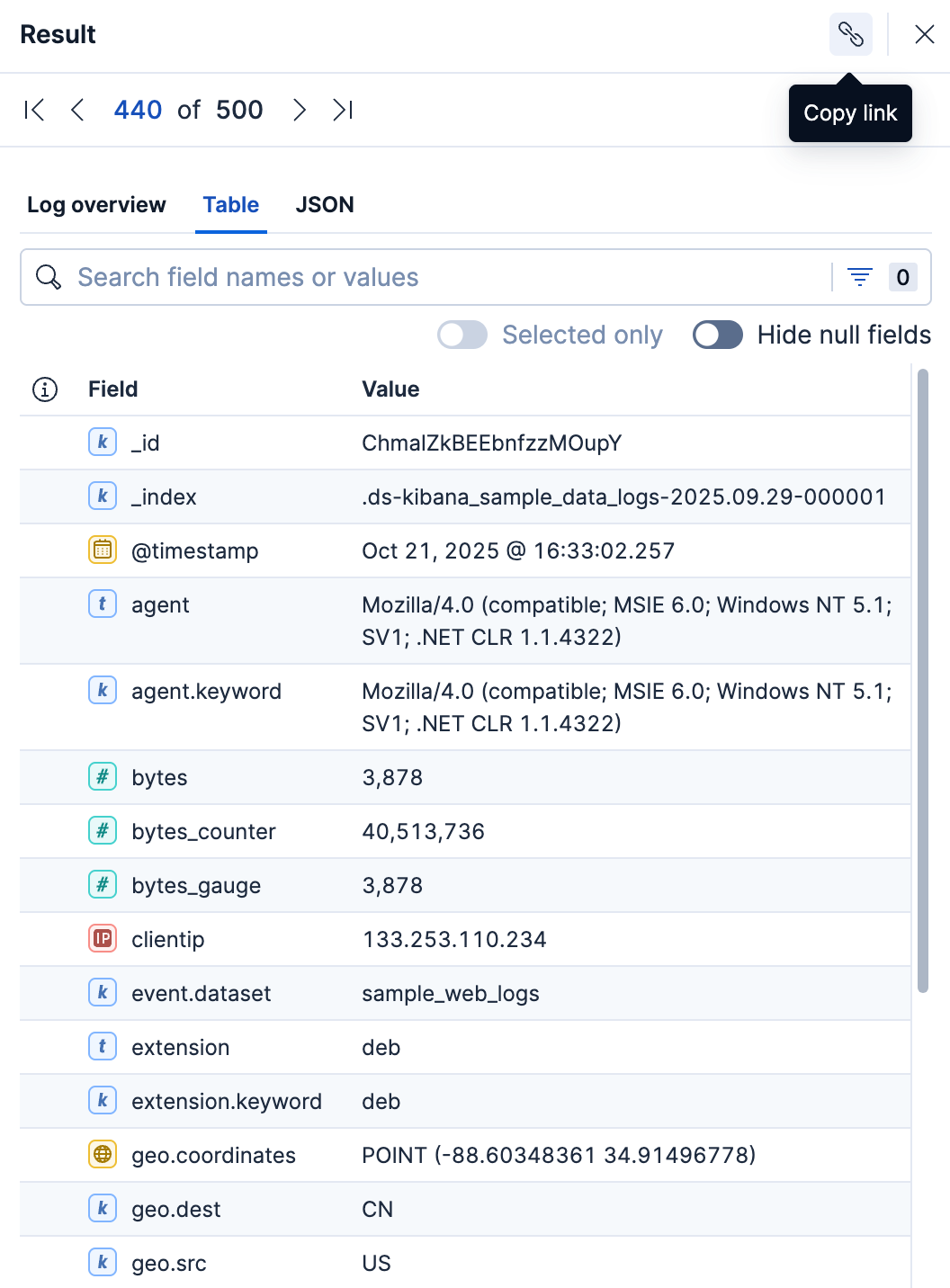
Result: Anyone who opens the link sees Discover with the same document flyout open. The link uses the absolute time range of the results on screen, so the document stays in that range.
If you open a document from a grouped ES|QL result, the link keeps the grouping with INLINE STATS.
Share includes the open document when Copy link can copy it. If Copy link can't copy the document, the dialog says the link won't include it.
Copy link always uses an absolute time range. Share can keep a relative one, but then its dialog warns you to use an absolute time range so the document stays in the results.
Copy link stays available and shows a warning when it can't link to an individual result:
- If the query transforms rows, for example with
STATSorKEEP, you can't copy a link to an individual result. - If the query starts with a source command other than
FROMorTS, such asROW, you can't copy a link to an individual result. - If
_idand_indexare missing, addMETADATA _id, _indexand run the query again.
- Use Discover sessions in dashboards: Keep the results next to your other panels.
- Export results and sessions from Discover: Take the results or the session definition elsewhere.