Sort Discover results by relevance
Elastic Cloud Serverless projects are autoscaled environments, fully managed by Elastic and available on Elastic Cloud. Availability This functionality is generally available and ready for production usage. Serverless interfaces and procedures might differ from classic Elastic Stack deployments. The Elastic Stack includes Elastic's core products such as Elasticsearch, Kibana, Logstash, and Beats. Availability This functionality is generally available and ready for production usage. Unless stated otherwise on the page, this functionality is available when your Elastic Stack is deployed on Elastic Cloud Hosted, Elastic Cloud Enterprise, Elastic Cloud on Kubernetes, and self-managed environments. This documentation corresponds to the latest patch available for each minor version. If you're not using the latest patch, check the release notes for changes.
Serverless
Generally available
Stack
Generally available
Elasticsearch gives each document a relevance score based on how well it matches your query. In Discover, you can sort by this score to see the best matches first.
Open Discover.
The steps differ by mode, so select the tab for the mode you use.
This example uses the web logs sample data, or you can use your own data.
In Discover, make sure you're in ES|QL mode. If Discover opens in classic mode, refer to Switch between ES|QL and classic mode.
To get scores, add
METADATA _scoreto theFROMcommand, and match text with a full-text function such asMATCH. Then sort by_score. For the sample data, enter:ES|QL FROM kibana_sample_data_logs METADATA _score | WHERE MATCH(message, "Mozilla") | SORT _score DESC | KEEP _score, message | LIMIT 10If you don't see any results, expand the time range, for example to Last 7 days.
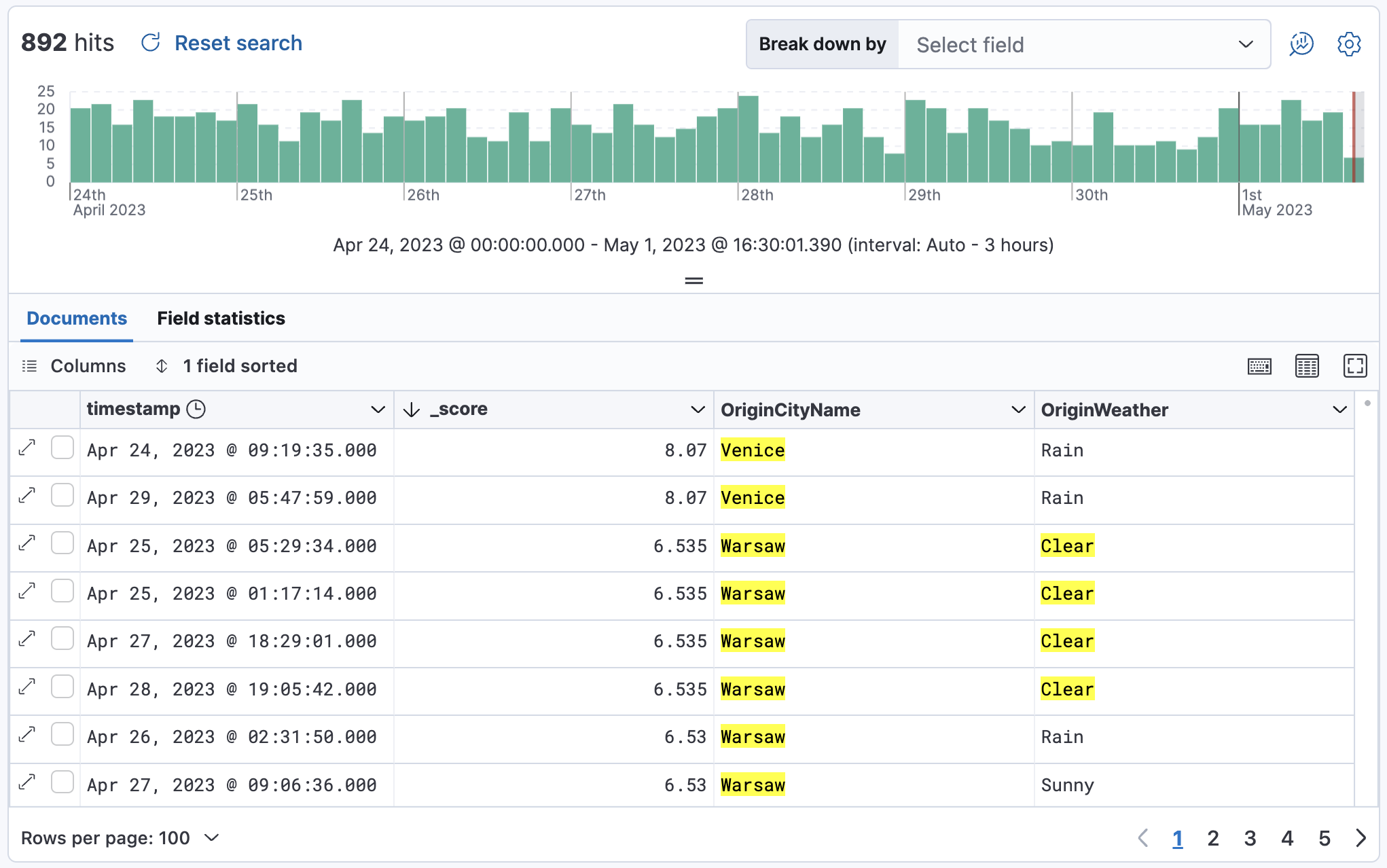
Result: The table lists the best matches first, with their scores in the _score column.
Very small scores show as 0 in the table. To see the difference between them, multiply the score in your query. For example, add | EVAL score_x100000 = _score * 100000 before KEEP, then add score_x100000 to the KEEP command.
For more about scores, refer to Relevance scoring and to the _score metadata field.
This example uses the flights sample data, or you can use your own data.
In Discover, if it opens in ES|QL mode, switch to classic mode. Then, from the data view menu, select the data that you want to work with.
For the flights sample data, set the data view to Kibana Sample Data Flights.
Run your search. For the sample data, try:
TypeScript Warsaw OR Venice OR ClearIf you don't see any results, expand the time range, for example to Last 7 days.
In the fields list in the sidebar, expand the Meta fields list. Next to
_score, select (Add "_score" field) to add it as a column.Optional: Add any other fields you want to the document table.
By default, the table sorts by the time field of your data view, which is
timestampin the flights sample data. To turn off that sorting, select the field sorted option, and then select Clear sorting.Open the Pick fields to sort by menu, and then select _score.
Select High-Low.
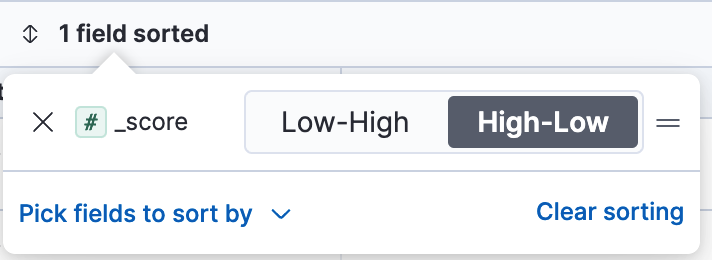
Result: The table sorts documents from most to least relevant.