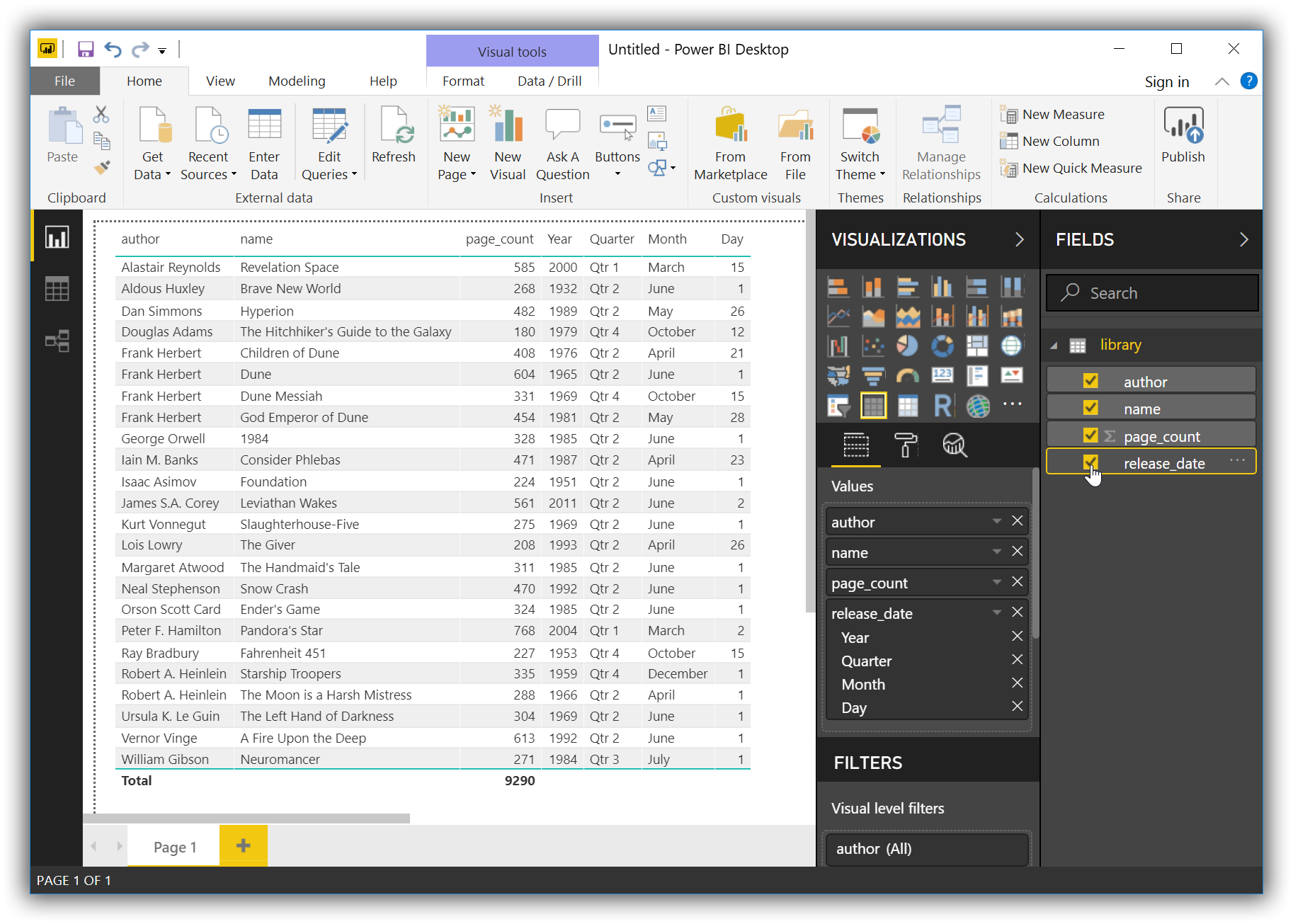
Microsoft Power BI Desktop
Elastic Cloud Serverless projects are autoscaled environments, fully managed by Elastic and available on Elastic Cloud. Availability This functionality is generally available and ready for production usage. Serverless interfaces and procedures might differ from classic Elastic Stack deployments. The Elastic Stack includes Elastic's core products such as Elasticsearch, Kibana, Logstash, and Beats. Availability This functionality is generally available and ready for production usage. Unless stated otherwise on the page, this functionality is available when your Elastic Stack is deployed on Elastic Cloud Hosted, Elastic Cloud Enterprise, Elastic Cloud on Kubernetes, and self-managed environments. This documentation corresponds to the latest patch available for each minor version. If you're not using the latest patch, check the release notes for changes.
Serverless
Generally available
Stack
Generally available
You can use the Elasticsearch ODBC driver to access Elasticsearch data from Microsoft Power BI Desktop.
Elastic does not endorse, promote or provide support for this application; for native Elasticsearch integration in this product, reach out to its vendor.
- Microsoft Power BI Desktop 2.63 or higher
- Elasticsearch SQL ODBC driver
- A preconfigured User or System DSN (see Configuration section on how to configure a DSN).
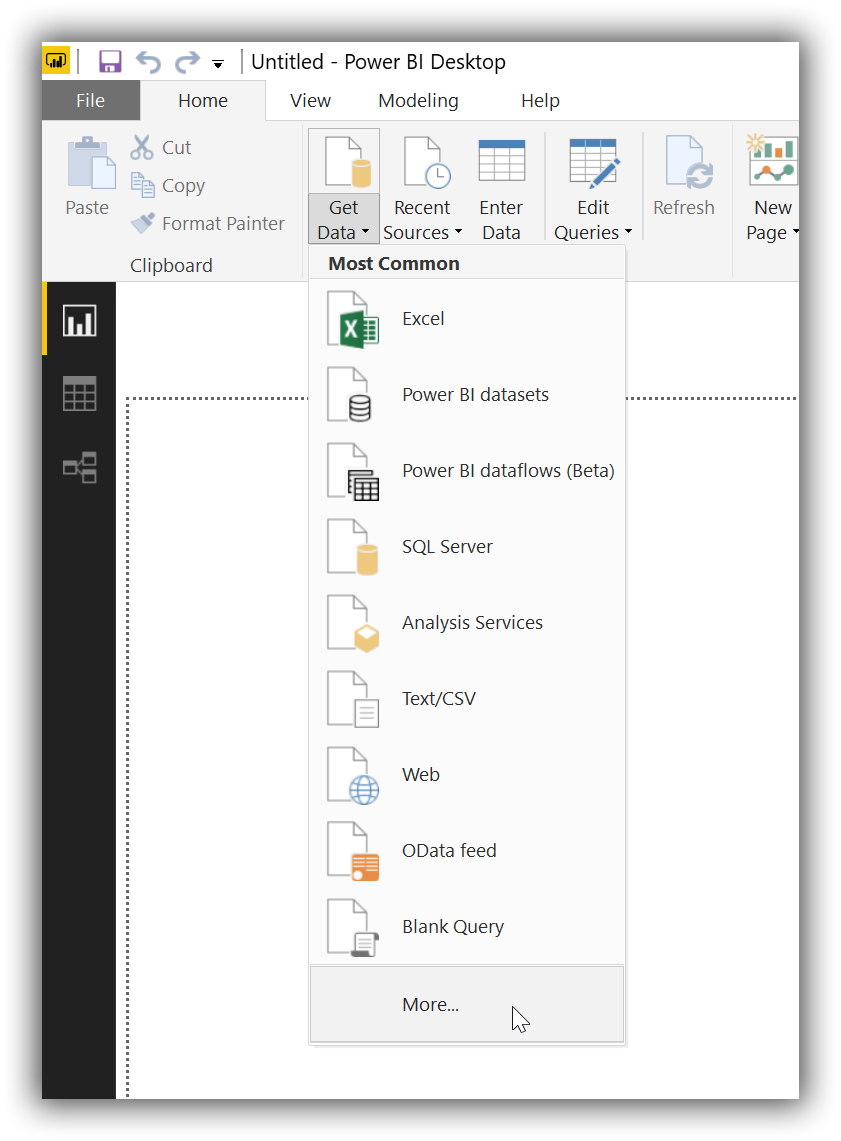
First, you’ll need to choose ODBC as the source to load data from. Once launched, click on the Get Data button (under Home tab), then on the More… button at the bottom of the list:
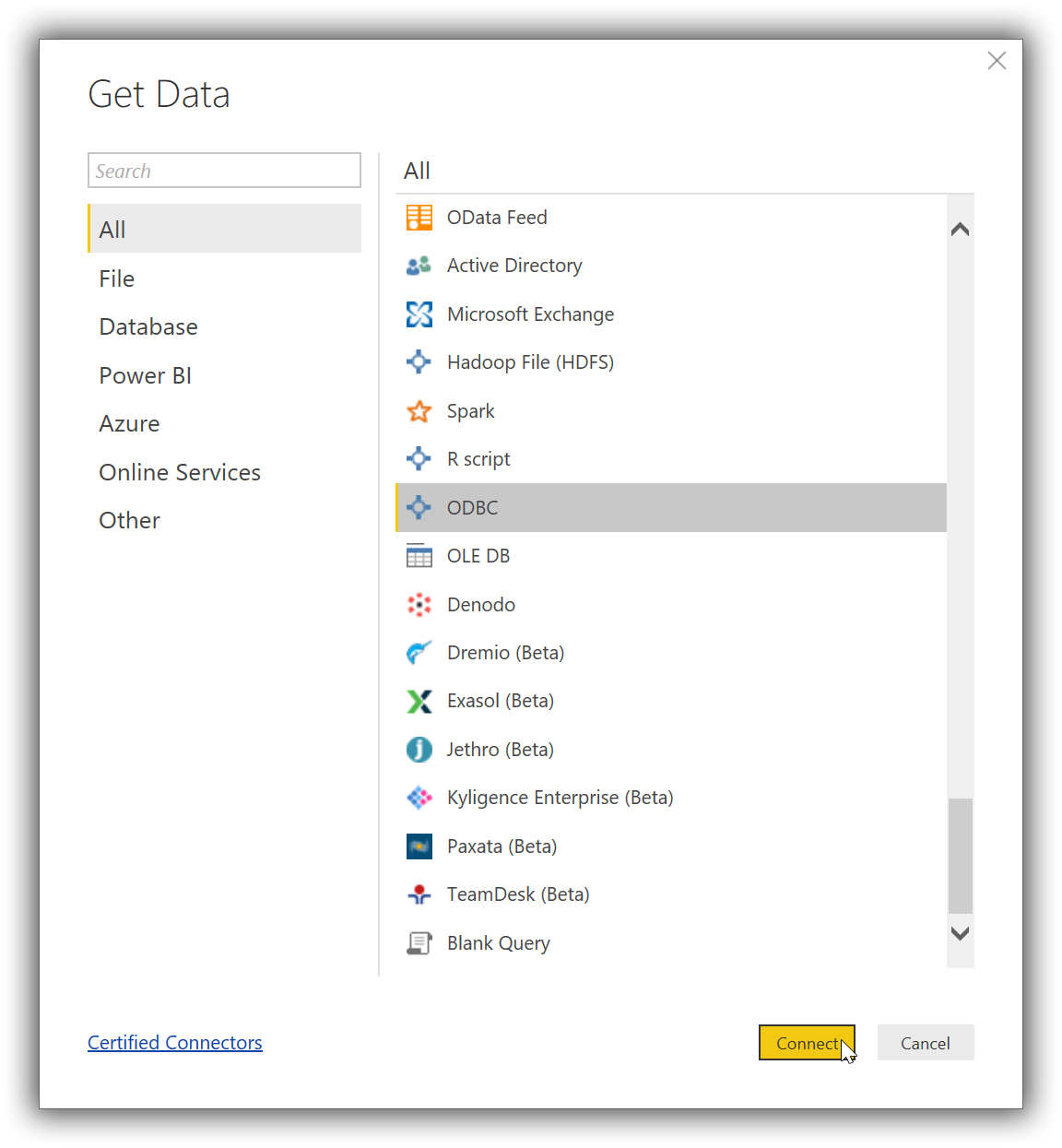
In the new opened window scroll at the bottom of the All list and select the ODBC entry, then click on the Connect button:
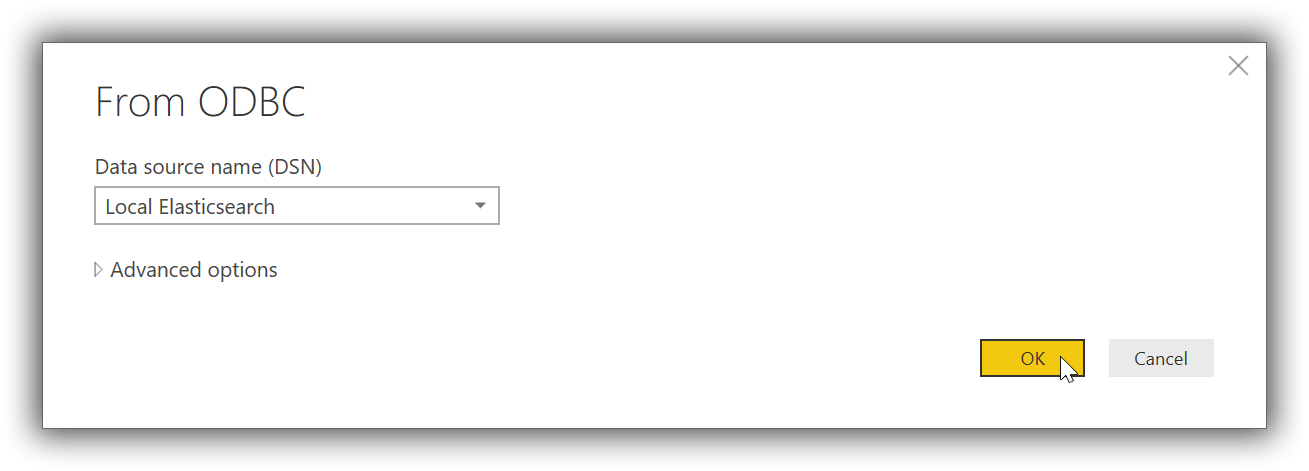
This will replace current window with a new From ODBC one, where you’ll have to select a previously configured DSN:
Once connected Power BI will read Elasticsearch's catalog and offer the user a choice of tables (indices) to load data from. Clicking on one of the tables will load a preview of the data within:
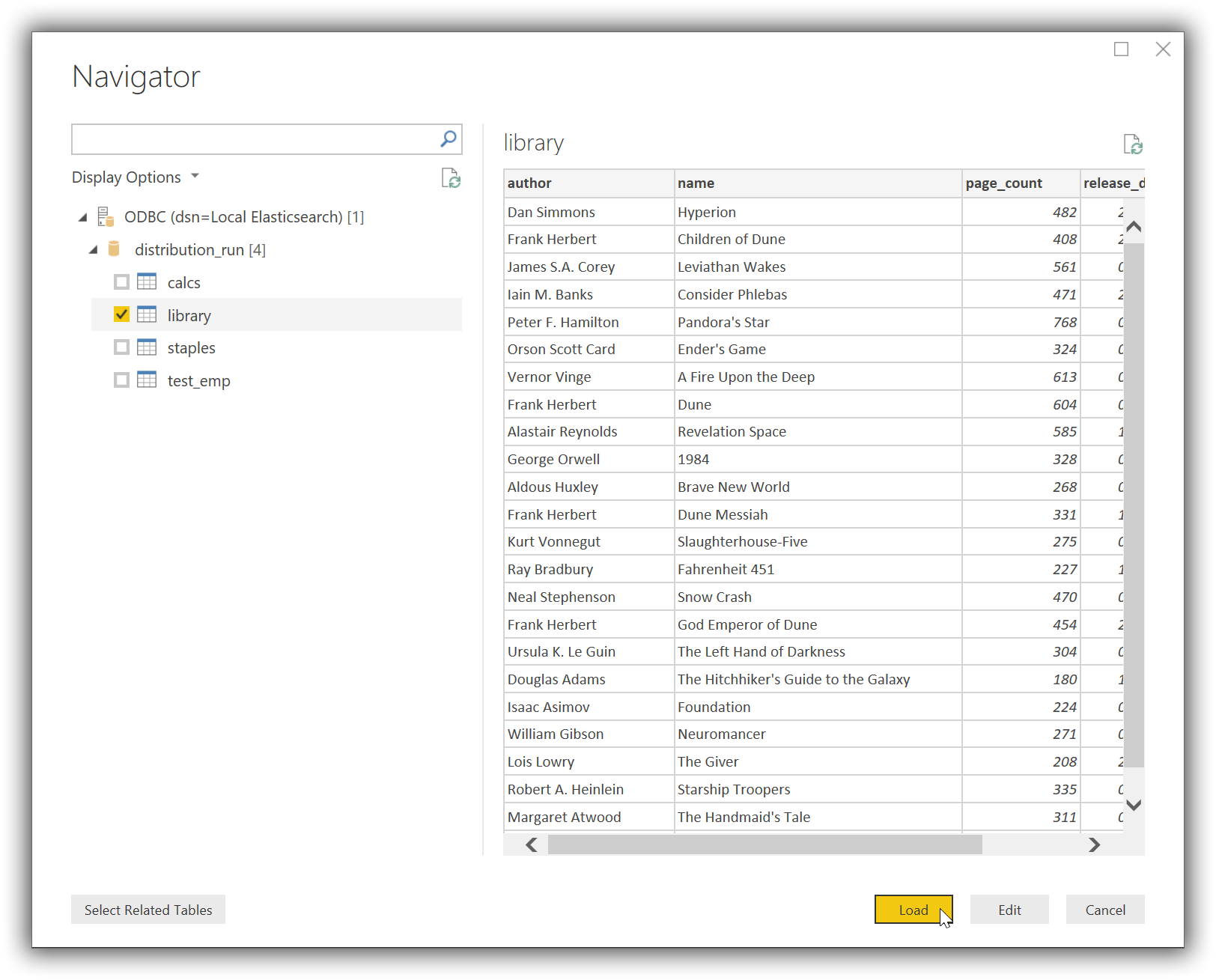
Now tick the chosen table and click on the Load button. Power BI will now load and analyze the data, populating a list with the available columns. These can now be used to build the desired visualisation: