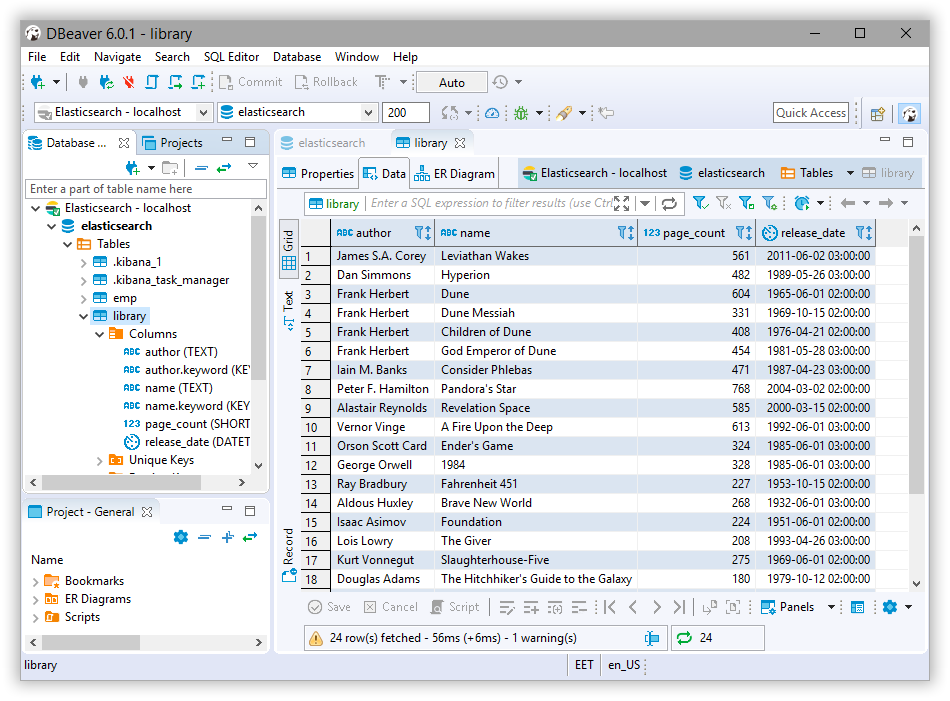
DBeaver
Elastic Cloud Serverless projects are autoscaled environments, fully managed by Elastic and available on Elastic Cloud. Availability This functionality is generally available and ready for production usage. Serverless interfaces and procedures might differ from classic Elastic Stack deployments. The Elastic Stack includes Elastic's core products such as Elasticsearch, Kibana, Logstash, and Beats. Availability This functionality is generally available and ready for production usage. Unless stated otherwise on the page, this functionality is available when your Elastic Stack is deployed on Elastic Cloud Hosted, Elastic Cloud Enterprise, Elastic Cloud on Kubernetes, and self-managed environments. This documentation corresponds to the latest patch available for each minor version. If you're not using the latest patch, check the release notes for changes.
Serverless
Generally available
Stack
Generally available
You can use the Elasticsearch JDBC driver to access Elasticsearch data from DBeaver.
Elastic does not endorse, promote or provide support for this application; for native Elasticsearch integration in this product, reach out to its vendor.
- DBeaver version 6.0.0 or higher
- Elasticsearch SQL JDBC driver
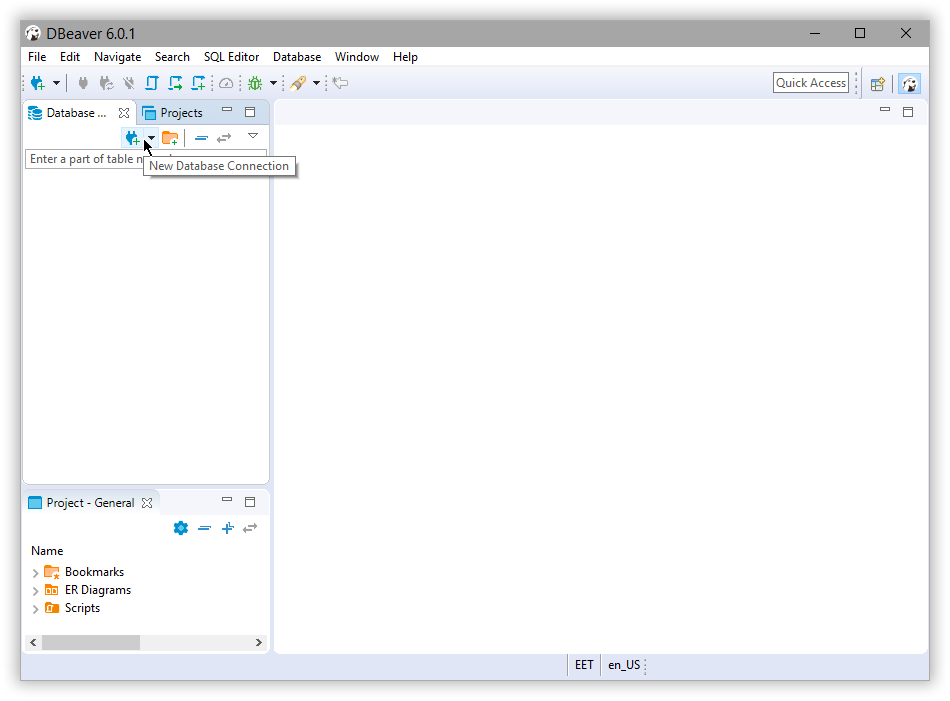
Create a new connection either through the menu File > New > Database Connection menu or directly through the Database Connection panel.
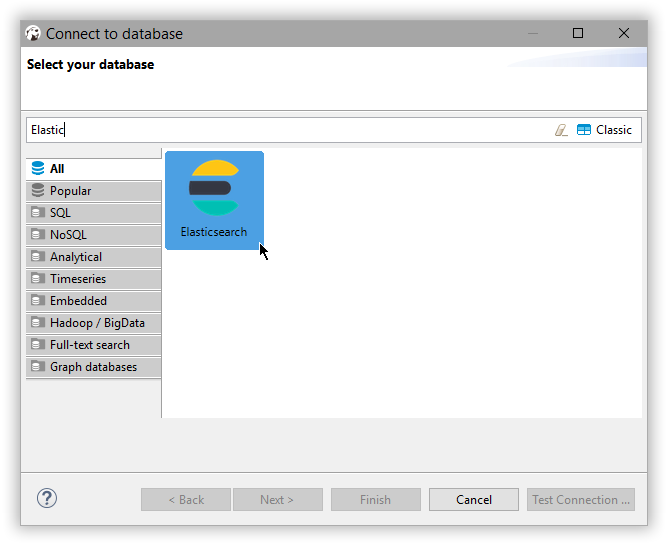
Select the Elasticsearch type from the available connection types:
Configure the Elasticsearch SQL connection appropriately:
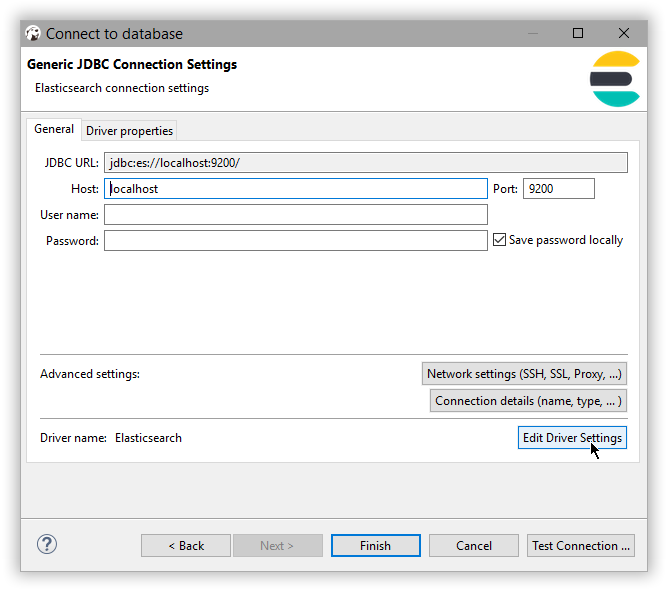
Make sure the correct JDBC driver version is used by using the Edit Driver Settings button:
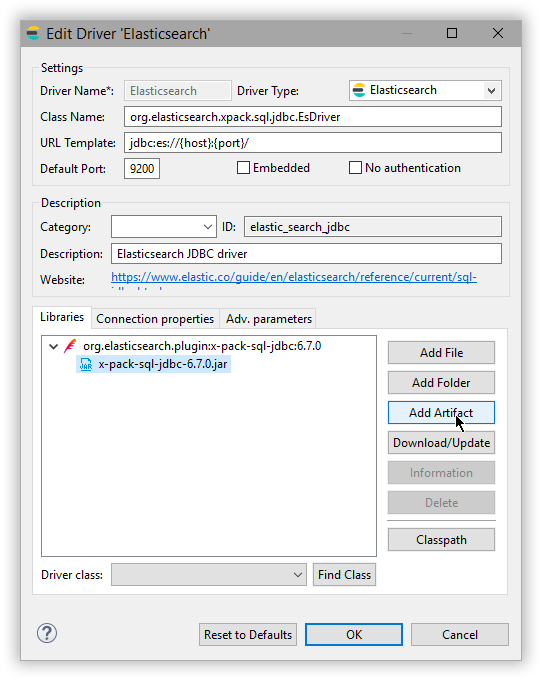
DBeaver is aware of the Elasticsearch JDBC maven repository so simply Download/Update the artifact or add a new one. As an alternative one can add a local file instead if the Elasticsearch Maven repository is not an option.
When changing the driver, make sure to click on the Find Class button at the bottom - the Driver class should be picked out automatically however this provides a sanity check that the driver jar is properly found and it is not corrupt.
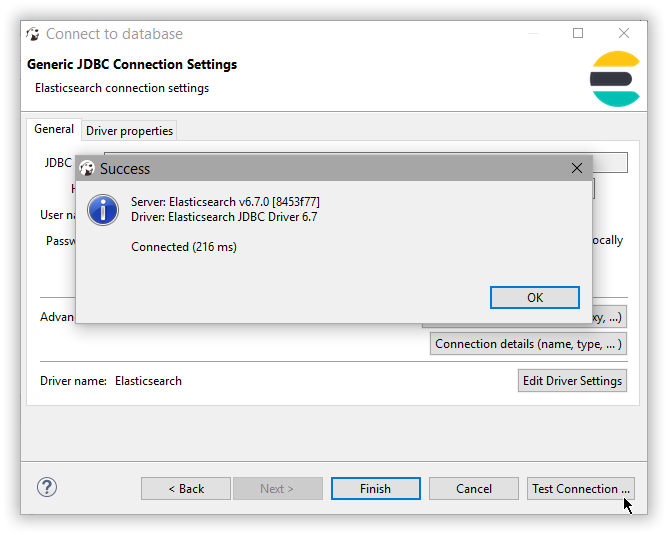
Once the driver version and the settings are in place, use Test Connection to check that everything works. If things are okay, one should get a confirmation window with the version of the driver and that of Elasticsearch SQL:
Click Finish and the new Elasticsearch connection appears in the Database Connection panel.
DBeaver is now configured to talk to Elasticsearch.
Simply click on the Elasticsearch connection and start querying and exploring Elasticsearch: