Managed content
Elastic Cloud Serverless projects are autoscaled environments, fully managed by Elastic and available on Elastic Cloud. Availability This functionality is generally available and ready for production usage. Serverless interfaces and procedures might differ from classic Elastic Stack deployments. The Elastic Stack includes Elastic's core products such as Elasticsearch, Kibana, Logstash, and Beats. Availability This functionality is generally available and ready for production usage. Unless stated otherwise on the page, this functionality is available when your Elastic Stack is deployed on Elastic Cloud Hosted, Elastic Cloud Enterprise, Elastic Cloud on Kubernetes, and self-managed environments. This documentation corresponds to the latest patch available for each minor version. If you're not using the latest patch, check the release notes for changes.
Serverless
Generally available
Stack
Generally available
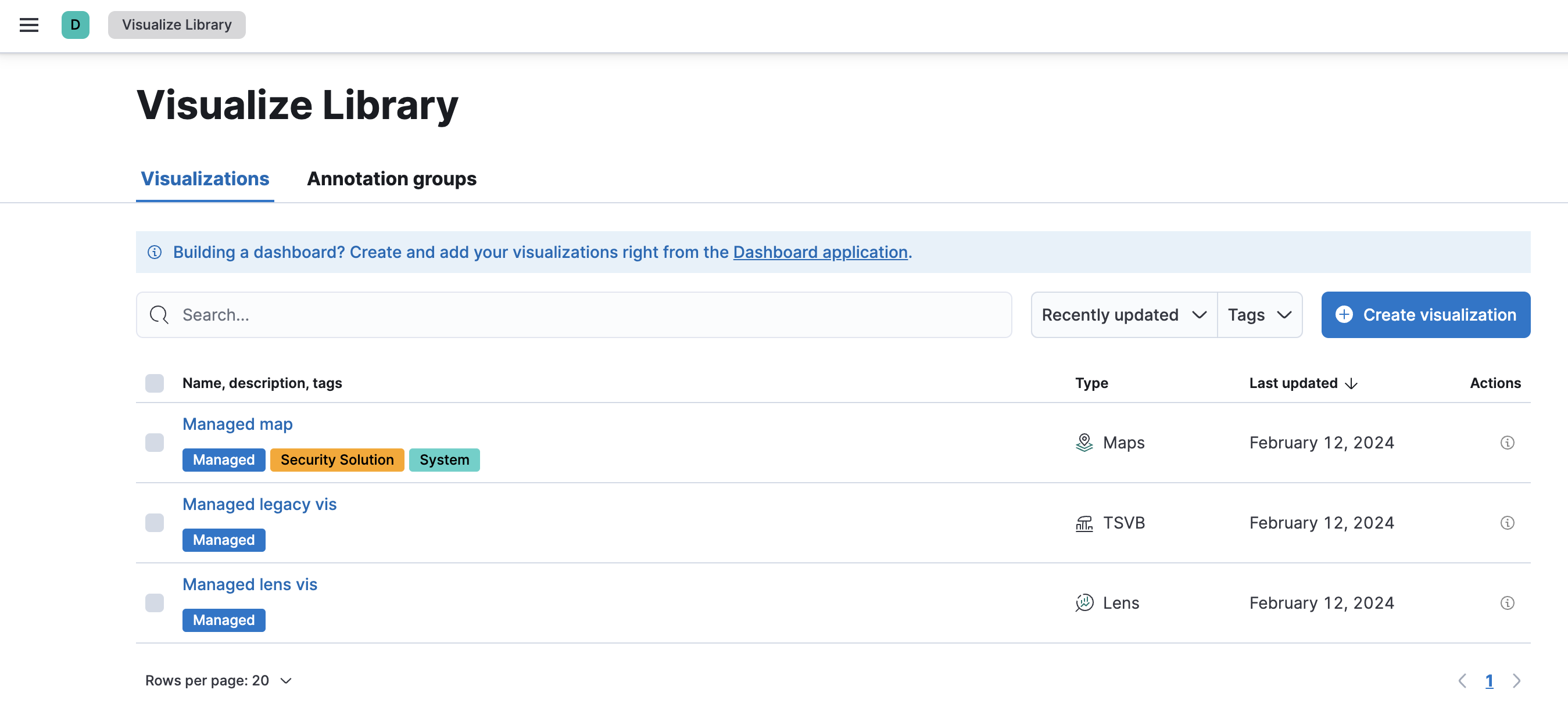
Most integration content installed by Fleet isn't editable. This content is tagged with a Managed badge in the Kibana UI. Managed content itself cannot be edited or deleted, however managed visualizations, dashboards, and saved searches can be cloned.
When a managed dashboard is cloned, any linked or referenced panels become part of the clone without relying on external sources. The panels are integrated into the cloned dashboard as stand alone components. For example, with a cloned dashboard, the cloned panels become entirely self-contained copies without any dependencies on the original configuration. Clones can be customized and modified without accidentally affecting the original.
The cloned managed content retains the managed badge, but is independent from the original.
You can make a complete clone of a whole managed dashboard. If you clone a panel within a managed dashboard, you're prompted to save the changes as a new dashboard, which is unlinked from the original managed content.
To clone a dashboard:
- Go to Dashboards.
- Click on the name of the managed dashboard to view the dashboard.
- Click Clone in the toolbar.
- Click Save and return after editing the dashboard.
- Click Save.
With managed content relating to specific visualization editor such as Lens, TSVB, and Maps, the clones retain the original reference configurations. To clone the visualization, view it in the editor then begin to make edits. Once finished editing you are prompted to save the edits as a new visualization. The same applies to editing any saved searches in a managed visualization.