Rotate SSL/TLS CA certificates
Elastic Cloud Serverless projects are autoscaled environments, fully managed by Elastic and available on Elastic Cloud. Availability This functionality is not available in Elastic Cloud Serverless. The Elastic Stack includes Elastic's core products such as Elasticsearch, Kibana, Logstash, and Beats. Availability This functionality is generally available and ready for production usage. Unless stated otherwise on the page, this functionality is available when your Elastic Stack is deployed on Elastic Cloud Hosted, Elastic Cloud Enterprise, Elastic Cloud on Kubernetes, and self-managed environments. This documentation corresponds to the latest patch available for each minor version. If you're not using the latest patch, check the release notes for changes.
Serverless
Unavailable
Unavailable
Stack
Generally available
In some scenarios you may want to rotate your configured certificate authorities (CAs), for instance if your chosen CAs are due to expire. Refer to the following steps to rotate certificates between connected components:
- Rotating a Fleet Server CA
- Rotating an Elasticsearch CA for connections from Fleet Server
- Rotating an Elasticsearch CA for connections from Elastic Agent
For important notes about current limitations (such as restart requirements and unsupported features), refer to Limitations.
Elastic Agent communicates with Fleet Server to receive policies and to check for updates. There are two methods to rotate a CA certificate on Fleet Server for connections from Elastic Agent. The first method requires Elastic Agent to re-enroll with Fleet Server one or more times. The second method avoids re-enrollment and requires overwriting the existing CA file with a new certificate.
Option 1: To renew an expiring CA certificate on Fleet Server with Elastic Agent re-enrollments
Using this method, the Elastic Agent with an old or expiring CA configured will be re-enrolled with Fleet Server using a new CA.
Update the Elastic Agent with the new Fleet Server CA:
The Elastic Agent should already have a CA configured. Use the
elastic-agent enrollcommand to re-enroll the agent with an updated, comma separated set of CAs to use.Shell elastic-agent enroll \ --url=<Fleet-Server-URL> \ --enrollment-token=<enrollment-token> \ ... \ --certificate-authorities <original_CA, new_CA>A new agent enrollment will cause a new agent to appear in Fleet. This may be considered disruptive, however the old agent entry will transition to an offline state. A new agent enrollment is required in order for the Fleet Server configuration to be modified to accept multiple certificate authorities.
At this point, all TLS connections are still relying on the original CA that was provided (
original_CA) in order to authenticate Fleet Server certificates.Rotate the certificates on Fleet Server:
This procedure will reissue new certificates based on the new CA. Re-enroll Fleet Server with all the new certificates:
Shell elastic-agent enroll ... --url=<Fleet-Server-URL> \ --enrollment-token=<enrollment-token> \ ... \ --fleet-server-cert <new_cert> --certificate-authorities <new_CA>This will cause the TLS connections to the Elastic Agents to reset and will load the relevant new CA and certificates to the Fleet Server configuration.
The Elastic Agents will automatically establish new TLS connections as part of their normal operation:
The new CA (
new_CA) on the agent installed in Step 1 will be used to authenticate the certificates used by Fleet Server.If the original CA (
original CA) was compromised, then it may need to be removed from the agent's CA list. To achieve this you need to enroll the agent again:Shell elastic-agent enroll ... --url=<Fleet-Server-URL> \ --enrollment-token=<enrollment-token> \ ... \ --certificate-authorities <new_CA>
Option 2: To renew an expiring CA certificate on Fleet Server without Elastic Agent re-enrollments
Option 1 results in multiple Elastic Agent enrollments. Another option to avoid multiple enrollments is to overwrite the CA files with the new CA or certificate. This method uses a single file with multiple CAs that can be replaced.
To use this option it is assumed that:
Elastic Agents have already been enrolled using a file that contains the Certificate Authority:
Shell elastic-agent enroll ... --url=<Fleet-Server-URL> \ --enrollment-token=<enrollment-token> \ ... \ --certificate-authorities=<CA.pem>The Elastic Agent running Fleet Server has already been enrolled with the following secure connection options, where each option points to files that contain the certificates and keys:
Shell elastic-agent enroll ... --url=<Fleet-Server-URL> \ --enrollment-token=<enrollment-token> \ ... \ --certificate-authorities=<CA.pem> \ --fleet-server-cert=<fleet-cert.pem> \ --fleet-server-cert-key=<key.pem>
To update the Elastic Agent and Fleet Server configurations:
Update the configuration with the new CA by changing the content of
CA.pemto include the new CA.Shell cat new_ca.pem >> CA.pemRestart the Elastic Agents. This is not a re-enrollment–restarting will force the Elastic Agents to reload the CAs.
Shell elastic-agent restartFor the Elastic Agent that is running Fleet Server, overwrite the original
certificate,certificate-key, and thecertificate-authoritywith the new ones to use.Shell cat new-cert.pem > cert.pem cat new-key.pem > key.pem cat new_ca.pem > CA.pemRestart the Elastic Agent that is running Fleet Server.
Shell elastic-agent restartIf the original certificate needs to be removed from the Elastic Agents, overwrite the
CA.pemwith the new CA only:Shell cat new_ca.pem > CA.pemFinally, restart the Elastic Agents again.
Shell elastic-agent restart
Fleet Server communicates with Elasticsearch to send status information to Fleet about Elastic Agents and to retrieve updated policies to ship out to all Elastic Agents enrolled in a given policy. If you have Fleet Server deployed on-premise, you may wish to rotate your configured CA certificate, for instance if the certificate is due to expire.
To rotate a CA certificate on Elasticsearch for connections from Fleet Server:
Update the Fleet Server with the new Fleet Server CA:
The Elastic Agent running Fleet Server should already have a CA configured. Use the
elastic-agent enrollcommand to re-enroll the agent running Fleet Server with an updated, comma separated set of CAs to use.Shell elastic-agent enroll \ --fleet-server-es=<Elasticsearch-URL> \ --fleet-server-service-token=<service-token> \ ... \ --fleet-server-es-ca <original_ES_CA, new_ES_CA>A new agent enrollment will cause two Fleet Server agents to appear in Fleet. This may be considered disruptive, however the old agent entry will transition to offline. A new agent enrollment is required in order for the Fleet Server configuration to be modified to accept multiple certificate authorities.
At this point, all TLS connections are still relying on the original CA that was provided (
original_ES_CA) in order to authenticate Elasticsearch certificates. Re-enrolling the Fleet Server will cause the agents going through that Fleet Server to also reset their TLS, but the connections will be re-established as required.Rotate the certificates on Elasticsearch.
Elasticsearch will use new certificates based on the new Elasticsearch CA. Since the Fleet Server has the original and the new Elasticsearch CAs in a chain, it will accept original and new certificates from Elasticsearch.
If the original Elasticsearch CA (
original_ES CA) was compromised, then it may need to be removed from the Fleet Server's CA list. To achieve this you need to enroll the Fleet Server agent again (if re-enrollment is a concern then use a file to hold the certificates and certificate-authority):Shell elastic-agent enroll \ --fleet-server-es=<Elasticsearch-URL> \ --fleet-server-service-token=<service-token> \ ... \ --fleet-server-es-ca <new_ES_CA>
Using configuration information from a policy delivered by Fleet Server, Elastic Agent collects data and sends it to Elasticsearch.
To rotate a CA certificate on Elasticsearch for connections from Elastic Agent:
In Fleet open the Settings tab.
In the Outputs section, click the edit button for the Elasticsearch output that requires a certificate rotation.
In the Elasticsearch CA trusted fingerprint field, add the new trusted fingerprint to use. This is the SHA-256 fingerprint (hash) of a certificate authority that's present in the certificate chain Elasticsearch sends during the TLS handshake.
When a certificate matching this fingerprint is found in the chain during the handshake, it will be added to the
certificate_authoritieslist and the handshake will continue normally. For more information, refer to Using certificate fingerprints.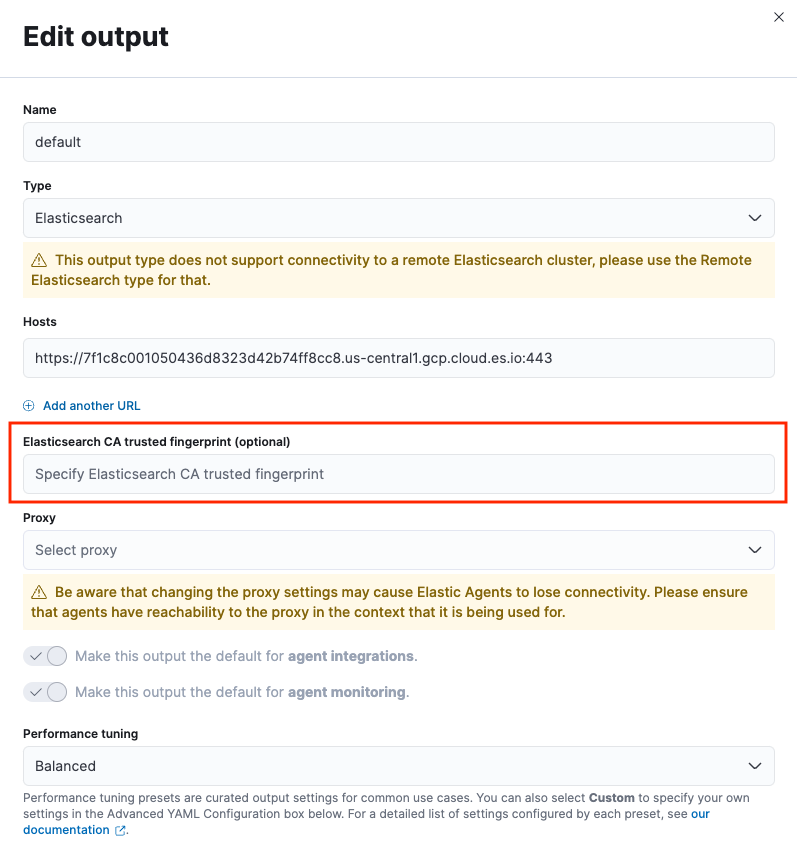
Keep the following in mind when rotating certificates and certificate authorities (CAs):
Agent restart required
Elastic Agent does not support hot reloading of updated certificates or CA files. You must restart the agent to apply changes.
Directory loading not supported
Unlike Beats, Elastic Agent does not support passing a directory of CAs (for example,
--capath) or monitoring a directory for changes. You must reference a specific file.Rotation without re-enrollment
When rotating a CA, you can avoid agent re-enrollment by including both the old and new CAs in the configured CA file, restarting the agent, and then removing the old CA after the switch.
Mutual TLS (
--fleet-server-client-auth=required)If mTLS is enabled, you must apply the same overlap approach (adding a new CA before removing the old) on both client and server. The rotation process itself is otherwise unchanged.