Setup Elasticsearch
Elastic Cloud Serverless projects are autoscaled environments, fully managed by Elastic and available on Elastic Cloud. Availability This functionality is generally available and ready for production usage. Serverless interfaces and procedures might differ from classic Elastic Stack deployments. The Elastic Stack includes Elastic's core products such as Elasticsearch, Kibana, Logstash, and Beats. Availability This functionality is generally available and ready for production usage. Unless stated otherwise on the page, this functionality is available when your Elastic Stack is deployed on Elastic Cloud Hosted, Elastic Cloud Enterprise, Elastic Cloud on Kubernetes, and self-managed environments. This documentation corresponds to the latest patch available for each minor version. If you're not using the latest patch, check the release notes for changes.
Serverless
Generally available
Stack
Generally available
First we need to setup Elasticsearch. The easiest way to do this is to create an Elasticsearch instance via Elastic Cloud.
Next we need to setup an API key to access the data from the index. We can do this via Kibana’s Stack Management API Keys page (<your Kibana endpoint>/app/management/security/api_keys). Note that security needs to be enabled for this option to be available.
Notice here we are only giving read privileges for this api key. You will need to setup an api key with write privileges to add and update data to the index.
{
  "superuser": {
    "cluster": ["all"],
    "indices": [
      {
        "names": ["my-example-movies"],
        "privileges": ["read"],
        "allow_restricted_indices": false
      }
    ]
  }
}
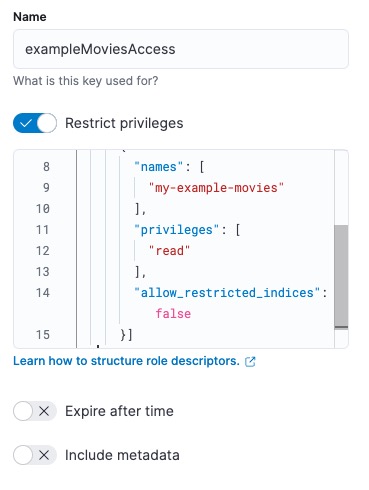
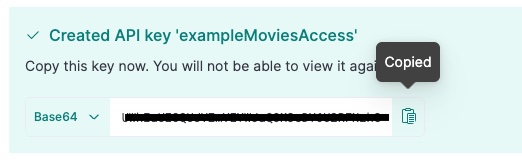
Once saved, you are presented with the api-key. Copy this and keep it safe. We will need to use this further down in the tutorial.
If you’re going to be accessing Elasticsearch directly from a browser and the Elasticsearch host domain doesn’t match your site’s domain, you will need to enable CORS.
CORS is a browser mechanism which enables controlled access to resources located outside of the current domain. In order for the browser to make requests to Elasticsearch, CORS configuration headers need to specified in the Elasticsearch configuration.
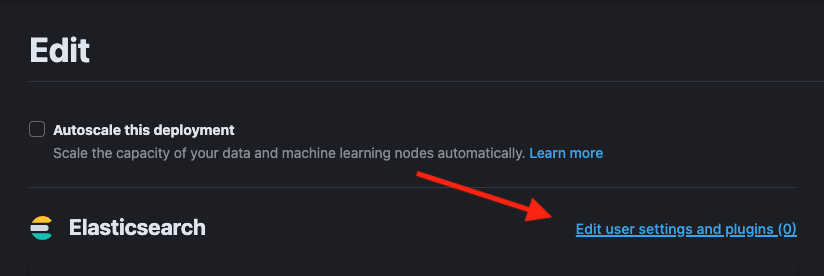
You can do this in cloud by going to the deployment settings for your Elasticsearch instance, click "Edit user settings and plugins" and under "user settings", add the CORS configuration below:
http.cors.allow-origin: "*"
http.cors.enabled: true
http.cors.allow-credentials: true
http.cors.allow-methods: OPTIONS, HEAD, GET, POST, PUT, DELETE
http.cors.allow-headers: X-Requested-With, X-Auth-Token, Content-Type, Content-Length, Authorization, Access-Control-Allow-Headers, Accept, x-elastic-client-meta
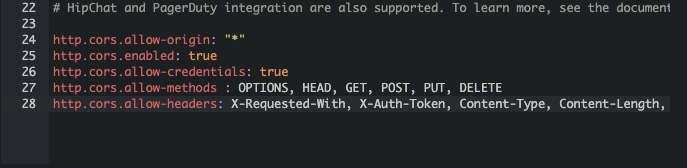
then save. Your Elasticsearch instance will be restarted and the CORS configuration will be active.