Configure and Run Search UI
Elastic Cloud Serverless projects are autoscaled environments, fully managed by Elastic and available on Elastic Cloud. Availability This functionality is generally available and ready for production usage. Serverless interfaces and procedures might differ from classic Elastic Stack deployments. The Elastic Stack includes Elastic's core products such as Elasticsearch, Kibana, Logstash, and Beats. Availability This functionality is generally available and ready for production usage. Unless stated otherwise on the page, this functionality is available when your Elastic Stack is deployed on Elastic Cloud Hosted, Elastic Cloud Enterprise, Elastic Cloud on Kubernetes, and self-managed environments. This documentation corresponds to the latest patch available for each minor version. If you're not using the latest patch, check the release notes for changes.
Serverless
Generally available
Stack
Generally available
Next lets configure Search UI for our needs! Navigate to the config within app.js and update the following:
const config = {
  searchQuery: {
    search_fields: {
      title: {
        weight: 3
      },
      plot: {},
      genre: {},
      actors: {},
      directors: {}
    },
    result_fields: {
      title: {
        snippet: {}
      },
      plot: {
        snippet: {}
      }
    },
    disjunctiveFacets: ["genre.keyword", "actors.keyword", "directors.keyword"],
    facets: {
      "genre.keyword": { type: "value" },
      "actors.keyword": { type: "value" },
      "directors.keyword": { type: "value" },
      released: {
        type: "range",
        ranges: [
          {
            from: "2012-04-07T14:40:04.821Z",
            name: "Within the last 10 years"
          },
          {
            from: "1962-04-07T14:40:04.821Z",
            to: "2012-04-07T14:40:04.821Z",
            name: "10 - 50 years ago"
          },
          {
            to: "1962-04-07T14:40:04.821Z",
            name: "More than 50 years ago"
          }
        ]
      },
      imdbRating: {
        type: "range",
        ranges: [
          { from: 1, to: 3, name: "Pants" },
          { from: 3, to: 6, name: "Mediocre" },
          { from: 6, to: 8, name: "Pretty Good" },
          { from: 8, to: 10, name: "Excellent" }
        ]
      }
    }
  },
  autocompleteQuery: {
    results: {
      resultsPerPage: 5,
      search_fields: {
        "title.suggest": {
          weight: 3
        }
      },
      result_fields: {
        title: {
          snippet: {
            size: 100,
            fallback: true
          }
        },
        url: {
          raw: {}
        }
      }
    },
    suggestions: {
      types: {
        results: { fields: ["movie_completion"] }
      },
      size: 4
    }
  },
  apiConnector: connector,
  alwaysSearchOnInitialLoad: true
};
In the above example, we configured the:
- query fields to search on title, plot, genre, actors and directors using the text fields
- result fields to display title, plot, genre, actors and directors using the text fields
- facets to display genre, actors and directors using the keyword fields
- we made the facets disjunctive for better user experience. The user can select more than one facet to expand their search.
- autocomplete results to suggest results with the same query fields as main search + returning some fields for display.
For more information on configuration, visit the API configuration docs.
We are going to do several steps here:
- update the
<Searchbox />component to configure autocomplete - remove sorting options
- add a
<Facet />component for each facet field - update the
<Results />component to display all the fields
<div className="App">
  <ErrorBoundary>
    <Layout
      header={
        <SearchBox
          autocompleteMinimumCharacters={3}
          autocompleteResults={{
            linkTarget: "_blank",
            sectionTitle: "Results",
            titleField: "title",
            urlField: "url",
            shouldTrackClickThrough: true
          }}
          autocompleteSuggestions={true}
          debounceLength={0}
        />
      }
      sideContent={
        <div>
          {wasSearched && <Sorting label={"Sort by"} sortOptions={[]} />}
          <Facet key={"1"} field={"genre.keyword"} label={"genre"} />
          <Facet key={"2"} field={"actors.keyword"} label={"actors"} />
          <Facet key={"3"} field={"directors.keyword"} label={"directors"} />
          <Facet key={"4"} field={"released"} label={"released"} />
          <Facet key={"5"} field={"imdbRating"} label={"imdb rating"} />
        </div>
      }
      bodyContent={<Results shouldTrackClickThrough={true} />}
      bodyHeader={
        <React.Fragment>
          {wasSearched && <PagingInfo />}
          {wasSearched && <ResultsPerPage />}
        </React.Fragment>
      }
      bodyFooter={<Paging />}
    />
  </ErrorBoundary>
</div>
Lets run the project with the command:
yarn start
and then view the results in the browser at http://localhost:3000/
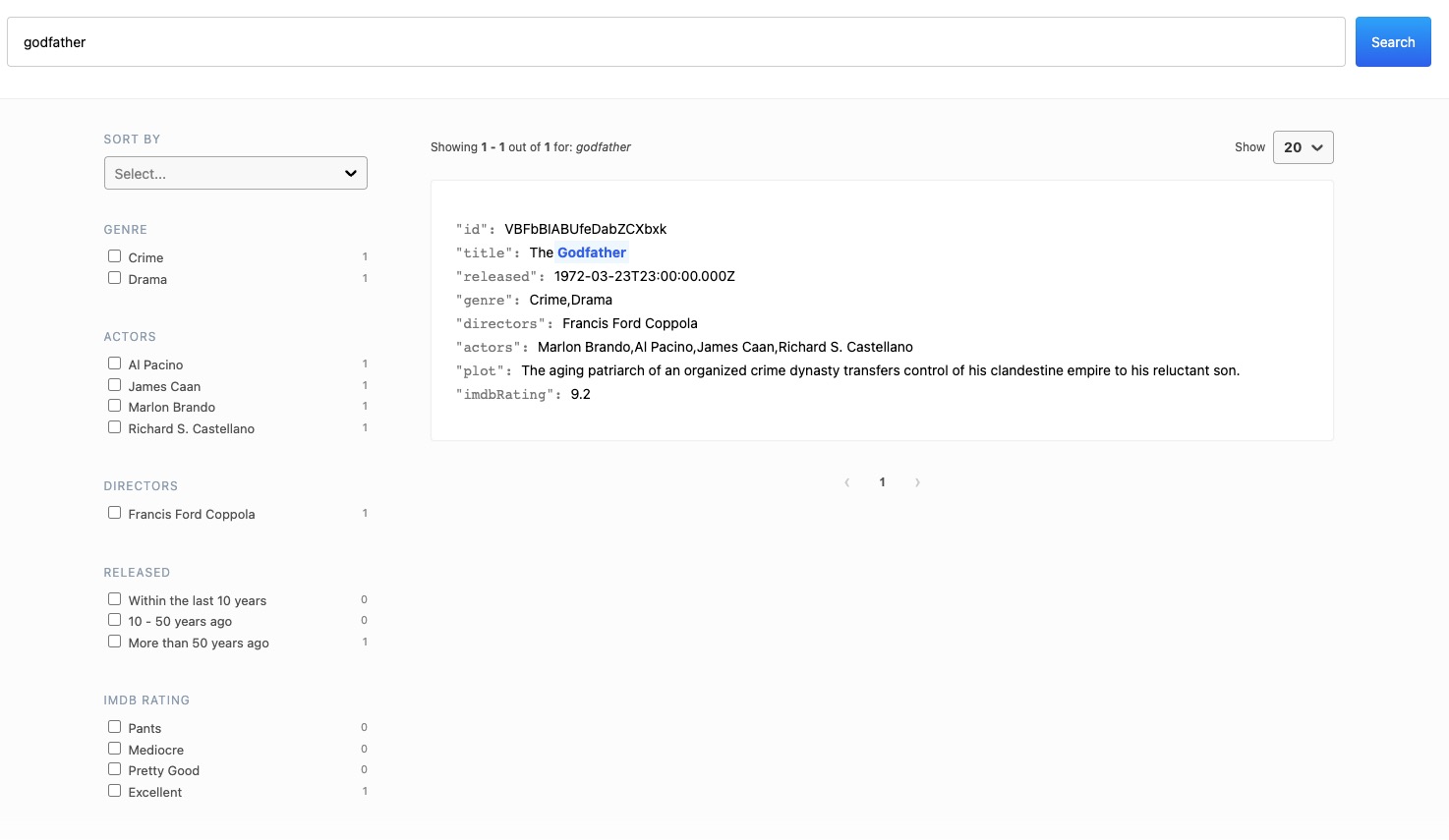
Lets recap of the steps we have covered:
- we setup and configured the Elasticsearch index for our data
- we indexed an example movie
- we checked out the starter app and added the Elasticsearch connector
- we configured the Elasticsearch connector to connect to our Elasticsearch index
- we updated the Search UI configuration to specify the fields to be searchable, facetable
- we updated the components to use these fields
Next you can add more data into the index, update the results view to display more fields, and deploy the app.