---
title: Save and manage Discover sessions
description: Save a Discover session to reuse its queries, filters, and view, then reopen, find, and duplicate it.
url: https://www.elastic.co/docs/explore-analyze/discover/save-open-search
products:
- Elastic Documentation
- Kibana
applies_to:
- Elastic Cloud Serverless: Generally available
- Elastic Stack: Generally available
---
# Save and manage Discover sessions
When an exploration is worth coming back to, save it as a Discover session. The session keeps your queries, filters, columns, and view, so you can reopen the same exploration later or put it on a dashboard.
Kibana stores every saved session in the *library*, the place that the **Open session** list in **Discover** and the dashboards that use your sessions read from.
## Before you begin
The privileges you need depend on what you do on this page:
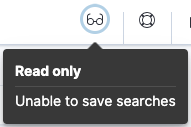
- **Save a session, or save it as a new session:** The **All** privilege for the **Discover** feature in Kibana. If you don't have it, **Discover** shows a **Read only** badge in the header and the **Save** button isn't visible.
- **Add the session to a dashboard when you save it:** The privileges to access and create dashboards, in addition to the **All** privilege for **Discover**. Without them, the **Add to dashboard** option isn't available.
- **Open a saved session:** Access to **Discover**.
- **Rename or delete saved sessions:** Edit or delete access to saved objects, which the Saved Objects feature grants. You reach this from the **Open Discover session** flyout, where you open sessions.
For more information, refer to [Granting access to Kibana](https://docs-demo.elastic.dev/docs/reference/elasticsearch/roles).
The following screenshot shows the **Read only** badge:
## Save a Discover session
When you save, all open [tabs](https://www.elastic.co/docs/explore-analyze/discover/work-with-tabs) are saved to the session.
1. When you've created a view worth saving, select **Save** in the application menu.
2. Enter a **Title** for the session.
3. Optional: Enter a **Description**, and add [**Tags**](https://www.elastic.co/docs/explore-analyze/find-and-organize/tags).
4. Optional: If the session's data has a time field, turn on **Store time with Discover session** to save the current time filter and refresh interval with it.
5. Elastic Cloud Serverless: Generally available Elastic Stack: Generally available since 9.5 Optional: When you save a new session, use **Add to dashboard** to also add the session as a panel on a dashboard. Select **New** to create a dashboard, **Existing** to select one, or **None** to skip. The session is saved to the library in all cases.
6. Select **Save**.
**Result:** The session is saved and appears in the **Open Discover session** flyout. To reload it later, refer to [Open a saved Discover session](#open-discover-session).
A Discover session stores the following elements for each of its tabs:
- The query mode (ES|QL or classic)
- The query text and filters
- The data view
- If you turned on **Store time with Discover session**, the selected time filter and refresh interval
- The current view of **Discover**, including the document table layout, the chart, and any ES|QL [variable controls](https://www.elastic.co/docs/explore-analyze/discover/esql-variable-controls)
- Elastic Cloud Serverless: Generally available Elastic Stack: Planned The **JSON** view of the document table, including how each tree is displayed. Refer to [View documents as JSON](/docs/explore-analyze/discover/document-explorer#document-explorer-view-mode).
- Elastic Cloud Serverless: Preview Elastic Stack: Planned The `bolt` **Fast mode** setting in ES|QL mode. Refer to [Use Fast mode](/docs/explore-analyze/query-filter/languages/esql-kibana#esql-kibana-fast-mode-toggle).
To work with the tabs of a session, refer to [Run multiple explorations with tabs in Discover](https://www.elastic.co/docs/explore-analyze/discover/work-with-tabs).
## Open a saved Discover session
To go back to a session you saved, or to find one that a teammate saved, open it from **Discover**.
1. In the application menu, select **Open session**. The **Open Discover session** flyout lists the saved sessions.
2. To find a session, enter part of its title in the search box, or filter the list by tag. When the search box is empty, you can also sort the list by selecting the **Title** column header.
3. Select the session.
**Result:** The session opens in **Discover**. If it uses a different data view than the one currently selected, **Discover** switches to it. The query mode that the session used is also selected automatically.
To rename, delete, or otherwise manage your saved sessions, select **Manage Discover sessions** in the flyout. The button opens the [Saved Objects](https://www.elastic.co/docs/explore-analyze/find-and-organize/saved-objects) page, filtered to Discover sessions. It appears if your role lets you edit or delete saved objects.
## Rename a Discover session
- Elastic Cloud Serverless: Generally available
- Elastic Stack: Planned
This does not apply to Kibana spaces that use the **Classic** solution view.
To rename a session:
1. In **Discover**, select the session title at the top of the page. The title becomes a text field.
2. Enter the new title.
3. Press Enter or select outside the field to confirm the new title. To keep the current title, press Esc instead.
4. If the session isn't saved yet, the **Save Discover session** dialog opens with your title in the **Title** field. Select **Save** to save the session.
A session that you've already saved takes the new title right away, and changes in your open tabs that you haven't saved stay unsaved. If you close the dialog without saving a new session, the title goes back to **New session**.
## Duplicate a Discover session
To start a new session from an existing one, save a copy under a new title. The steps depend on your version.
1. In **Discover**, open the Discover session that you want to duplicate.
2. In the application menu, from the menu next to **Save**, select **Save as**. The **Save Discover session** dialog opens.
3. Enter a **Title** for the new session, and optionally a **Description** and [**Tags**](https://www.elastic.co/docs/explore-analyze/find-and-organize/tags).
4. Elastic Cloud Serverless: Generally available Elastic Stack: Generally available since 9.5 Optional: In **Add to dashboard**, decide whether to also add the session as a panel on a dashboard. Select **New** to create a dashboard, **Existing** to select one, or **None** to skip. The session is saved to the library in all cases.
5. Select **Save**.
1. In **Discover**, open the Discover session that you want to duplicate.
2. In the application menu, select **Save**.
3. Enter a new name for the session.
4. Turn on **Save as new Discover session**.
5. Select **Save**.
**Result:** A new Discover session is saved with the title you entered.
## Next steps
- [Use Discover sessions in dashboards](https://www.elastic.co/docs/explore-analyze/discover/use-sessions-in-dashboards): Add the session, its chart, or its table to a dashboard.
- [Export results and sessions from Discover](https://www.elastic.co/docs/explore-analyze/discover/export-discover-session): Take the results or the session definition elsewhere.
## Related pages
- [How Discover works](https://www.elastic.co/docs/explore-analyze/discover/discover-get-started)
- [How to query in Discover's ES|QL mode](https://www.elastic.co/docs/explore-analyze/discover/use-esql)