---
title: Add variable controls to Discover queries
description: Add variable controls to an ES|QL query in Discover so you can change values without keeping several copies of the query.
url: https://www.elastic.co/docs/explore-analyze/discover/esql-variable-controls
products:
- Elastic Documentation
- Kibana
applies_to:
- Elastic Cloud Serverless: Preview
- Elastic Stack: Preview since 9.2
---
# Add variable controls to Discover queries
If you run the same query again and again with a different value each time, a variable control lets you pick that value from a list instead of editing the query. For example, a control can switch the field that a query groups by. The query holds a variable, such as `?field`, and the control fills it in.
## Before you begin
- Make sure **Discover** is in ES|QL mode. Classic mode doesn't support this functionality. To switch, refer to [Switch to Discover's ES|QL mode](/docs/explore-analyze/discover/switch-esql-mode#switch-discover-query-mode).
- If you're new to ES|QL in Discover, start with [Get started with ES|QL in Discover](https://www.elastic.co/docs/explore-analyze/discover/try-esql).
## Create a variable control from the Discover editor
You create a control while you write the query, from the editor's autocomplete menu.
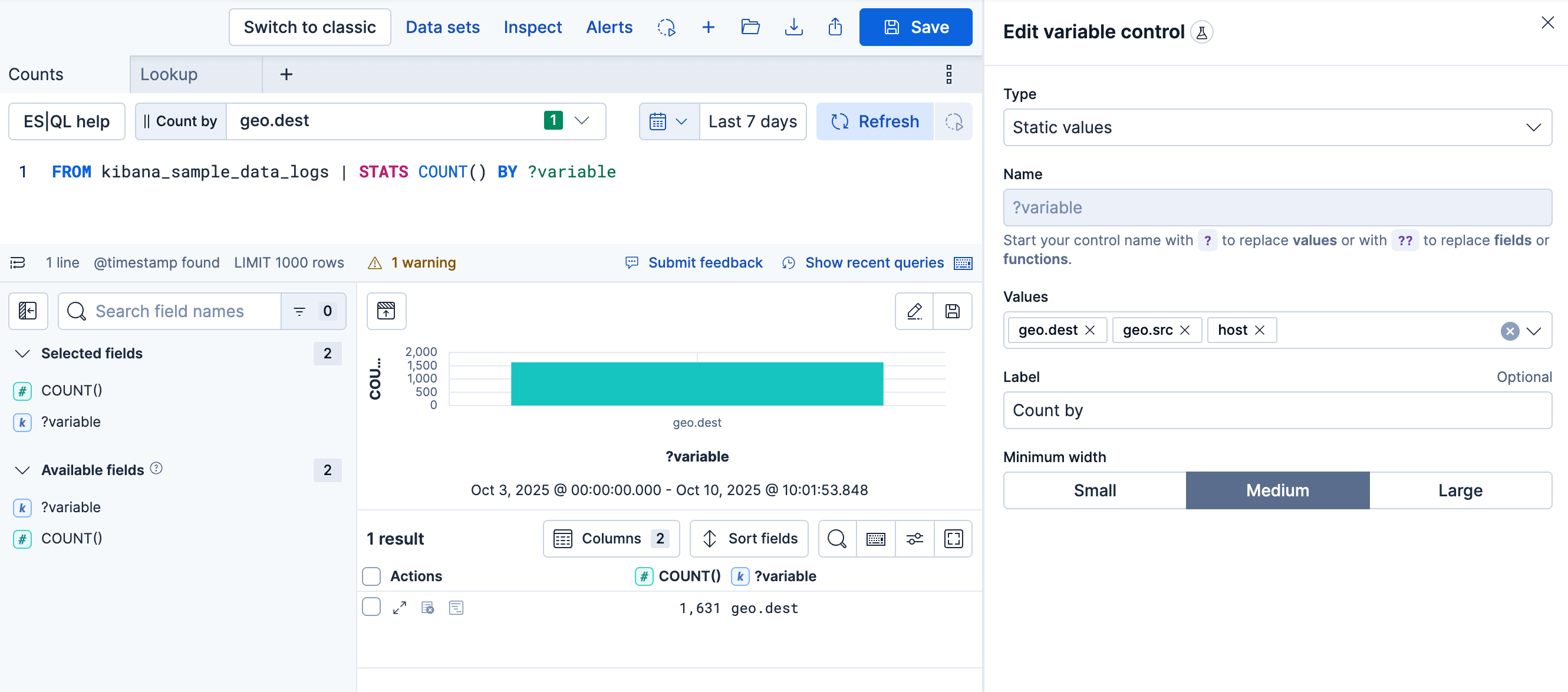
1. While you edit your ES|QL query, the autocomplete menu suggests adding a control when relevant or when you type `?` in the query. Select **Create control**.
2. A flyout opens to let you configure the control. Specify:
- The type of the control:
- For controls with **Static values**, enter available values manually or select them from the dropdown list.
- For controls with **Values from a query**, write an ES|QL query that returns a single column to populate the list of options. Use this option to dynamically retrieve control values or to set up [chained controls](/docs/explore-analyze/visualize/add-variable-controls#chain-variable-controls). This type is available only for controls that replace values, such as a host name or a number. Controls that replace field names, function names, or time intervals use **Static values**.
To restrict the options to values that exist within the selected time range, add `WHERE @timestamp <= ?_tend AND @timestamp > ?_tstart` to the control's query. If your indices don't have a `@timestamp` field, replace `@timestamp` with your time field, as described in [custom time parameters](/docs/explore-analyze/query-filter/languages/esql-kibana#_custom_time_parameters).
- The name of the control. You use this name to reference the control in ES|QL queries. You can't change the name after you save the control, so the prefix is also fixed. The prefix tells ES|QL what the control inserts into the query:
- Start the name with `?` when the options are values, such as a host name, a number, or a time interval. The control inserts the value you select.
- Elastic Cloud Serverless: Preview Elastic Stack: Preview since 9.1 Start the name with `??` when the options are field names or function names. The control inserts the name you select.
- The values users can select. You can add multiple values from suggested fields or type in custom values. If you selected **Values from a query**, write an ES|QL query instead.
- The label of the control. This is the label displayed in **Discover** or in the dashboard.
- Elastic Cloud Serverless: Preview Elastic Stack: Preview since 9.3 Whether the control allows a single selection or multiple selections. Multiple selections require using the [`MV_CONTAINS`](#esql-multi-values-controls) function in your query.
- Elastic Cloud Serverless: Preview Elastic Stack: Preview since 9.4 To match any selected value instead of all of them, use `MV_INTERSECTS` instead of `MV_CONTAINS`.
3. Save the control.
The control is created. If you created it while editing a query, its variable is inserted into that query, which you can keep editing.
**Examples**
- Filter by a selected value:
```esql
| WHERE field == ?value
```
- Group by a selected field:
```esql
| STATS count = COUNT(*) BY ??field
```
- Adjust a function setting, such as a date histogram interval:
```esql
| STATS count = COUNT(*) BY BUCKET(@timestamp, ?interval)
```
- Switch the aggregation function:
```esql
| STATS metric = ??function
```
**Result:** The control appears for the query, and Discover inserts its variable where you created it.
### Allow multi-value selections in a Discover control
- Elastic Cloud Serverless: Preview
- Elastic Stack: Preview since 9.3
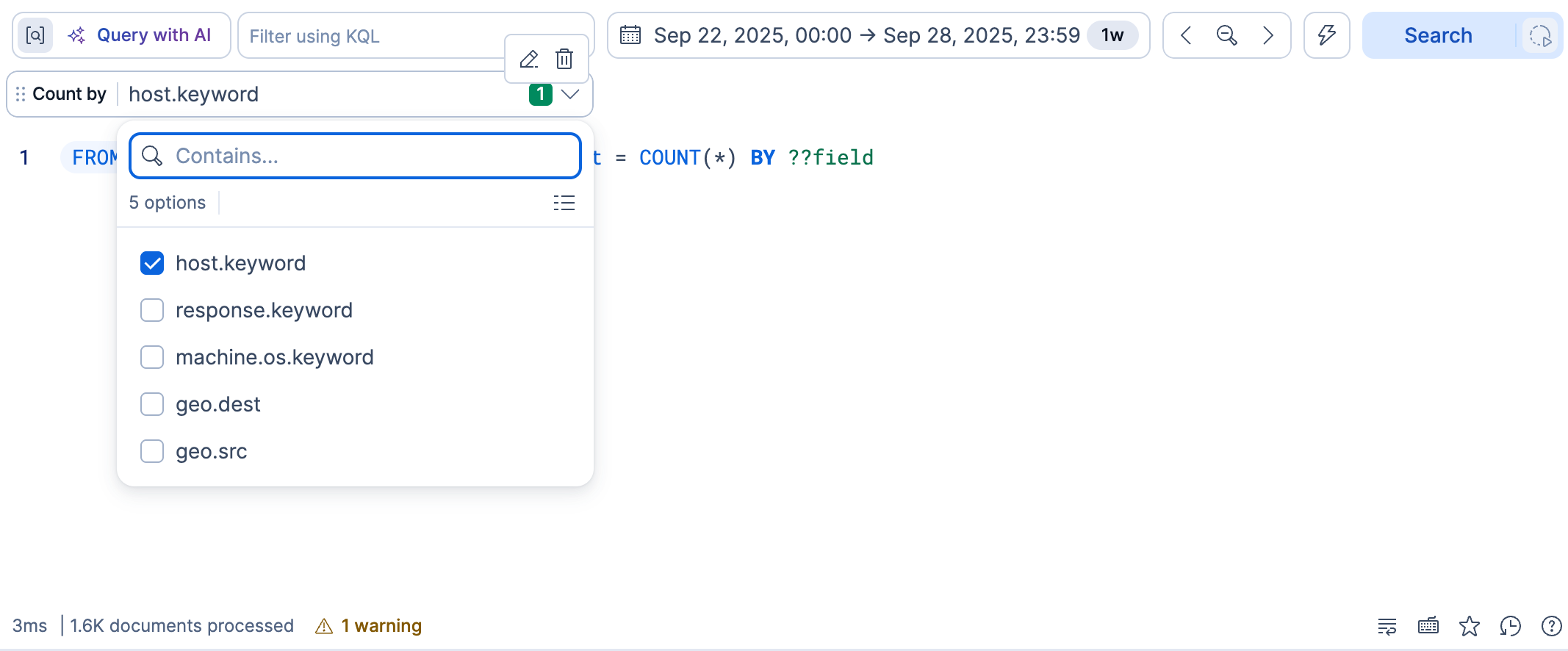
You can create controls that let users select multiple values. To do that:
1. Add the [`MV_CONTAINS`](https://docs-demo.elastic.dev/docs/reference/query-languages/esql/functions-operators/mv-functions/mv_contains) function to your query, with the field as the first parameter (superset) and a [variable](#add-variable-control) as the second parameter (subset). For example:
```esql
FROM logs-* | WHERE MV_CONTAINS(field, ?values)
```
Multi-selection is only available for `?values` variables, not for `??fields` or `??functions` variables.[`MV_CONTAINS`](https://docs-demo.elastic.dev/docs/reference/query-languages/esql/functions-operators/mv-functions/mv_contains) checks that _all_ subset values are present.Elastic Cloud Serverless: Preview Elastic Stack: Preview since 9.4 If matching _any_ subset value is enough, use [`MV_INTERSECTS`](https://docs-demo.elastic.dev/docs/reference/query-languages/esql/functions-operators/mv-functions/mv_intersects) instead.
2. When defining the control, select the **Allow multiple selections** option.
3. Save the control.
The newly configured control becomes available and allows users to select multiple values.
### Edit a variable control in Discover
To change a control, hover over it and select the `pencil` edit button. You can change every option except the name, so the `?` or `??` prefix stays the same. For the options, refer to [Add variable controls to Discover queries > Create a variable control from the Discover editor](#add-variable-control). When you save your edits, Discover updates the control for your query.
### Add a Discover query and its controls to a dashboard
To add the results of your Discover explorations to a dashboard in a way that preserves the [controls created from Discover](#add-variable-control) and also adds them to the dashboard, you have two methods:
**Method 1: Adding the Discover session's results**
This method allows you to add the result table of your Discover ES|QL query to any dashboard.
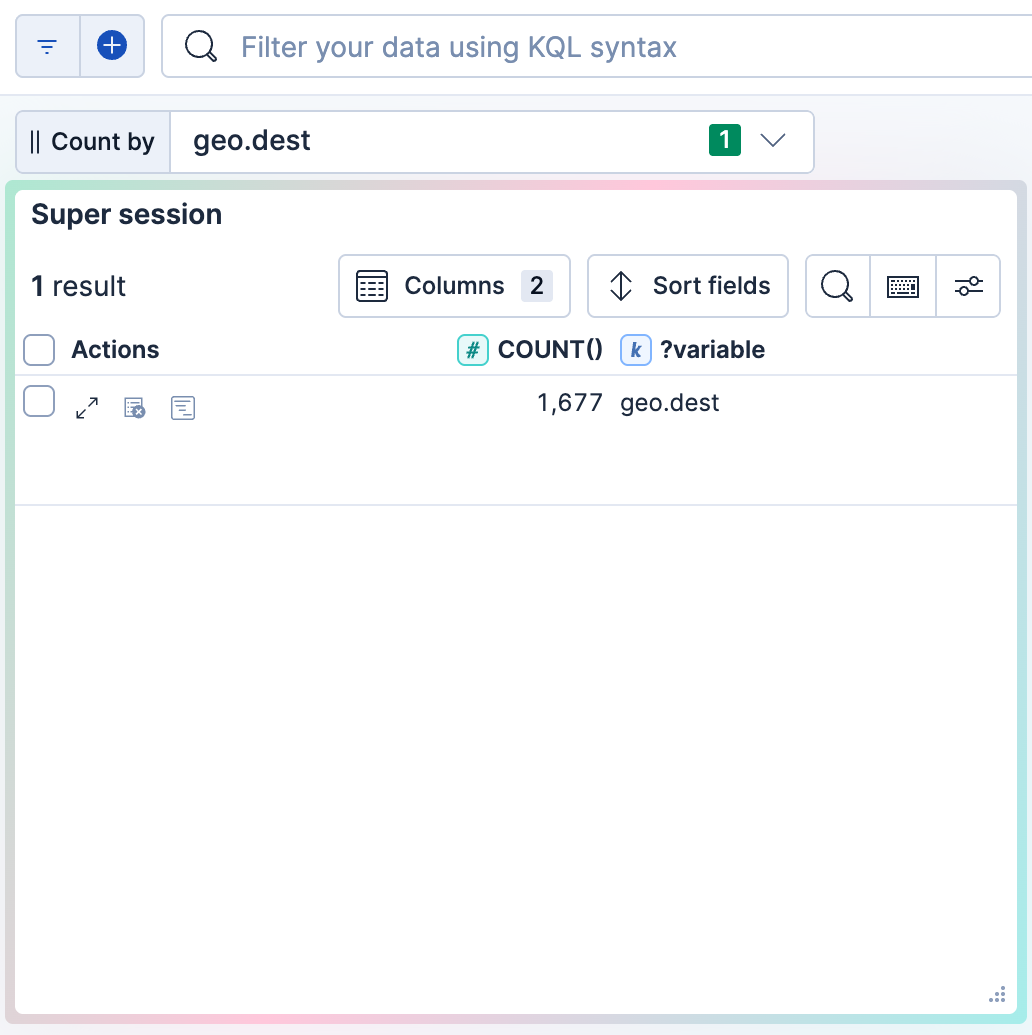
1. Save the ES|QL query containing the variable control into a Discover session. If your Discover session contains several tabs:
- Elastic Cloud Serverless: Generally available Elastic Stack: Generally available since 9.4 You can select which tab the panel displays after adding the session to a dashboard.
- Elastic Stack: Generally available from 9.2 to 9.3 Only the first tab is imported to the dashboard.
2. Go to **Dashboards** and open or create one.
3. Select **Add**, then **From library**.
4. Find and select the Discover session you saved earlier.
A new panel appears on the dashboard with the results of the query along with any attached controls.
Elastic Cloud Serverless: Generally available Elastic Stack: Generally available since 9.3 **Method 2: Adding the Discover visualization**
This method allows you to add the visualization of your Discover ES|QL query to any dashboard.
1. Next to the Discover visualization, select `add_to_dashboard` **Save visualization to dashboard**. In 9.3, the button is `save` **Save visualization**.
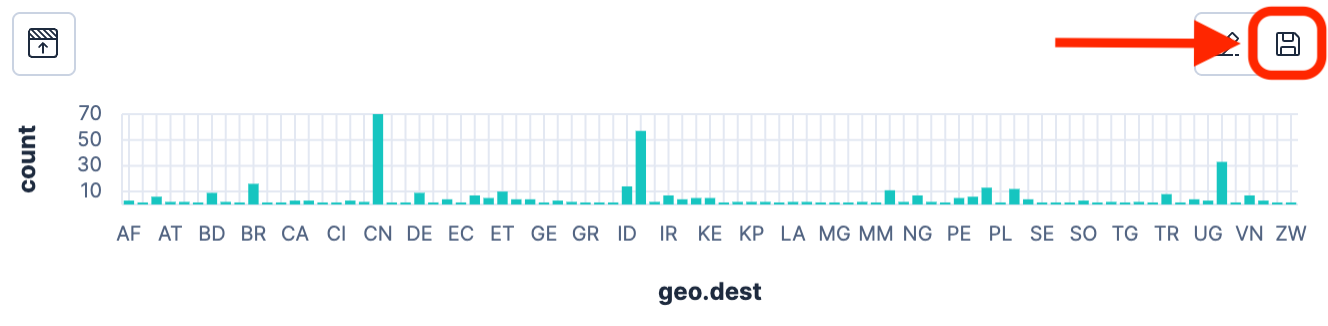
2. Select the dashboard to add the visualization to. You can select an existing dashboard or create one.
The selected dashboard opens. It now includes a new panel that shows the visualization imported from Discover. Existing controls from the initial query in Discover are also added. You can find them at the top of the dashboard.
## Related pages
- [How to query in Discover's ES|QL mode](https://www.elastic.co/docs/explore-analyze/discover/use-esql)
- [Add variable controls to dashboards](https://www.elastic.co/docs/explore-analyze/visualize/add-variable-controls)
- [Save and manage Discover sessions](https://www.elastic.co/docs/explore-analyze/discover/save-open-search)