---
title: Connectors in Elastic Agent Builder
description: Learn about the Agent Builder connectors library, which configures access to external systems for agents.
url: https://www.elastic.co/docs/explore-analyze/ai-features/agent-builder/connectors
products:
- Elastic Cloud Serverless
- Elastic Documentation
- Elastic Observability
- Elastic Security
- Elasticsearch
- Kibana
applies_to:
- Elastic Cloud Serverless: Preview
- Elastic Stack: Preview since 9.4
---
# Connectors in Elastic Agent Builder
Elastic Agent Builder connectors give agents access to external systems, such as messaging services, cloud functions, and third-party APIs. Agents use connectors to act on those systems without you building a custom tool for each action.
The connectors library is hidden until you turn on the `agentBuilder:experimentalFeatures` [advanced setting](/docs/explore-analyze/ai-features/agent-builder/get-started#enable-experimental-features-optional) in Kibana.
Elastic Agent Builder connectors use the underlying Kibana [Stack connectors](https://www.elastic.co/docs/deploy-manage/manage-connectors) framework to store credentials securely and manage integrations. They're different from [Generative AI connectors](https://www.elastic.co/docs/explore-analyze/ai-features/llm-guides/llm-connectors), which only configure external LLM providers.
Elastic Stack: Deprecated since 9.5 Elastic Cloud Serverless: Deprecated Generative AI connectors are deprecated. This deprecation doesn't affect Elastic Agent Builder connectors.
You manage connectors per Kibana space from **Manage components** → **Connectors**. For the available connector types, refer to [Data and context sources connectors](https://docs-demo.elastic.dev/docs/reference/kibana/connectors-kibana/data-context-sources-connectors). Some connector types in the catalog show a **Technical preview** badge.
## How agents use connectors
When an agent needs to interact with an external system, it reads the schemas of the connectors available to it. It then runs the sub-action it needs through a built-in system tool, `platform.core.execute_connector_sub_action`, and fills in the sub-action's parameters itself. For example, it can look up a Slack channel ID or search AlienVault OTX for threat intelligence.
Elastic Stack: Planned Elastic Cloud Serverless: Preview An agent can only run the connectors assigned to it. At run time, it uses the built-in [`connector-discovery` skill](/docs/explore-analyze/ai-features/agent-builder/builtin-skills-reference#agent-builder-connector-discovery-skill) to look up its connectors and load their sub-actions and parameter schemas. **Enable Elastic capabilities** includes this skill. To assign connectors, refer to [Assign connectors to an agent](#assign-connectors-to-an-agent).
Elastic Stack: Planned Elastic Cloud Serverless: Preview Within those connectors, an agent sees only the actions that the connector allows and that aren't marked **Workflow only**. Refer to [Limit a connector's actions](#limit-a-connectors-actions).
Elastic Stack: Preview from 9.4 to 9.5 Unlike standalone tools, connectors don't need to be assigned to agents. Any agent can run any connector in the space.
## Add a connector
To add a connector to the library:
1. In the left sidebar, select **Manage components** → **Connectors** to open the **Connectors library**.
2. Click **Create connector**.
3. Select a connector type from the catalog.
4. Provide the required configuration.
5. Elastic Stack: Planned Elastic Cloud Serverless: Preview (Optional) If the form includes **Actions**, select **Custom** to limit which actions the connector can run. Refer to [Limit a connector's actions](#limit-a-connectors-actions).
6. Click **Save**.
The configured connector appears in the library.
Elastic Stack: Planned Elastic Cloud Serverless: Preview To let an agent use the connector, [assign it to the agent](#assign-connectors-to-an-agent).
Elastic Stack: Preview from 9.4 to 9.5 Any agent can use the connector immediately.
## Limit a connector's actions
- Elastic Cloud Serverless: Preview
- Elastic Stack: Planned
Newer connector types, such as Gmail, Jira Cloud, and GitHub, include an **Actions** setting on the create and edit form when they define more than one action. Older connector types, such as Email, Jira, and ServiceNow ITSM, don't show it, even when they have several actions.
The setting applies everywhere the connector runs: in agents, workflows, and the [Run a connector API](https://www.elastic.co/docs/api/doc/kibana/operation/operation-post-actions-connector-id-execute). Kibana rejects calls to actions that the setting doesn't allow.
### Choose which actions to allow
The **Actions** setting has two options:
The default. Allows every action, including actions added to the connector type in later versions.
Allows only the actions you select. You must select at least one action.
When you first switch to **Custom**, the **read** actions are selected by default. You can change the selection.
Actions added to the connector type later stay unselected until you edit the connector and select them.
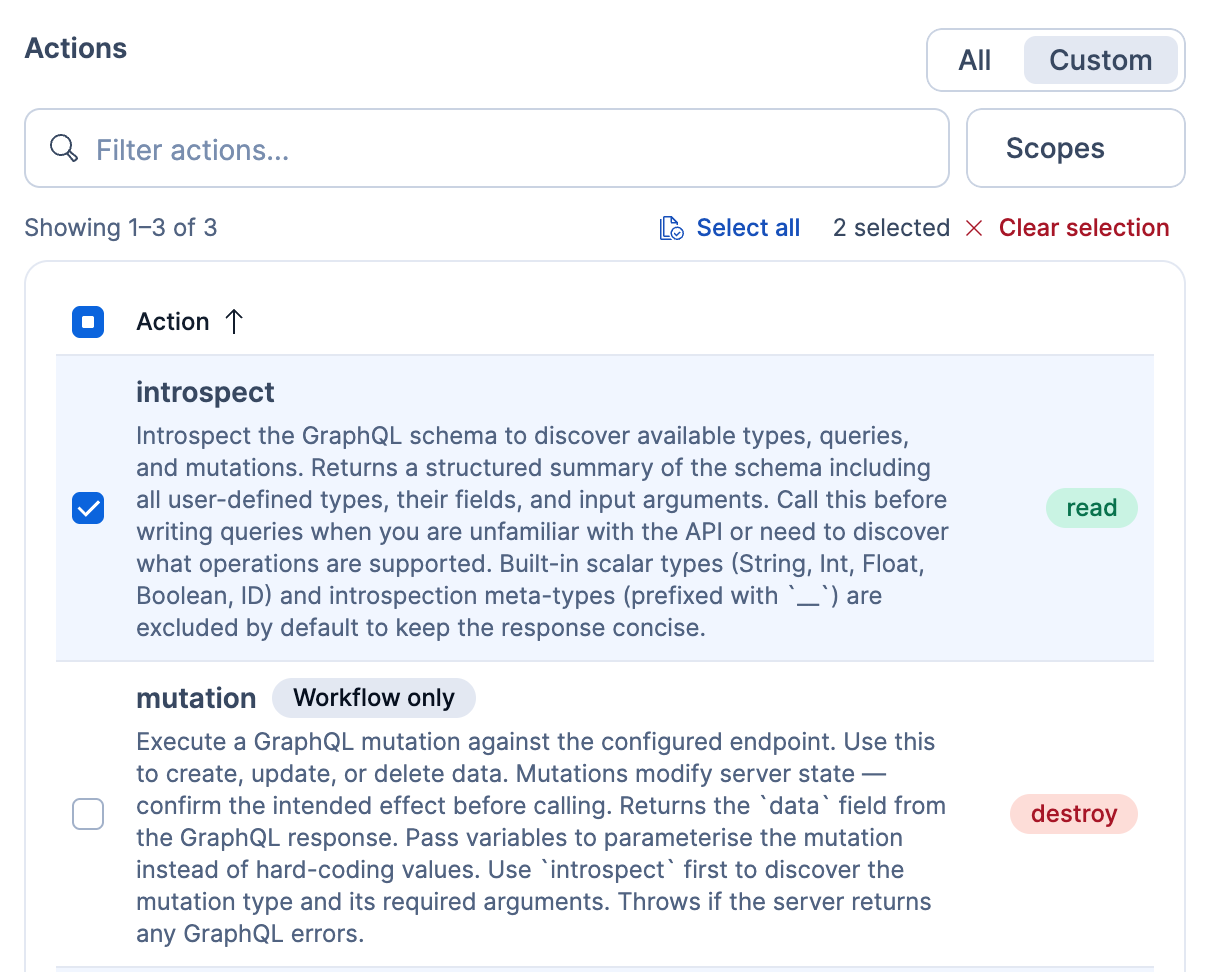
Each action has a scope badge: **read**, **write**, or **destroy**. Some actions also have a **Workflow only** badge. Agents can't run these actions, even when the connector allows them. The Run a connector API can run them, and so can workflows, for connector types available in workflows.
The following screenshot shows a GraphQL connector in **Custom** mode, with its **read** actions selected and a **Workflow only** action left unselected:
### Change the actions on an existing connector
To change which actions an existing connector allows:
1. In the sidebar, select **Manage components** → **Connectors**.
2. In the **Connectors library**, click the connector name to open its edit form.
3. Under **Actions**, select **Custom**.
4. Select the actions to allow.
5. Click **Save**.
### Allow actions for workflows but not agents
The allowed actions are the same for every caller of the connector. To make an action with the **write** or **destroy** badge available to workflows but not to agents:
- Use a separate connector for workflows, and don't [assign it to the agent](#assign-connectors-to-an-agent).
- Don't give the agent a workflow tool that runs that workflow.
This works only for connector types available in workflows.
## Assign connectors to an agent
- Elastic Cloud Serverless: Preview
- Elastic Stack: Planned
New agents start with no connectors. You assign connectors from the agent after you save it. You can also [create a connector in chat and assign it to that agent](#assign-a-connector-from-chat).
To assign connectors in Kibana, you need:
- Permission to edit the agent
- The **Actions and Connectors: All** Kibana privilege
If **Enable Elastic capabilities** is off for the agent, also assign the built-in `connector-discovery` skill on the agent's **Skills** page. Without it, the agent can't find its connectors.
To assign a connector to an agent:
1. Select the agent, then select **Customize** → **Connectors** in the left sidebar.
2. Select **Add connector**.
3. Select one of the following:
- **From library**: Assign connectors that already exist in the connectors library.
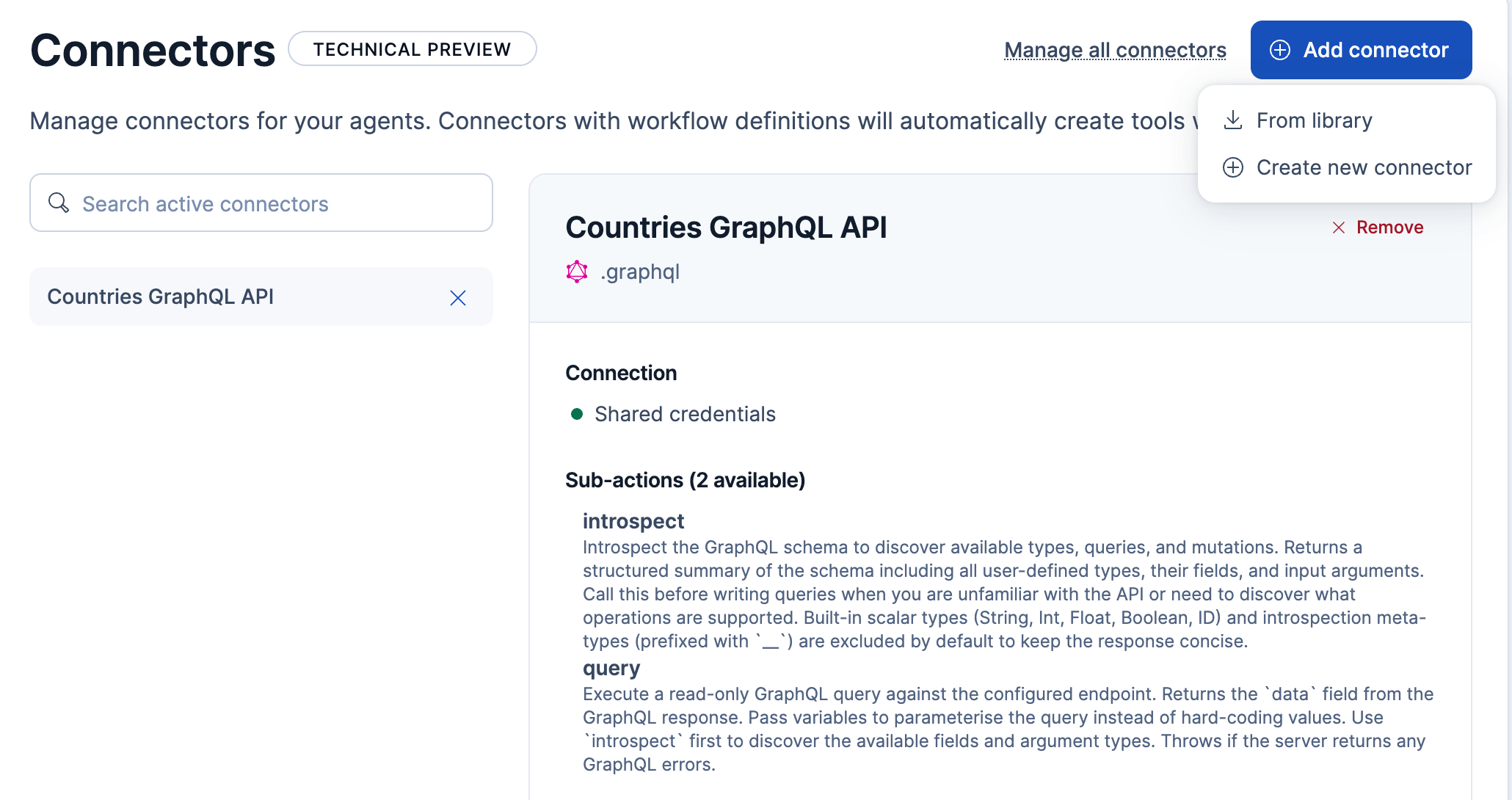
- **Create new connector**: Configure a new connector. Kibana adds it to the library and assigns it to the agent.
The connector and its sub-actions appear on the agent's **Connectors** page. The following image shows the page with one assigned connector and the **Add connector** menu open:
To stop an agent from using a connector, select the connector on the agent's **Connectors** page, then select **Remove** and confirm. The connector stays in the library, and other agents it's assigned to can still use it.
### Check which agents need connectors
An agent that was never assigned connectors can't use any. Check for the following agents and assign the connectors they need:
- The built-in **Elastic AI Agent**.
- Agents created with the [Agents API](/docs/explore-analyze/ai-features/agent-builder/kibana-api#agents-apis) without `connector_ids`.
- Elastic Stack: Planned Agents created in 9.4 or 9.5 without a connector list. In those versions, these agents could use any connector.
- Elastic Cloud Serverless: Preview Existing agents without a connector list, including agents created before new agents started with an empty list. Previously, these agents could use any connector.
Also check agents that already had a connector list in 9.5 or on Serverless, and assign any connectors they still need. These agents can run only the connectors in their list. Previously, the list limited which connectors an agent could discover, not which ones it could run.
### Assign a connector from chat
When you create a connector from chat with the [`connector-authoring`](/docs/explore-analyze/ai-features/agent-builder/builtin-skills-reference#agent-builder-connector-authoring-skill) skill, Kibana adds it to the connectors library. If you have the required privileges, Kibana also assigns it to the agent in that conversation.
You need these privileges:
- To create the connector: **Actions and Connectors: All**.
- To also assign it: [**Create and edit agents**](/docs/explore-analyze/ai-features/agent-builder/permissions#kib-privileges) and permission to edit the agent.
To create a connector from chat:
1. On the connector setup card in the conversation, select **Configure connector**.
2. Complete the form.
3. Select **Create connector**.
You can edit the **Elastic AI Agent**, so connectors you create while chatting with it are assigned to it. Other built-in agents are read-only.
If Kibana can't assign the connector, it still creates it and shows a **Connector created, but not added to the agent** warning. This happens when:
- You don't have the **Create and edit agents** privilege.
- You can't edit the agent, such as a read-only built-in agent or an agent you only have [view access](/docs/explore-analyze/ai-features/agent-builder/custom-agents#access-control-settings) to.
To fix this, [assign the connector](#assign-connectors-to-an-agent) from the agent's **Connectors** page.
Connector types that the agent can't call from chat, such as email or Slack (v1), are added to the library only. For these types, Kibana doesn't show the warning unless you lack the **Create and edit agents** privilege.
## Authorize connector access from chat
- Elastic Cloud Serverless: Preview
- Elastic Stack: Preview since 9.5
When an agent needs access to an OAuth connector, the chat pauses and displays an authorization prompt. Select **Authorize** to open the provider's sign-in flow in a new browser tab. After authorization succeeds, return to the chat, where the agent retries the connector call and continues. Select **Deny** to cancel the call.
If authorization fails or the provider doesn't return you to Kibana, close the provider tab and select **Deny** in the chat. Correct the connector or OAuth configuration, then retry your request. To learn more about this prompt, refer to [Authorize a connector](/docs/explore-analyze/ai-features/agent-builder/chat#authorize-a-connector).
## Related pages
- [Tools in Elastic Agent Builder](https://www.elastic.co/docs/explore-analyze/ai-features/agent-builder/tools)
- [Skills in Elastic Agent Builder](https://www.elastic.co/docs/explore-analyze/ai-features/agent-builder/skills)
- [Plugins in Elastic Agent Builder](https://www.elastic.co/docs/explore-analyze/ai-features/agent-builder/plugins)
- [Custom agents](https://www.elastic.co/docs/explore-analyze/ai-features/agent-builder/custom-agents)